1
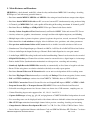
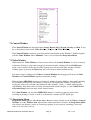
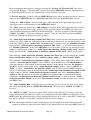
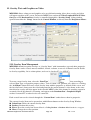
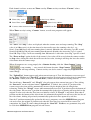
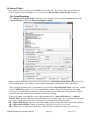
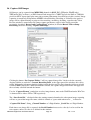
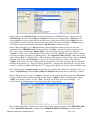
The “Current Chan” combo box at the upper-left corner indicates which MPEGIO2 channel has the
Video I/O settings on the dialog, selecting a different channel number will immediately reflect the new
channel’s various settings in the entire dialog window.
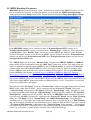
The “Preview TV Signal” field below the “Current Chan” indicates the TV Signal type this channel
currently uses to display video preview and to encode MPEG video: this is always either PAL or NTSC,
it will NOT be no signal since the MPEGIO2 hardware always uses either NTSC or PAL to encode and
preview video. To manually force the channel to use either PAL or NTSC as its Preview TV Signal, use
the “TV Signal on This Input Src” combo box:
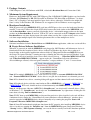
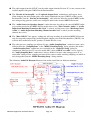
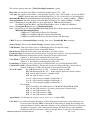
The “Video Input Source” combo box indicates one of the 6 “Video Input Sources” an MPEGIO2
channel has: VIN0~VIN3 RCA, VIN4 RCA and VIN5 S-Video. When this changes, the content in
“TV Signal on This Input Src” will reflect the Input Source’s current signal type, inc. “No Signal”
status. However, if manually force a PAL or NTSC signal type in the “TV Signal on This Input Src”
combo box, the “Preview TV Signal” field below the “Current Chan” combo box will also get that
signal type, indicating this channel’s video preview and MPEG encoding TV signal type has been
changed. By default, a channel set its video preview and MPEG encoding TV signal (the “Preview TV
Signal” field) according to its 1st video input source with signal currently being used by at least one of
its 4 “Sub Windows”: this can be manually overridden if a different PAL or NTSC signal type is
selected from the “TV Signal on This Input Src” combo box. Forcibly selecting a different PAL/NTSC
signal type this way therefore can be used to preview video and encode MPEG video in the PAL/NTSC
type different from a Video Input Source’s actual signal type, with MPEGIO2 hardware doing the realtime PAL-to-NTSC or NTSC-to-PAL conversion. Please note: do not forcibly change to different
PAL/NTSC signal type when a channel is encoding or decoding!
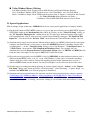
When MPEGIO2.exe program starts up, if all input sources used by some Sub Windows for a channel
have no signal, then the Country/Regional/Language setting in MS Windows’ Control Panel will be
used to decide NTSC or PAL is used as the “Preview TV Signal”: USA/Japan etc. will use NTSC, UK,
Australia etc. will use PAL: however, the command line switch –g can override this, see the section
“Command Line Parameters” for more details.
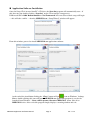
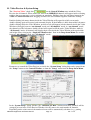
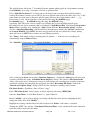
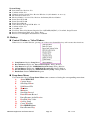
Each MPEGIO2 channel has 4 “Video Sub Windows”: they are selected from the “Sub Win No:”
combo box as “SubWin0 ~ SubWin3”. Each Sub Window can select a “Video Input Source” as its
input signal source: video from that input source will appear inside this Sub Window within the video
frame, or no video will appear if that input source has no signal. Clicking the “Connect Src to Sub”
button (between the “Video Input Source” and the “Sub Win No”) assigns the “Video Input Source”
to the “Sub Window”. Note same “Video Input Source” can be connected to multiple Sub Windows.
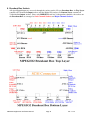
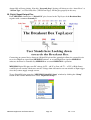
The VIN 0, VIN 3, VIN 4 RCA and the VIN 4 SVideo Input Sources are direct sockets on the top layer
of the Breakout Box: connecting external video sources to them will make the external signal type to
appear in the “TV Signal on This Input Src” combo box.
The VIN1 Input Source is always connected to the MPEG Decoding (Playback) output, the VIN2 Input
Source always has no signal since it’s not connected.
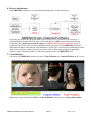
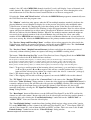
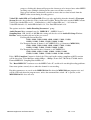
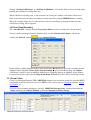
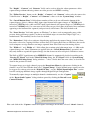
The “Set Positions” button arranges the positions of the 4 Sub Windows inside the video frame on PC
screen and on encoded MPEG video. The “Common Pos.” combo box provides common positions for
the 4 Sub Windows: 4-SubWindows Equal Split, SubWin 0 Full Screen, Picture-in-Picture, etc. Note
the “Sub Win Common Pos” selection from the Dropdown Menu has the same function.
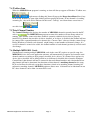
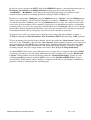
The “Set Cropping” button will crop the size of the currently selected Video Input Source: it is
recommended to use the default values for the cropping for PAL and NTSC signals.
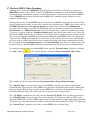
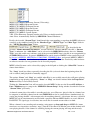
Below the “Sub Win No”, the “Sub Window Operation” groups operations on a Video Sub Window:
MPEGIO2 Application Software Manual
Page 10
Ver. 1.0.2