1
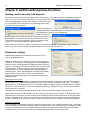
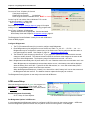
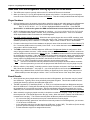
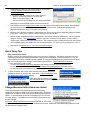
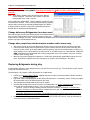
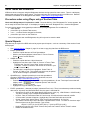
Chapter 6: Additional Bridgemate functions 31 Entering results Results can be entered in three ways: as overtricks / downtricks, as the total number of tricks won, or by using the American style (tricks made/down). The default setting is overtricks / downtricks. Displaying the pair number If you do not wish to display the pair numbers in the round-information screen, disable the “Show pair numbers at round info” function. This option can be used for team-of-four events. Transmitting contracts The Bridgemate offers users the option of feeding information to the server immediately after the contract and/or lead card have been entered. This could for example be displayed on vuegraph presentations while the game is still being played. If you wish to feed this information to the server, check the “Intermediate transmission of contract” box. Board order verification Check the relevant box if you would like the Bridgemate to check whether the boards are to be played in the logical order. An error message will appear on the Bridgemate if the entered board number does not correspond to the logical order. The logical order starts with the first board of the round and the numbers of subsequent boards should be entered in ascending order. For example, if boards 1 to 3 are to be played in round A, the logical order is 1, 2, 3,. Lead card If you would like to enter the lead card on the Bridgemate, check this setting. Member numbers If you would like to enter the member numbers on the Bridgemate, check this setting. By default, players have the option of leaving the entry blank when entering the member number. If entry of member numbers is compulsory, check the “Blank entry not allowed” box. Show contracts using Use this function to specify whether the Bridgemate displays card symbols or letters for the contracts. Autopower-off periods The Bridgemate will automatically go into autopower-off mode if it remains idle for a while. The default setting is 20 seconds. To change this setting, enter a value between 5 and 60 seconds in “Autopower-off period”. In “Verification message”, enter the length of time you would like the message “Verification by East or West” to be displayed. Update settings during play Option settings are sent to the Bridgemates when a new session is started and Bridgemates log in to the server. It is also possible to modify the Bridgemate settings during play and have the Bridgemates use these new settings. To update the Bridgemate settings after the Bridgemates have already started the session, do the following: 1. 2. 3. 4. 5. 6. 7. Update the Bridgemate settings through the Bridgemate tab in BCS (Tools Options) or in ACBLscore. Go to menu Server Show Tables. Select the tables you wish to update the settings for. Note, CTRL + A will select all the tables at once. Press the “Update settings” button. Go to each Bridgemate Pro that is to have the new options settings. Use the TD Menu #0 to reset the unit. The new settings will take effect when the Bridgemate logs on again. System functions The Bridgemate has two separate system functions. In both cases, the Bridgemate communication cable must be connected to the PC. Changing Firmware The Bridgemate is controlled by a piece of software in the internal memory. This software can be changed from BCS. This means that the Bridgemate can be updated and new functions can be added. The language selection