1
Workbook Training Manual – V3.1
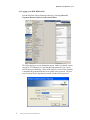
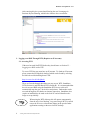
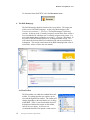
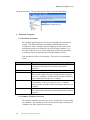
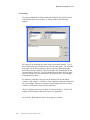
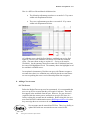
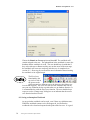
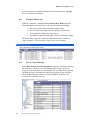
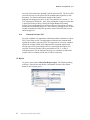
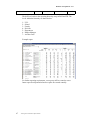
After entering this, the system should load up the user’s homepage in
Business Objects Planning, which looks similar to the screen below.
3. Logging on to BOP Through WTS (Requires an IS Account)
3.1. Accessing WTS
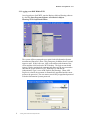
If the user has used Staff WTS before they should move to Section 3.2 –
Logging on to BOP within WTS.
To access WTS the user must have an IS account. To obtain an IS account
please contact the IS Helpdesk, details of which can be found by selecting
the link below whilst holding down CTRL.
http://www.ucl.ac.uk/is/helpdesk/
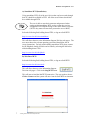
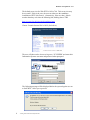
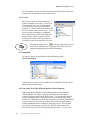
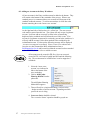
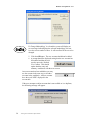
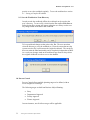
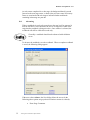
There are 2 modes through which the user may access WTS, Standalone
WTS (Section A) and Web Based WTS (Section B). It is recommended that
the user accesses BOP using the Standalone WTS access as this will
automatically map the user’s local drives and printers. Both modes can be
accessed through any PC that has an internet connection. Standalone does
require an installation to be made to the local PC and will therefore take
longer to set up initially.
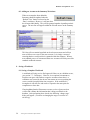
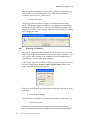
When using the WTS desktop, this will operate autonomously
from the user’s local desktop. Any processing in WTS is carried
out on the IS server so should not impact on the speed of other
applications running on the users local PC desktop.
6
Training Notes for Business Objects Planner