1
Manipulating Images
Configuring the image fusion pipeline
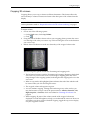
You can change the displayed color range of the fused image by configuring the image
fusion pipeline.
To configure the image fusion pipeline:
1.
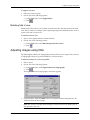
Select the fused series viewport.
2.
Choose one of the following options:
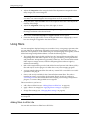
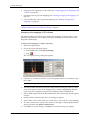
On the Tools menu, click Image Fusion
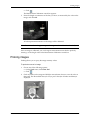
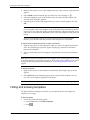
Click the arrow to the immediate right of
The Image Fusion pop-up menu appears.
3.
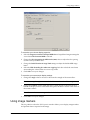
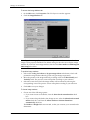
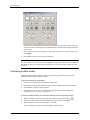
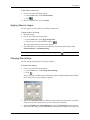
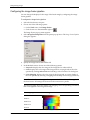
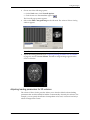
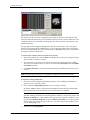
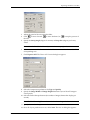
Select Image Fusion Pipeline from the preset pop-up menu. The Image Fusion Pipeline
dialog box appears.
4.
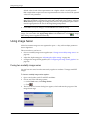
Specify the foreground as either PT or CT.
5.
In the Method section, choose one of the following options:
Grayscale: displays the color range of the foreground as white to black.
Color: displays the color range of the foreground as varying shades of the color
specified by clicking Select Color and selecting a color from the Color dialog box.
Color Mapping: displays the color range of the foreground as varying shades of
the color specified by selecting a mapping from the drop-down list (e.g., Rainbow).
Note: The colored bar on the right offers a preview of the blend that will be applied to
the fused series. All settings will be saved in the current user’s profile.
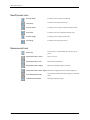
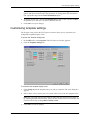
The following table shows the default color mappings and corresponding colored bar
that can be applied to the foreground image.
Color Mapping
Color Range Bar
HotMetal
Rainbow
Rainbow16
Rainbow65
Bronson
50
eFilm Lite User Guide