1
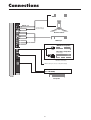
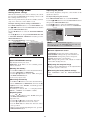
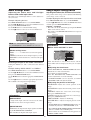
Connecting Your PC or Macintosh Computer
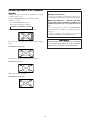
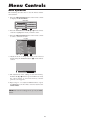
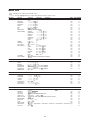
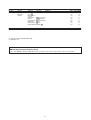
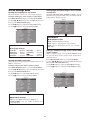
Connecting Your VCR
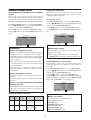
Connecting your PC or Macintosh computer to your plasma
display will enable you to display your computer’s screen
image for an impressive presentation. The plasma display
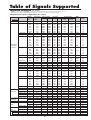
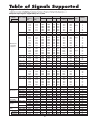
supports the signals described on pages 35-38.
To connect a PC or Macintosh simply:
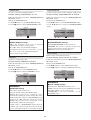
Use common RCA cables* (not provided) to connect your
VCR to your plasma display. To make these connections,
simply:
1. Turn off the power to your plasma display and VCR.
1. Turn off the power to your plasma display and computer.
2. Connect one end of your RCA cable to the video output
connector on the back of your VCR, connect the other
end to the Video input on your plasma display. Use
standard RCA audio patch cables to connect the audio
from your VCR to your plasma display (if your VCR
has this capability). Be careful to keep your right and
left channel connections correct for stereo sound.
2. If your PC does not support SXGA/XGA/SVGA/VGA
you will need to install an SXGA/XGA/SVGA/VGA
graphics board. Consult your computer’s owner’s manual
for your SXGA/XGA/SVGA/VGA configuration. If you
need to install a new board, see the manual that comes
with your new graphics board for installation instructions.
3. Turn on the plasma display and the VCR.
3. This plasma display provides signal compatibility up to
VESA 16001200 (UXGA). However, it is not
recommended to use this resolution due to image
readability.
Note: Refer to your owner’s manual for more
information about your equipment’s video output
requirements.
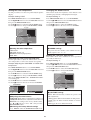
4. Connect a D-sub HD15 pin cable* from the side of the
display to a PC or Macintosh®. For Macintosh, use a
monitor adapter (not included) to connect to your
computer’s video port, if necessary.
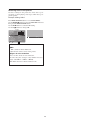
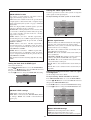
Connecting Your DVD Player
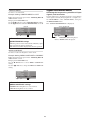
You can connect your plasma display to a DVD player. To
do so, simply:
5. Turn on the plasma display and the computer.
6. If the plasma display goes blank after a period of inactivity,
it may be caused by a screen saver installed on the computer
you’ve connected to the plasma display.
When using a Macintosh with the plasma display, the
following four display standards are supported using the
Macintosh adapter :
13" fixed mode
16" fixed mode
19" fixed mode
21" fixed mode
The 19" fixed mode is recommended for your monitor.
1. Turn off the power to your plasma display and DVD
player.
*Note: D-sub HD15 pin cables, RCA cables, and
component cables, can be found at your local electronics
store.
4. Turn on the plasma display and the DVD player.
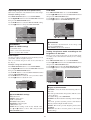
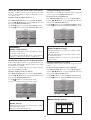
2. Use a component video cable* (not provided) to
connect your DVD player to the Y, Cb, and Cr inputs
on your plasma display.
Or use the DVD-player’s S-Video output. Use a standard
S-Video (not provided) cable to connect to the S-Video
input on the plasma display.
3. Use standard RCA audio patch cables to connect the
audio from your DVD Player to your plasma display.
7