1
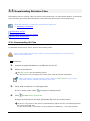
4.5 Sorting Dictation Files
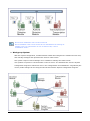
When dictation files are downloaded from a recorder, they can be sorted and routed to particular download
destinations based on their Author ID or Worktype ID. Or dictation files from all of the folders on a device,
regardless of the file properties, can be downloaded and collected into a single folder on a PC. Settings need
to be pre-configured to sort downloaded files.
When the settings described below are configured, downloading dictation files from a device causes them to
be downloaded to specified folders based on Author ID and Worktype ID.
The settings specify import rules when downloading and importing dictation files.
The procedure you need to perform depends on auto sorting conditions.
Procedure A
Use the following procedure to configure settings to download the file from the folders on a recorder and
collect them into a single folder.
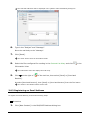
1.
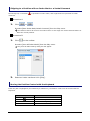
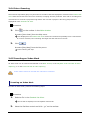
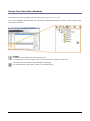
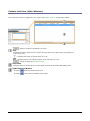
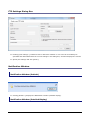
Select [Options] from the Tool menu.
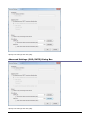
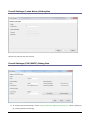
The Option Settings dialog box will appear.
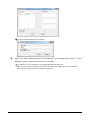
2.
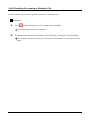
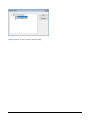
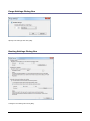
Click the Workflow tab.
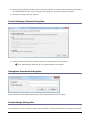
The Option Settings Workflow dialog box will appear.
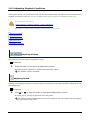
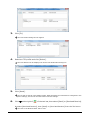
3.
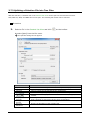
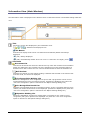
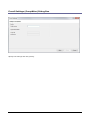
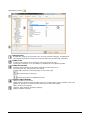
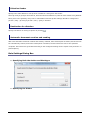
On the menu tree, click [Advanced Download].
The auto sort settings information screen will appear in the right frame.
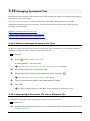
4.
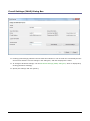
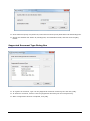
Select the [Download all dictations to..] check box.
This enables the auto sort function.
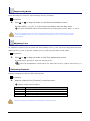
5.
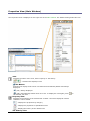
Select [Specific folder].
This enables the
6.
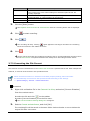
Click the
button.
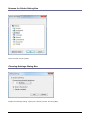
button and then use the Select Folder dialog box that appears to
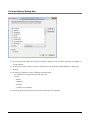
specify the folder you want to use as the download destination to collect the files.
Procedure B
Use the following procedure to configure settings when to route files to download destination folders
based on their Author ID or Worktype ID.
1.
85 / 197
On the [Tools] menu, click [Options].