1
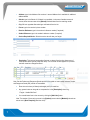
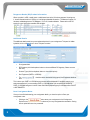
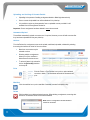
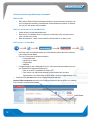
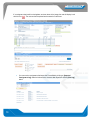
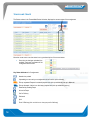
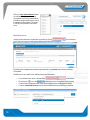
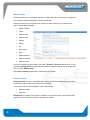
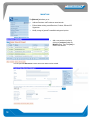
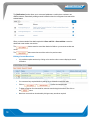
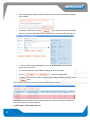
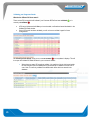
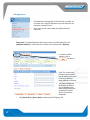
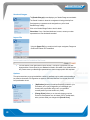
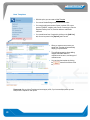
Dangerous Goods (DG) Product Information When a product is a DG, a small green or red diamond next to the UN column appears. Hovering over it, shows information about it. Clicking on it will bring up detailed information. The diamond is green if it has been validated against our DG database. If it is red, it needs validation. Please refer to the DG section for more information regarding DG validation. Additional Details The additional details panel lets you set advanced options for your consignment. This panel is hidden by default, click on the icon to view. This panel contains: Consignment date DG Signature (click the dropdown button to choose a different DG signatory if there are more than one) Contract Type (click the dropdown button to view other options) Hire Equipment (CHEP or LOSCAM) The above checkbox when checked will bring up the Hire Equipment details as This is where your CHEP or LOSCAM account number will be displayed if it has been setup by your sales representative. If you are sending CHEP or LOSCAM pallets you can specify the number of CHEP or LOSCAM being sent in the No. items field. With Equipment type you can select either PALLET or NOTRANSFER. Save Consignment Notes Once you have finished entering your consignment details, you have the option to Save your consignment notes. 8 8 Clicking on the button saves your consignment to the Consignment Review list and opens a new note. This does not print any consignment documentation. Saving will not upload the note to be processed.