1
| Operation and Usage | 48
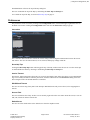
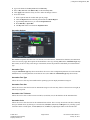
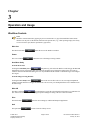
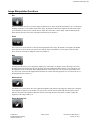
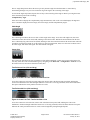
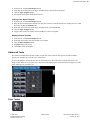
The Smart Window/Level tool allows the User to do an automatic Window/Level optimization determined by a userselectable box. To use the Smart W/L, select the tool from the tool bar, then click, hold, and drag to draw the box.
Release the mouse button when the box is a sufficient size. The box will optimize the W/L setting for the selected
area.
Invert
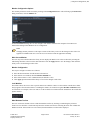
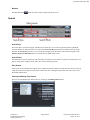
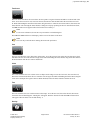
The Invert tool will invert the colors of the image. To use the Invert tool, first locate it in the tool bar. Then single
mouse click to invert the image.
Reset
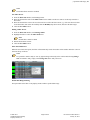
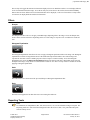
The Reset button will return the image to the state it was in when it was opened. It will remove any Window/Level,
Zoom, Invert, and Rotation manipulations done to the image. It will not, however, remove annotations on the image.
To use the Reset tool, locate it in the tool bar, then click it once to reset the image.
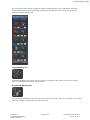
Image Layouts
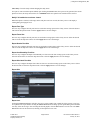
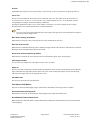
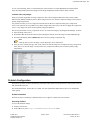
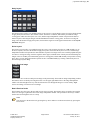
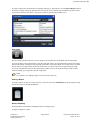
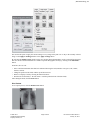
The image layout tool allows the User to compare two or more images side by side. Clicking on the Image Layout
button will pop-up the Layout Selections dialog box.
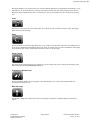
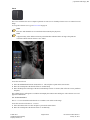
Predetermine Window/Level
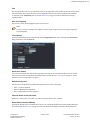
The Predetermined Window/Level tool applies a specified Window/Level values to the image that had been
previously been set by the user.
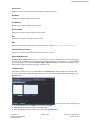
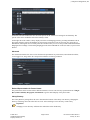
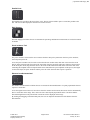
Mark Key Image
The Mark Key Image tool classifies the current viewed image as important. All marked images are attached to
reports.
© 2007-2014
Confidential and Proprietary
Property of iCRco, Inc.
Page 48 of 86
Doc # HC-CLS-0019-09 Rev I
January 10, 2014