1
Useful Operations for Printing From a Computer
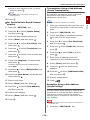
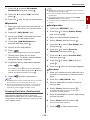
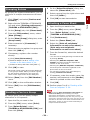
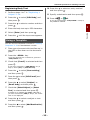
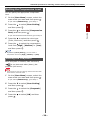
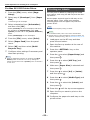
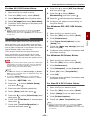
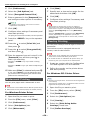
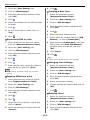
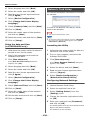
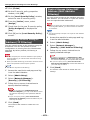
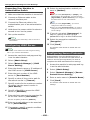
13 Make sure [Print] is selected and press
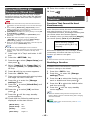
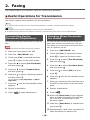
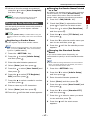
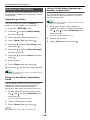
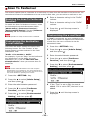
Secure Printing (for
e-STUDIO403S Only)
OK
.
If you select [Delete], you can cancel the print
job.
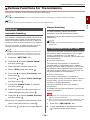
You can assign a password to a print job so it can
only be printed if the password is input at the
operator panel.
14 Enter the number of copies and then
In order to use this function, the machine must
be equipped with an SD memory card.
z If you forget your password set for a job and do not print
the job transmitted to the machine, the job remains in the
SD memory card.
press
z If there is not enough space on the SD memory card for
the spooled data, a message indicating the file system is
full appears and the print job does not start.
Note
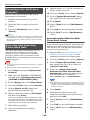
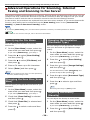
Encrypted Secure Printing
(for e-STUDIO403S Only)
z This function is not available with the Windows PCL XPS
printer driver and the Mac OS X printer driver.
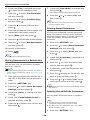
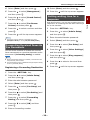
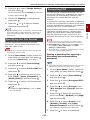
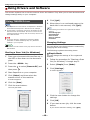
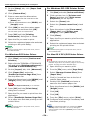
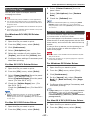
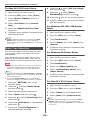
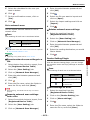
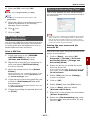
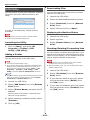
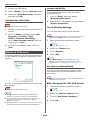
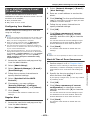
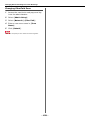
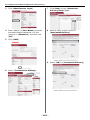
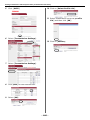
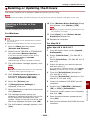
1
Open the file you want to print.
2
From the [File] menu, select [Print].
3
Click [Preferences].
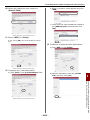
4
Select the [Job Options] tab.
5
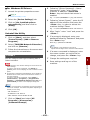
Select [Secure Print] at [Job Type].
6
Enter a job name in the [Job Name] box
and a password in the [Personal ID
Number] box.
The document is unprinted and stored in an
encrypted format on the SD memory card in the
machine until you enter the registered password
at the operator panel.
Note
If you select the [Request Job Name for each
print job] check box, a prompt for the job name
appears when you send the print job to the
machine.
z If there is not enough space on the SD memory card for
the spooled data, a message indicating the file system is
full appears and the print job does not start.
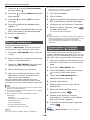
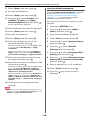
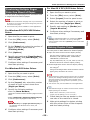
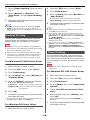
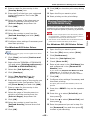
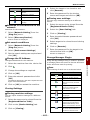
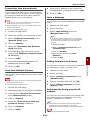
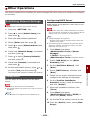
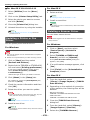
7
Click [OK].
8
Configure other settings if necessary and
then start printing.
The print job is sent to the machine, but is not
printed.
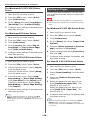
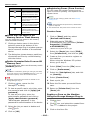
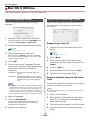
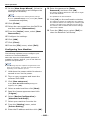
Press the <PRINT> key on the operator
panel.
then press
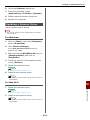
11 Press the
then press
.
to select [Stored Job] and
OK
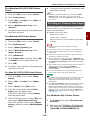
12 Enter your password set in step 6 in the
OK
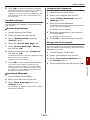
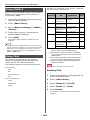
z This function is not available with the Windows PCL XPS
printer driver and the Mac OS X printer driver.
z You cannot use this function with the poster printing mode
and the booklet mode with the Windows PCL printer driver
if you share the machine with a print server.
z When you use this function, clear the [Give Priority to
the host release] check box.
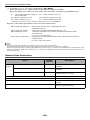
z [Start] > [Operator panel] > [Printers] > the TOSHIBA
e-STUDIO403S icon > [Properties] > [TOSHIBA
e-STUDIO403S(PS)] > [Device Settings] > [Print
only Encrypted data] cannot be enabled with Windows
Server 2008 and Windows Vista.
.
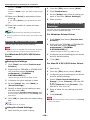
[Password] box and then press
start a job searching.
z This function is not available with printer drivers for the
64-bit editions of Windows 7, Windows Vista, Windows
Server 2008 R2, Windows Server 2008,Windows Server
2003, and Windows XP.
z [Start] > [Devices and Printers] > the TOSHIBA
e-STUDIO403S icon > [Printer properties] > [TOSHIBA
e-STUDIO403S(PS)] > [Device Settings] > [Print
only Encrypted data] cannot be enabled with Windows 7
and Windows Server 2008 R2.
to select [Print Job] and
OK
The print job stored on the SD memory card is
automatically deleted after printing or if it is not
printed for more than a certain period of time. If
an error occurs when the data is sent or if an
unauthorized person is detected trying to access
the job, it is automatically deleted.
to
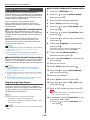
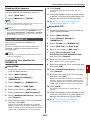
For Windows PCL/PS Printer Driver
- Press the <CLEAR> key if you enter a wrong
number.
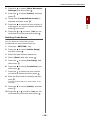
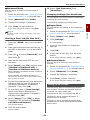
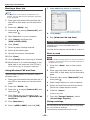
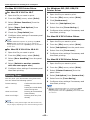
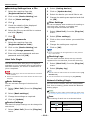
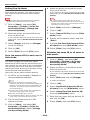
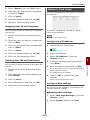
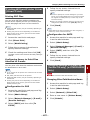
1
Open the file you want to print.
- Press the <STOP> key if you want to stop the job
search.
2
From the [File] menu, select [Print].
- 63 -
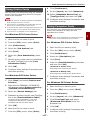
4
Printing
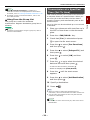
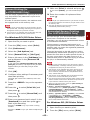
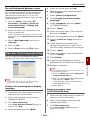
You can encrypt your documents before sending
them from a computer to the machine.
Therefore, you can prevent unauthorized access
to confidential information.
For Windows PCL/PS Printer Driver
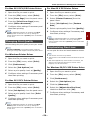
10 Press the
.
z The print job stored on the SD memory card is
automatically deleted after printing.
Note
9
OK