1
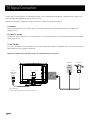
TV Jacks Explanation
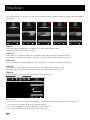
Head phone: Connect a 3.5mm headphone for personal audio.
PC Audio In: Use to obtain sound when a PC is connected to the PC input.
Use 3.5mm stereo mini-pin cable to connect PC to TV.
TV: Connect to receive the signal from your antenna or cable via coaxial cable.
VGA: Connect your computer or other device with a VGA output to this jack using a 15-pin, D-sub cable.
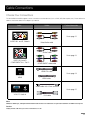
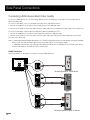
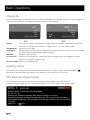
AUDIO-IN L/R, Video In: Connect an AV device that has composite video jacks, such as a VCR
or a DVD player. To access device connected to these jacks, press the INPUT button on your
remote; then press the up/down arrow to select AV. Press the ENTER button at last to confirm.
• Audio L: Left audio channel connection. The left audio connector is usually white. For mono audio
sources, be sure to use the left AUDIO INPUT.
• Audio R: Right audio channel connection. The right audio connector is usually red.
Note: The AV input (Video In), Component input (Y, Pb, Pr) share the same audio input jacks-AUDIO IN L/R.
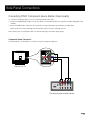
COMPONENT IN Y/Pb/Pr: Connect a device that has component video jacks, such as a DVD player.
To access device connected to the Y/Pb/Pr jack, press the INPUT button on your remote; then press the up/down arrow to
select Component. Press the ENTER button at last to confirm.
• Y/Pb/Pr (Component Video): They provide good picture quality because the video signal is separated into three
components. Use three video-grade or component video cables for the connection. When using Y/Pb/Pr, make sure you
connect left and right audio cables to the Audio L and Audio R jacks.
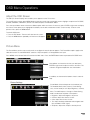
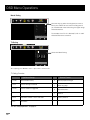
HDMI: (High-Definition Multimedia Interface) It provides an uncompressed digital connection that carries both video and audio data
by way of an integrated mini-plug cable.
SERVICE: For service use only. Do not connect any device.
AC-IN: Connect the AC power cord (supplied).
16