1
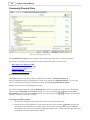
California Property Declaration & Distribution
121
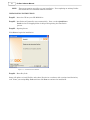
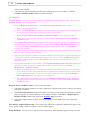
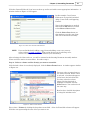
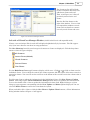
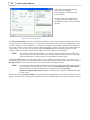
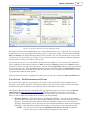
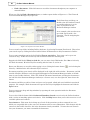
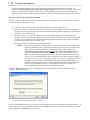
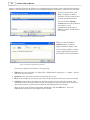
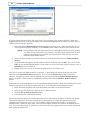
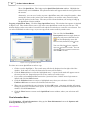
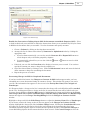
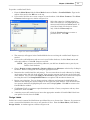
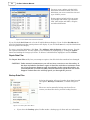
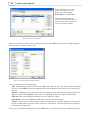
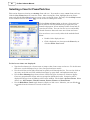
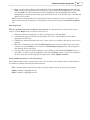
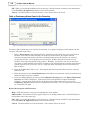
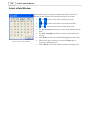
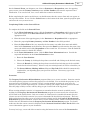
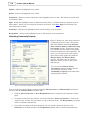
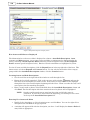
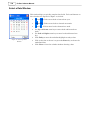
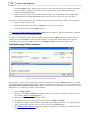
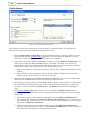
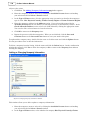
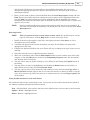
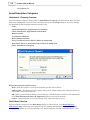
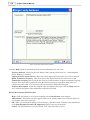
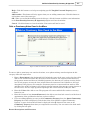
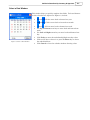
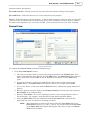
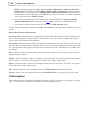
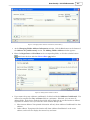
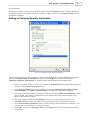
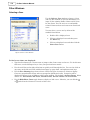
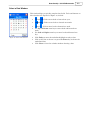
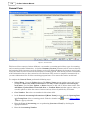
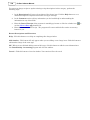
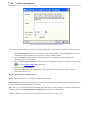
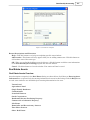
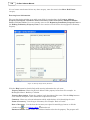
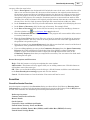
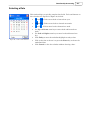
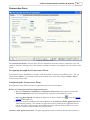
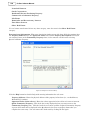
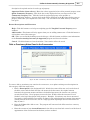
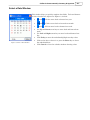
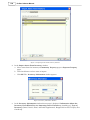
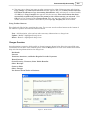
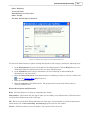
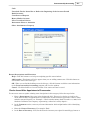
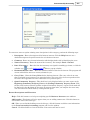
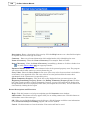
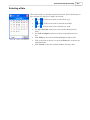
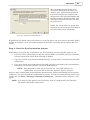
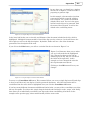
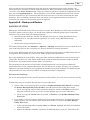
3. Complete the displayed fields for the asset or debt. To enter the Date Acquired, type it in the
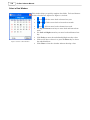
format shown, or click on the calendar icon to pick the date from the displayed calendar. Click
here 128 for detailed help in using the Select a Date window.
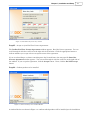
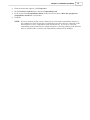
4. When you are finished, either click the Add Another button to save your current entries and
enter another asset or debt in the same category or click the OK button to return to the
Petitioner Separate Property Form. The description and amounts will be listed here.
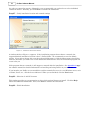
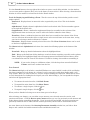
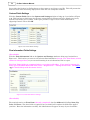
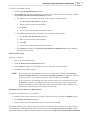
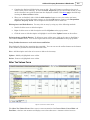
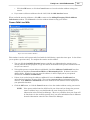
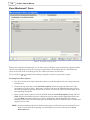
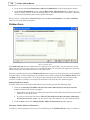
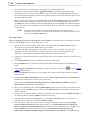
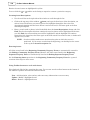
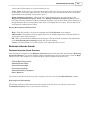
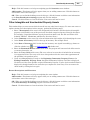
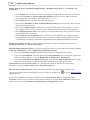
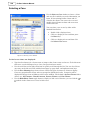
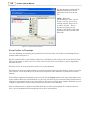
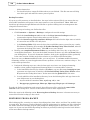
Editing Asset and Debt Entries. You may edit an entry by using any of the following methods:
·
Double-click the asset or debt description.
·
Right-click the asset or debt description and click Update on the pop-up menu.
·
Click the asset or debt description to highlight it and click the Update button on the toolbar.
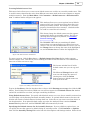
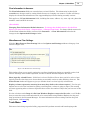
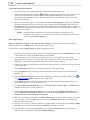
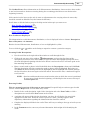
Deleting Asset and Debt Entries. To delete an asset or debt entry, click on the entry to highlight it
and click the Delete button. You can also right-click the entry and click Delete on the pop-up menu.
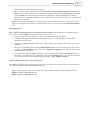
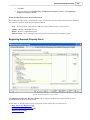
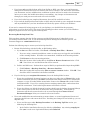
Using Toolbar buttons to work with Assets and Debts
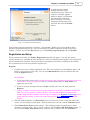
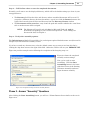
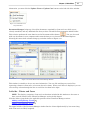
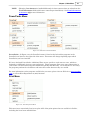
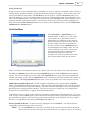
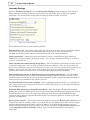
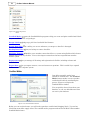
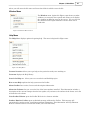
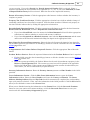
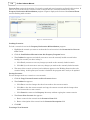
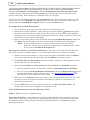
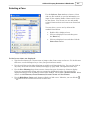
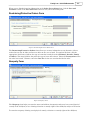
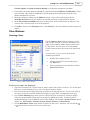
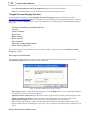
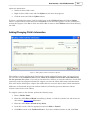
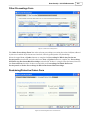
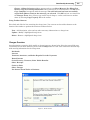
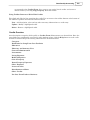
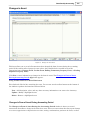
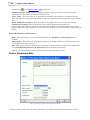
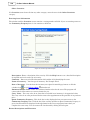
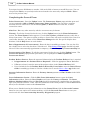
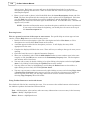
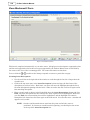
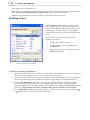
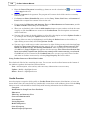
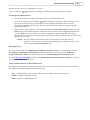
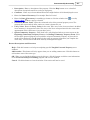
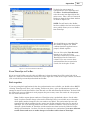
First, find and click the line containing the asset/debt. You can now use the toolbar buttons at the bottom
of the window to perform the functions indicated below:
New - Add description and value of an asset or debt to the inventory.
Update - Modify a highlighted asset or debt.
Delete - Remove a highlighted asset or debt.
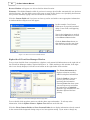
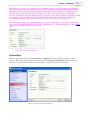
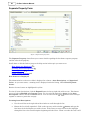
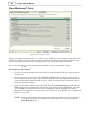
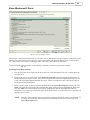
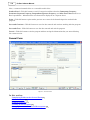
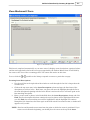
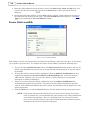
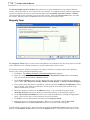
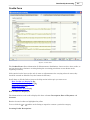
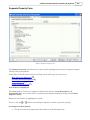
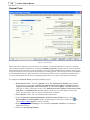
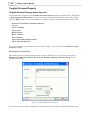
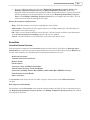
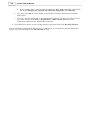
Respondent Separate Property Form
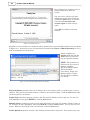
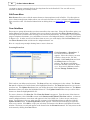
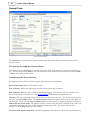
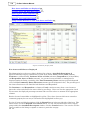
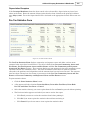
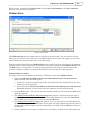
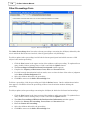
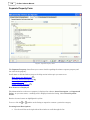
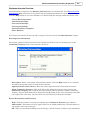
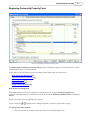
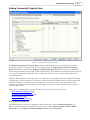
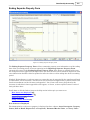
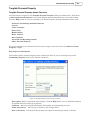
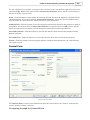
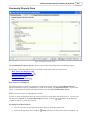
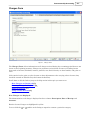
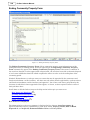
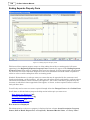
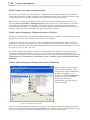
The Respondent Separate Property Form allows you to enter details regarding the respondent's
separate property and the value of the property.
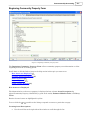
Click one of the following links to jump to descriptions and procedures, or scroll down to see these in the
order shown:
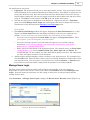
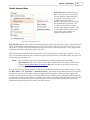
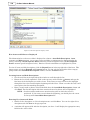
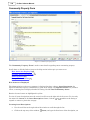
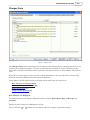
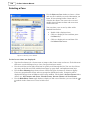
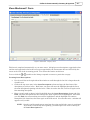
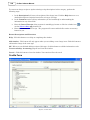
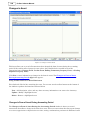
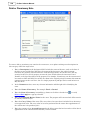
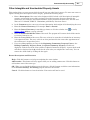
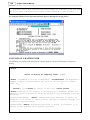
How Assets and Debts are Displayed
122
Locating Asset and Debt Descriptions
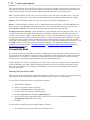
Entering New Assets and Debts
Editing Asset and Debt Entries
122
122
123
Deleting Asset and Debt Entries
123
Using Toolbar Buttons to work with Assets and Debts
123