1
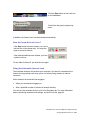
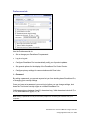
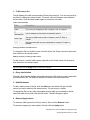
Identify the server sending the message and add it to your Trusted Zone.
This is the preferred solution, because it will work whether your ISP uses NetBIOS or
ICMP to check your connection, and it allows you to maintain high security for the
Internet Zone. To identify the server your ISP uses to check your connection, follow
these steps:
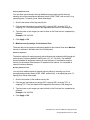
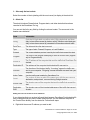
1. Wait until your ISP disconnects you.
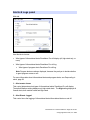
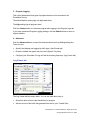
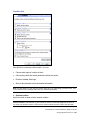
2. Go to the Alert Log tab (Alerts & Logs panel).
3. In the alerts list, find the alert that corresponds to the time you were disconnected.
If you're not able to identify the server this way, contact your ISP. They should be able to
tell you what servers your need to allow.
After you have identified the server, add it to the Trusted Zone.
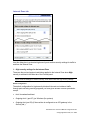
Allow ping messages through the Internet Zone.
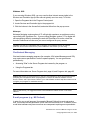
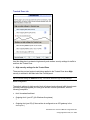
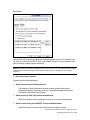
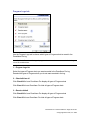
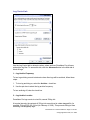
If your ISP uses ICMP echo (or ping) messages for connectivity checks, use the Internet
Zone tab (Custom Securities dialog box) to configure ZoneAlarm Pro to allow ping
messages from the Internet Zone. To do this:
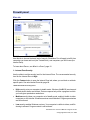
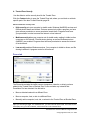
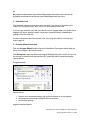
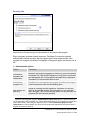
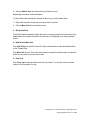
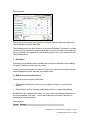
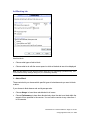
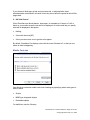
1. Go to the Main tab in the Firewall Panel.
2. In the Internet Zone section, click Custom
3. Select check box labeled Allow incoming ping (ICMP echo).
4. Click OK.
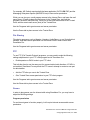
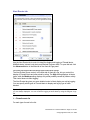
Set the security level for the Internet Zone to medium.
The quickest but least secure solution is to reduce the security level for the Internet Zone
to medium.
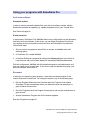
Customizing your security
If you're not the "set it and forget it" type, ZoneAlarm Pro enables you to manage the
details of your Internet security.
ZoneAlarm Pro 3.0 User’s Manual—Page 65 of 138
© Copyright Zone Labs, Inc. 2002