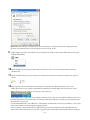
1
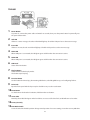
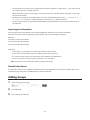
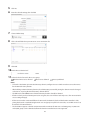
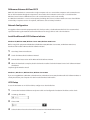
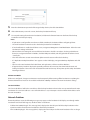
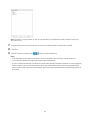
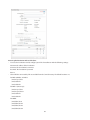
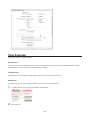
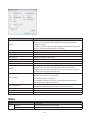
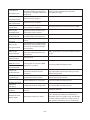
Name
View
View
Sort by
Browse*
Refresh
I’m here*
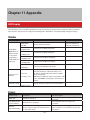
Right-click your
device’s icon to
show these options.
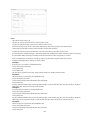
Browse Shares
Settings
Properties
Map Share
Disconnect Share
Create Shortcut
I’m here
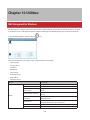
Description
Icons: Displays icon.
Details: Displays hostname, product name, workgroup, IP
address, subnet mask, and default gateway.
Selects the sort order from following to display when
multiple TeraStations are found:
Hostname, product name, workgroup, IP address, subnet
mask, default gateway
Opens the TeraStation’s shared folder.
Searches for NAS devices on the network again.
Causes your TeraStation to beep.
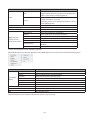
Opens the TeraStation’s shared folder.
Opens Settings for the selected TeraStation.
Opens the TeraStation’s properties page.
Assigns the TeraStation’s shared folder as a network drive.
Unmaps the network drive.
Creates a shortcut icon to the shared folder “share” on the
desktop.
Causes your TeraStation to beep.
*Click on the TeraStation’s icon to display these options.
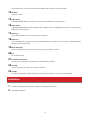
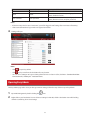
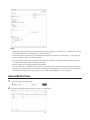
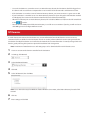
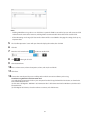
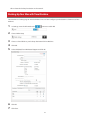
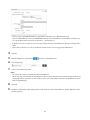
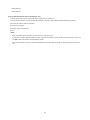
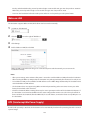
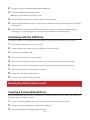
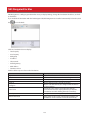
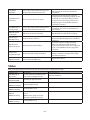
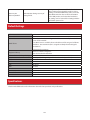
When NAS Navigator2 is minimized, right-click on the NAS Navigator2 icon in the system tray for the following options.
Name
TeraStation
Name
Refresh
Browse Shares
Exit
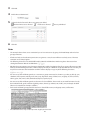
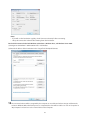
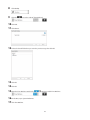
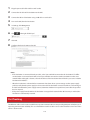
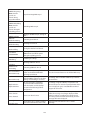
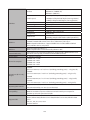
Browse Shares
Settings
Properties
Map Share
Disconnect Share
Create Shortcut
I’m here
Description
Opens the TeraStation’s shared folder.
Opens Settings for the selected TeraStation.
Opens the TeraStation’s properties page.
Assigns the TeraStation’s shared folder as a network drive.
Unmaps the network drive.
Creates a shortcut icon to the shared folder “share” on the desktop.
Causes your TeraStation to beep.
Refreshes list of NAS devices.
Displays NAS Navigator2 window.
Exits NAS Navigator2.
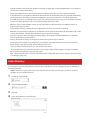
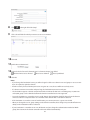
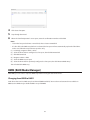
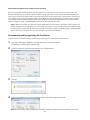
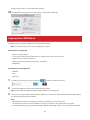
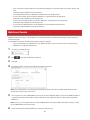
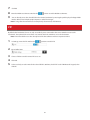
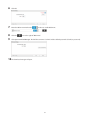
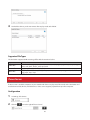
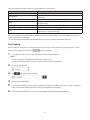
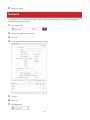
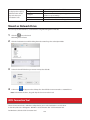
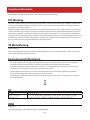
The following tasks may be performed from the TeraStation’s properties page.
137