1
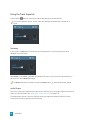
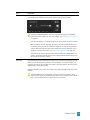
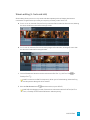
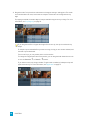
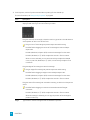
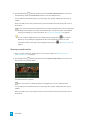
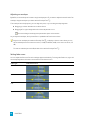
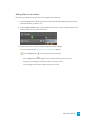
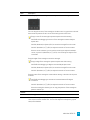
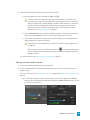
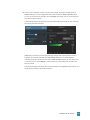
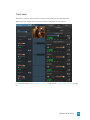
 3. In the Inspector, select the Clip tab to view and edit settings for the selected title clip.
For more information, see "Using the Clip Inspector" on page 86.
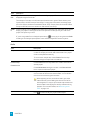
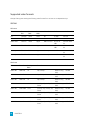
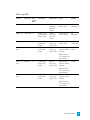
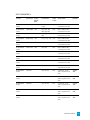
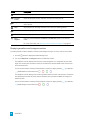
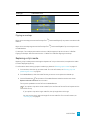
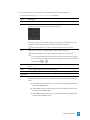
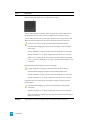
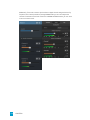
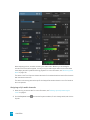
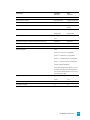
Item
Description
Type
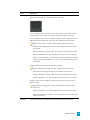
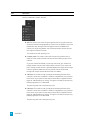
Choose a setting from the drop-down list to choose the shape of the gradient.
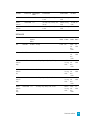
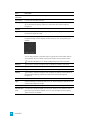
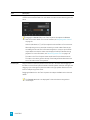
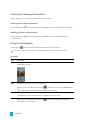
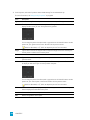
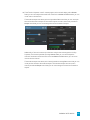
Center
The drop-down list displays the current position of the gradient in the frame. Click to
display an edit control you can use to position the gradient.
You can drag the point in the edit control or type values in the X and Y boxes to set the
position of your gradient in the frame. Double-click the point to reset it.
Hold Ctrl (Windows) or ⌘ (OS X) to adjust the point in fine increments.
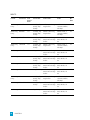
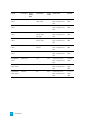
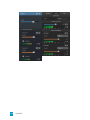
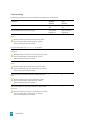
Angle
Type a value in the box or drag the slider to adjust the angle of the line formed by the
control points in relation to a horizontal plane.
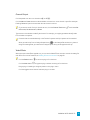
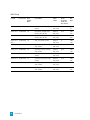
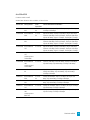
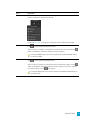
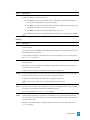
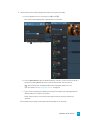
Control Point
Distance Type a value in the box or drag the slider to adjust the distance of the control point
from the center.
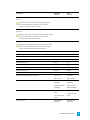
Location The drop-down list displays the current position of the control point in the frame. Click
to display an edit control you can use to position the point.
You can drag the point in the edit control or type values in the X and Y boxes to set the
position of your control point in the frame. Double-click the point to reset it.
Hold Ctrl (Windows) or ⌘ (OS X) to adjust the point in fine increments.
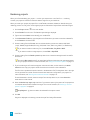
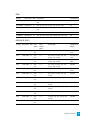
Color
Click the color sample to display a color picker, where you can choose the color you
want to display at the selected control point.
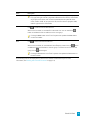
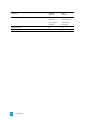
Remove
Removes the selected control point.
Add
Adds a new gradient control point.
100 CHAPTER 7