1
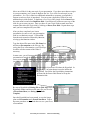
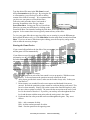
To save your file as a PowerPoint Show, select PowerPoint Show as the file type. Saving
your file as a PowerPoint Show lets you start your slide show by clicking on the PowerPoint
Show icon instead of starting the slide show from within the PowerPoint program. It also
ensures that viewers typically cannot edit any of the slides. To view your lesson plan slide
show at any time while you are creating it, press the F5 button on the keyboard (Windows
only), or Click Slide Show from the main menu bar and select View Show. If you see an
item or slide that requires editing, press the Escape key and go to the slide to make the
necessary changes.
Starting the Lesson Presentation
When showing your presentation to the class or when a student will access the
presentation independently, we recommend using the PowerPoint Show file.
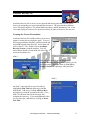
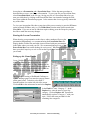
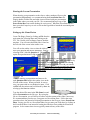
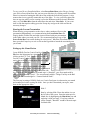
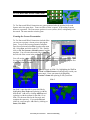
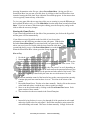
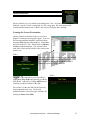
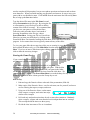
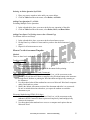
Simply double click the blue and white icon associated with your presentation
in the folder where you saved your file. We recommend placing a copy of the
Power Point Show icon on the desktop for easier access. When the PowerPoint Show is
done, press the Escape key to exit or click on the Hyperlink to launch the associated game
you created.
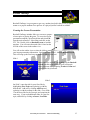
Setting up the Game Review
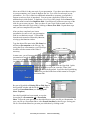
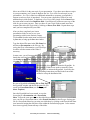
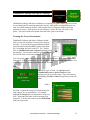
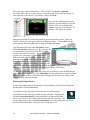
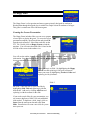
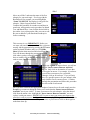
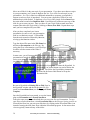
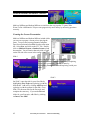
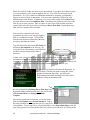
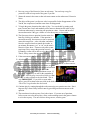
Create Hillbilly Feud or Cosmic Feud by clicking on
File from the main menu bar, selecting New, and
clicking on the FTC Tab. Double click on Hillbilly
Feud or Cosmic Feud to load the template. You will
notice that each slide is listed on the left side of the
screen in the outline view.
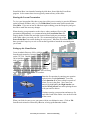
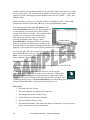
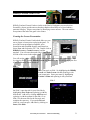
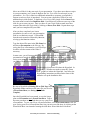
These games consist of three matches with three
different rounds per match. Each round in each match
should be set up as a category that is consistent with
the match topic. For example, if the match topic is “Baseball”, your first round could be
“Major League Baseball Teams”. The second round could be “Things You Buy at the Ball
Park”. The final round might be “ Famous Baseball Parks”.
The first step in crating a Hillbilly Feud or a Cosmic Feud game is to determine your match
and round topics before creating the slides. Once you have determined your topics, enter
them on the appropriate slides.
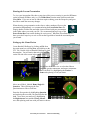
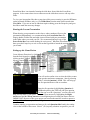
Slide 2
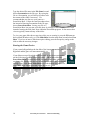
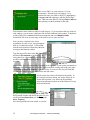
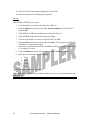
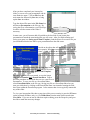
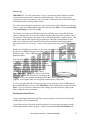
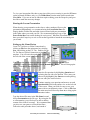
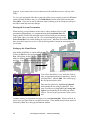
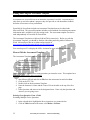
Start by selecting Slide 2 from the outline view on
the left side of the screen. Enter the main topic for
Match One by highlighting the Match One text and
replacing it with your topic. If we keep with the
earlier example, “Baseball” would be the main topic
for Match One.
PowerPak for PowerPoint
2002 FTC Publishing
33