1
42
MFG/PRO Installation Guide — QAD Desktop
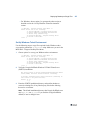
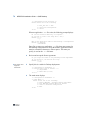
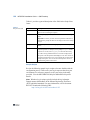
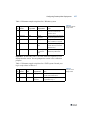
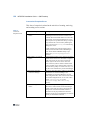
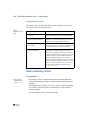
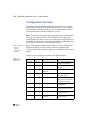
Table 4.1
UNIX CD Drive
Mount Commands
Hardware
Mount Command
Sun
volcheck cdrom
HP
/etc/mount -F cdfs /dev/dsk/YourCDDevice /cdrom
Digital
mount -r -o noversion -t cdfs
/dev/YourCDDevice /cdrom
AIX
smitty mountfs
Then select file system, directory, and file system type (cdrfs).
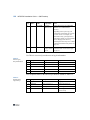
Linux
mount /dev/hdb /mnt/cdrom
Where /hdb could be hdc or hdd among other possibilities.
All others
Refer to your operating system documentation or vendor for
requirements to mount a CD-ROM. You may be able to type man
mount to determine the correct command.
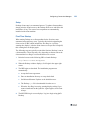
Launch Installation Script
Use these steps to start the installation process.
1
Launch the installation script. For UNIX:
./install.ksh
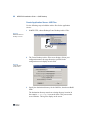
For Windows, run install.exe from Run on the Start menu.
2
! See page 18 for
additional log file
details.
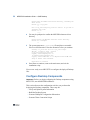
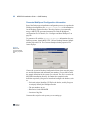
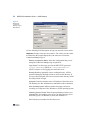
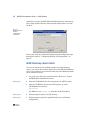
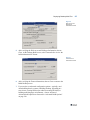
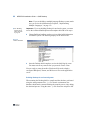
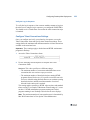
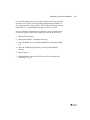
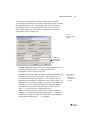
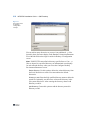
You are prompted to enter a log file directory location. Typically, you
should name the log file directory based on its associated MFG/PRO
or Desktop release.
Each Desktop deployment should have its own log file directory, used
for storing several log and support files. Later deployment and
configuration processes look at this location for installation
information stored in an .ini file.
Important Do not delete this directory or manually modify any files
found here.
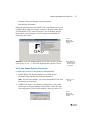
If the directory you specify does not exist, you are prompted to create
it. You must also specify the name you want to use for your Desktop
configuration, which is used in naming the log and .ini files.
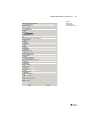
The default directory in UNIX is /home/mfg/mfgsvr; in Windows,
it is C:\mfgsvr.