1
PowerSwitch Network Management System
Appendix 1: IP Address Settings of PowerSwitch
Overview
All devices on a computer network need to have an IP address. Each device’s IP address is
unique. The same address cannot be used twice. In order to assign an IP address to the
PowerSwitch, first, you must determine the range of the IP address, and then you choose a
number that is in this range. It is essential to use an IP address that is not currently in use.
PLEASE NOTE: You may need to contact your network administrator. He/She will assign the IP
addresses for your Management Card.
Procedures to find an IP address:
1. Locate the subnet of PowerSwitch.
One way to determine the range of possible IP addresses is to access the network
configuration of a computer connected to the network. For example; using a MS Windows©
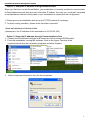
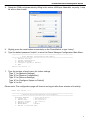
operating system, click on [Start] and select [Run]. Type “command” into the open box and
click [OK]. At the DOS Mode Prompt type “ipconfig /all” and press [Enter]. The computer will
display network information as below:
Ethernet adapter
Connection-specific DNS Suffix……:
Description………………………………………………..…:
Physical Address……………………………………..:
DHCP Enabled……………………………..………....:
Autoconfiguration Enabled ….....:
IP Address…………………………………………...…..:
Subnet Mask……………………………………………....:
Default Gateway……..………………………....:
DHCP Server…………..……………………………..….:
DNS Servers…………………………………………..………:
xxxx.com
D-Link DE220 ISA PnP LAN adapter
00-80-C8-DA-7A-C0
Yes
Yes
192.168.20.102
255.255.255.0
192.168.20.1
192.168.20.1
211.20.71.202
168.95.1.1
2. Select an IP Address for PowerSwitch
Make sure the IP Addresses for the computer and the PowerSwitch belong to the same
subnet. Refer to the above network information, a possible IP Address for PowerSwitch could
be 192.168.20.* (* hereafter represents any number between 1 and 255). Similarly, if the
Subnet Mask is 255.255.0.0, the IP Address for PowerSwitch could be set up as 192.168.*.*.
To ensure there is no other equipment connected to the network using the same IP Address
you choose, you run a ping command “Ping 192.168.20.240” in MS-DOS mode when the IP
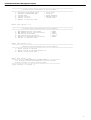
Address you would like to set is 192.168.20.240. If the response is presented as below, the
IP address is not used and available for PowerSwitch.
Pinging
Request
Request
Request
Request
192.168.20.240 with 32 bytes of data:
timed out.
timed out.
timed out.
timed out.
If the response is shown as below, the IP address is already in use by another device. Try
another IP address until an available address is found.
Pinging 192.168.20.240 with 32 bytes of data:
Reply from 192.168.20.240: bytes=32 time<10ms
Reply from 192.168.20.240: bytes=32 time<10ms
Reply from 192.168.20.240: bytes=32 time<10ms
Reply from 192.168.20.240: bytes=32 time<10ms
TTL=64
TTL=64
TTL=64
TTL=64
*Specifications subject to change and without notice.
14