1
Maxgaming Qld
23.2
Manager Utilities User Guide
Maintaining Card Types
23.2.1 View the Existing Card Types
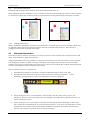
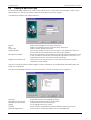
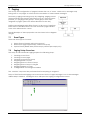
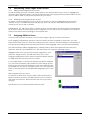
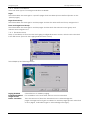
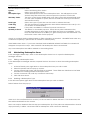
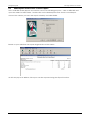
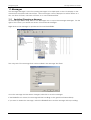
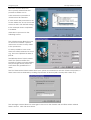
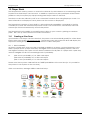
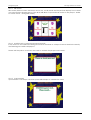
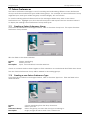
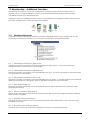
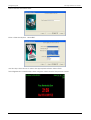
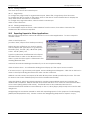
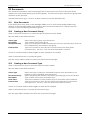
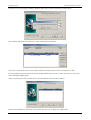
From the Manager Utilities Map, click on the Cards icon to open the Card Manager Utilities Map.
Click on the Card Types icon.
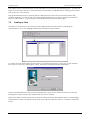
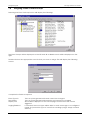
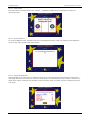
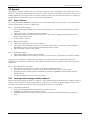
Choose your site in the left-hand pane and expand the tree structure below it to see the existing
card types.
23.2.2
•
•
•
•
•
•
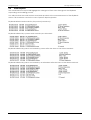
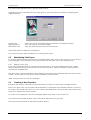
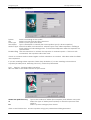
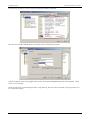
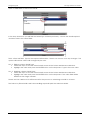
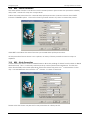
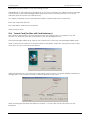
Edit the Properties of a Card Type:
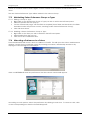
Click on the Card Types icon.
Expand the tree structure to see the existing card types.
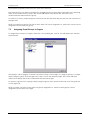
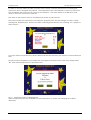
Right click on the card type you wish to edit in the left-hand pane.
Select Properties from the pop-up.
Select the General or Permissions tab.
Edit the fields as required.
Click OK when done.
23.2.3
•
•
•
•
Deleting a Card Type
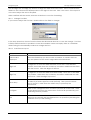
Click on the Card Types icon.
Expand the tree structure to show the existing card types.
Right click on the card type you wish to delete in the left-hand pane.
Select Delete from the pop-up.
Click Yes in the confirmation box.
23.3
Card Accounts
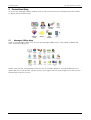
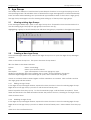
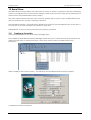
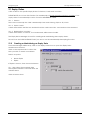
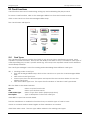
The Card Accounts icon on the Card Manager Utilities Map window is used for creating and
maintaining card accounts and patron accounts. It is identical to the Card Accounts icon on the
initial Promotions Map.
Please refer to the Card Accounts User Manual for more information.
23.4
Card Devices
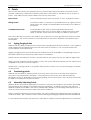
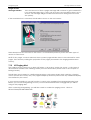
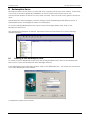
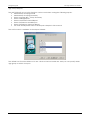
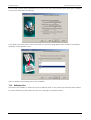
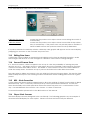
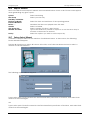
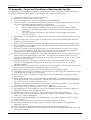
The Card Devices icon is used to set up the card reader or card embosser. This is only required if
there is a reader or embosser attached to the Management PC.
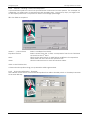
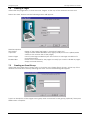
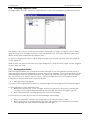
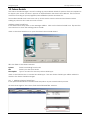
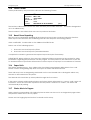
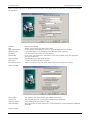
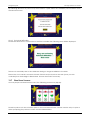
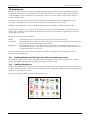
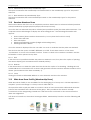
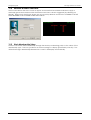
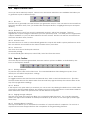
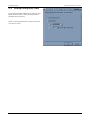
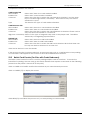
To set up card devices from the Manager Utilities Map, click on the Cards icon to open the Cards
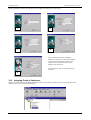
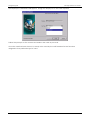
Map. Click on the Card Devices icon to bring up the following dialogue screen.
80