1
STEP 3-2
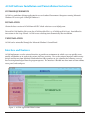
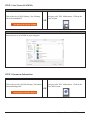
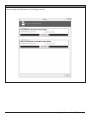
Complete the “Base” Window by first selecting the appropriate base from the “Base List”. (If your base is not on
the list select the closes base to your base that is in the same state) Then click on the “Ok” button.
STEP 3-3
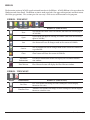
INTERACTIVE STATUS PANEL
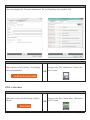
Click on the first ACAM Warning “Save Warning.
File has been modified“.
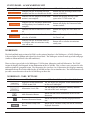
RIBBON MENU
OR
Navigate to the “File” ribbon menu. Click on the
“Save” button.
STEP 4: Proposed Action Information
STEP 4-1
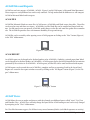
INTERACTIVE STATUS PANEL
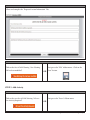
Click on the new first ACAM Warning “Proposed
Action Information Required“.
WORKSPACE
OR
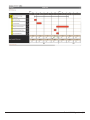
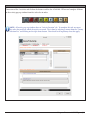
Click on the “USAF Action” tab in the ACAM
workspace.
9 Steps to Create an ACAM Report | 14