1
Section 5 – Locator eCAL validation
eCAL is part of the Centros Manager application
and is a utility that validates an RD7000 or RD8000
locator against its original factory calibration. Once
validated, eCAL will issue a certificate with a pass or
fail statement, which you can print. If the locator fails
validation then you are advised to return it to your local
Radiodetection service centre for calibration or repair.
NOTE: Before you can validate the calibration of the
RD7000 or RD8000 locator you must carry out the
following:
1. Download the latest version of Centros Manager,
if not already done so and download the latest
version of software to the locator.
2. Purchase an eCAL validation key which may
be purchased by going to:
www.radiodetection.com/eCAL
3. Register your product for a free extended
warranty by going to
www.radiodetection.com/extendedwarranty
WARNING! If you are using a laptop computer, make
sure your laptop is sufficiently charged or you may
find your laptop cannot supply sufficient power for
the locator. If this is the case you are advised to load
Centros Manager onto a desk top PC.
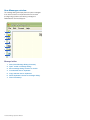
7. Load eCALKey.
8. View Certificate: View the certificate for
the currently selected certification in the
unit manager.
9. Expand Tree.
10. Collapse Tree.
11. Unit filter: Filter the locators in the unit
manager window according to locator
model type.
5.1 Purchasing Validation keys
Once you have purchased an eCAL Validation Key, each
Key is valid for up to 12 months from date of purchase
and is valid for the serial number of the unit provided at
purchase. Although you may carry out as many eCALs as
you wish on the particular unit during this time, you must
validate your locator within this time frame, after which you
must purchase a new key if you wish to perform another
validation.
5.2 Validating a locator
1. Make sure you have registered the locator
and purchased an eCAL validation key before
continuing.
2. Connect your locator to your computer using the
supplied USB cable. On the locator, the USB port
is located inside the battery compartment.
1
2
3
4
5
6
7
3. Open Centros Manager – Start > Programs
> Centros Manager and select Locator eCAL
Validation.
8
9
10
11
eCAL Validation toolbar
1. Home Page: Will take you back to the Centros
Manager Home Page.
2. Toggle Message Window to On or Off.
3. Link to Radiodetection website, Extended
Warranty Registration and eCAL.
4. Run eCAL validation.
4. Click the Load Validation Key icon on the toolbar.
5. Copy and paste your eCAL validation key from
your validation email into the Add Validation Key
dialogue . This is the key that you received in your
confirmation email when purchasing your eCAL key
and is similar to this: 17742-49492-05437-6302063735-52484-49044-63284-54197-4812058075-42996-55623-23514-13212-50900
6. Click Add, then Exit.
5. Get Original Calibration Data.
6. Stop Validation.
Centros Manager Operation Manual