1
Start up and Shut down
Start up
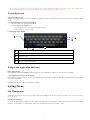
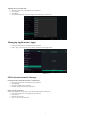
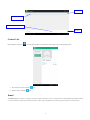
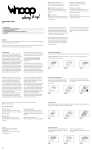
Press the POWER key for about three seconds until the Android boot up screen appears. The system automatically boots into a locked screen
mode. Please unlock it by sliding the round “circle” icon to the right (see picture)
Shut down
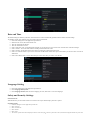
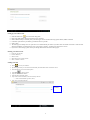
Press the POWER key until it shows the shut-down window. This window gives you the option to “mute”, enable “airplane” mode or to shut down the netsurfer®
Click Shutdown to switch the product off
Unlock/Open and Lock/Close of the Screen
The screen will automatically lock itself after 1min if there is no user activity. This is done to preserve battery life. To continue using the product
simply un-lock the touch panel as described previously.
To force lock the screen, simply press once on the POWER button.
Switch on the screen when it is blank/switched off
If the screen is blank or “closed” it will appear like the product has switched itself off. This is not the case. It has simply “switched off” the screen
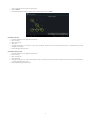
to save battery. To switch on the screen, quickly press the POWER button to enable the screen. The touch panel will still be locked though so
simply slide the icon on the screen to the right to unlock the touch panel or to the left to have quick access to the Camera.
Using the Touch Screen
Operating methods
There are various methods of utilizing the touch screen functionality in Android :
Touch Once
When you want to use the virtual keyboard or to open up an application you only need to touch it once with your finger.
Press and Hold
To access advanced features of selected app, object, icon or website press and keep your finger pressed on the screen. A menu will appear which
will give you advanced features eg. Bookmarking a website or editing a photo of your choice.
Quick Slide
The faster you slide your finger across the touch screen, the faster it will respond with the desired effect or option
Drag & Drop
With the Drag & Drop feature you can move icons around on your screen to your liking as well as create shortcut links on your desktop of your
favorite programs. Simply press the icon you wish to drag and drop and whilst keeping your finger on it, move it around on the screen.
Rotate
Using the embedded accelerometer by tilting the product through its horizontal and vertical axis, you can immediately swop between horizontal
and vertical viewing modes.
Home Page
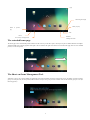
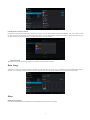
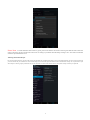
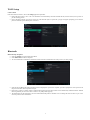
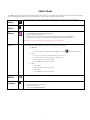
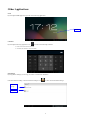
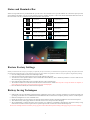
The main interface of the product is pictured below. Press anywhere on the screen and various options will appear. These options will allow you to
set the wallpaper, create folders, add widgets and create shortcuts of your favorite programs.
9