1
Tutorial 1: Creating a new ShipMo3D project
1
Tutorial overview
This tutorial covers:
• Creating a simulation project
• Overview of ShipMo3D application-based work flow
2
Creating a new project
+ To begin creating and editing a simulation, a project must be created.
J Open ShipMo3D by clicking on the ShipMo3D icon from the Windows Start Menu.
J In the newly opened ShipMo3D window, create a new project by clicking File→New Project.
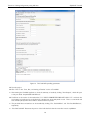
+ A new project pane with title tab “Project*” appears. The ‘*’ signifies this pane has unsaved changes.
+ Only one project can be open at a time.
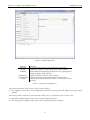
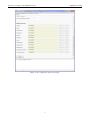
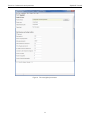
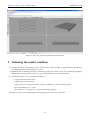
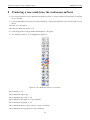
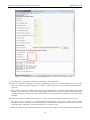
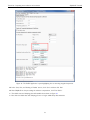
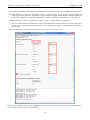
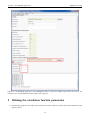
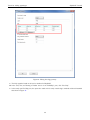
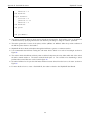
J Fill out the project information in the “ShipMo3D Project” section of the pan as shown in Figure 1:
– Set “Project directory” to the directory where project files will be stored,
– Specify a unique “Project name”
– Set “Default filename prefix”, which is used to provide unique file name prefix to the various project files created
– Set “Default label”, which is the title label used in output files.
J Do not change any other parameters in the “Project” pane.
4