1
Keyboard Hot-Key Operation
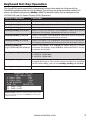
The QuadKVM can be controlled via keyboard hot-keys that make the functions of the
QuadKVM available at the console keyboard. The hot-keys are programmable via the OSD
menus. By default, the primary HotKey is Ctrl. The default hotkey can be changed in the
SYSTEM OSD (see On-Screen-Display (OSD) Operation).
HOTKEY SEQUENCE
FUNCTION
HotKey, HotKey, O
Brings up the On Screen Display (See OSD Operation).
HotKey, HotKey, I
Displays an informational status screen. See below.
HotKey, HotKey, Q
Selects Quad Mode.
HotKey, HotKey, U,1/2/3/4
Selects source for control. Use 1/2/3/4 to select the source
computer for display, keyboard and mouse control.
HotKey, HotKey, F,1/2/3/4
Selects Full Mode. Use 1/2/3/4 to select the source computer
for display, keyboard and mouse control.
HotKey, HotKey, P,1/2/3/4
Selects PiP Mode. Use 1/2/3/4 to select the source computer
for display, keyboard and mouse control for the main screen.
HotKey, HotKey,D,
(right)1/2/3/4/,(left)1/2/3/4
Selects Dual Mode. Use 1/2/3/4 to select the LEFT source
computer for display, and 1/2/3/4 to select the RIGHT source
computer for display.
HotKey, HotKey, V,1/2/3
Changes the output resolution.
1 - WUXGA 1920x1080
2 - WUXGA 1920x1200
HotKey, HotKey, R
Resets the USB board. Use if a source computer’s USB is unplugged during use. This resets control to the first available
source. Alternately, you can use HotKey, HotKey, U,1/2/3/4 .
HotKey, HotKey, B
Resets the QuadKVM to factory defaults.
QuadKVM ver 2.06
Out 1920 x 1080
1 1280 x 1024
DVI
2 1600 x 1200
DVI
3 1280 x 1024
VGA
4 NO SOURCE
DVI
USB: OK MODE: PIP
F1 1920 x 1080
F2 1920 x 1200
HotKey, HotKey, I displays an informational status screen
like the one shown above. Press F1/F2/F3 to change the
output resolution.
www.smartavi.com
9