1
Advanced Scanning
13.4 Cut Overlap Tool
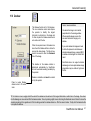
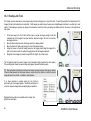
This tool will correct an image having image overlap. This can be caused when an object is scanned ‘off-the-glass’ such as a painting held in a
frame or an object already behind a layer of glass.
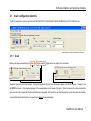
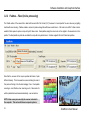
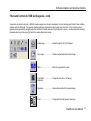
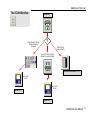
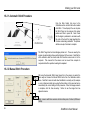
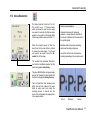
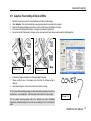
The diagram shows that the two cameras in the Colortrac 24120 Flatbed scanner are arranged
such that they meet precisely on the top surface of the glass. This is called the stitch point. For an
object that is placed a distance above this point a double image will be produced. If the object
maintains a constant height above the scanner glass then the image error will be constant and can
be removed effectively using the Cut Overlap Tool.
1.
2.
3.
4.
CAM 1
CAM 2
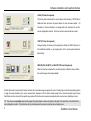
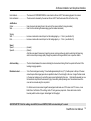
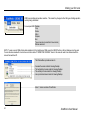
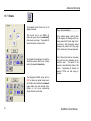
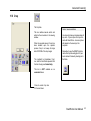
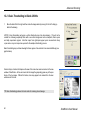
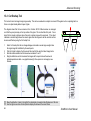
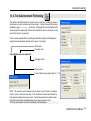
Select Cut Overlap from the Join Images dialogue and create a canvas large enough to take
the single image that is affected by the overlap error.
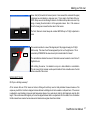
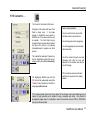
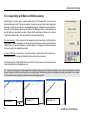
Click the ! button to display the Canvas and then load the file using the Select image button
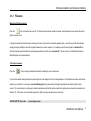
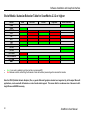
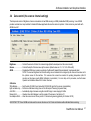
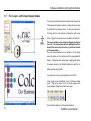
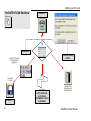
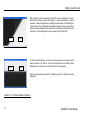
Note the dotted centerline and the blue arrows numbered 1 and 2.
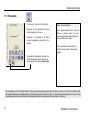
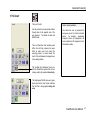
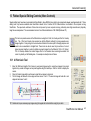
Drag the dotted line over the line where the images start to repeat and use the arrows to
indicate repeated scan data – see graphic below right. Now press Join and supply a new
filename.
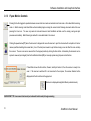
TIP: Move the dotted line 1 pixel to the right of the discontinuity to maximize the effectiveness of this tool
TIP: Use the right mouse menu Center options to display the arrows at the current Zoom
68
ScanWorks User Manual