1
4:3 The Spitter plugin
Spitter is a stereo audio insert ‘effect’ plugin, supplied with Geist in VST, AU and RTAS formats. Rather than applying an effect to the channel on which it is
inserted, it routes audio directly to Geist for use with the Sampler page.
To use Spitter, first insert it on a channel in your host, such as an audio track, audio input or another instrument channel. This is done in the same way as
inserting any other effect plugin to a channel.
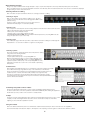
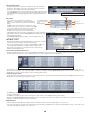
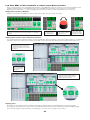
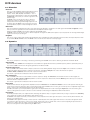
Name
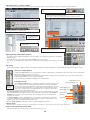
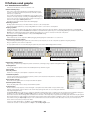
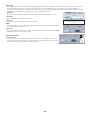
By default, the Spitter instance is named ‘Spitter 1’, which is the name that will appear
in Geist’s Source drop-down menu in the Sampler page. You can change the name to
something more meaningful by clicking in Name text-box in the Spitter plugin interface and
typing an alternative.
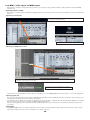
Status
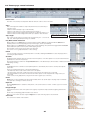
When the Spitter plugin is inserted, its Status display shows ‘No connections’. Once the
instance is selected in Geist’s Sampler page, the display changes to ‘1 connections’. You
may need to start your host’s audio engine (by starting its transport) for this to be updated.
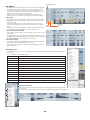
Setting Spitter as the sampling Source
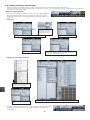
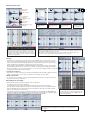
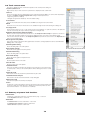
After a Spitter plugin has been inserted in the same host session as Geist, it must be selected in the Source drop-down menu on Geist’s Sampler page.
The host session can contain multiple Spitter instances, each of which appear as discrete entries in the Source drop-down menu. Note that you can
sample from only one Spitter instance at a time.
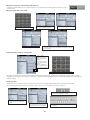
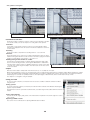
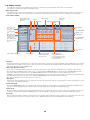
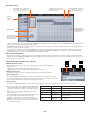
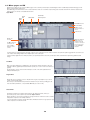
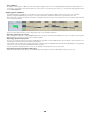
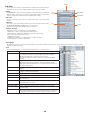
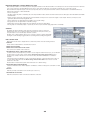
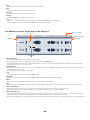
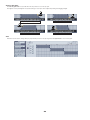
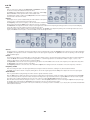
In this Logic session example, the first of the 2 Spitter instances in the session is currently selected as the Source in Geist. Note that the first Spitter instance (on Inst channel 2)
shows ‘1 connections’ in the Status display, confirming that this Spitter instance is currently connected to the Geist sampler input.
45