1
Configuring the Audio, Video, and Closed Caption Settings
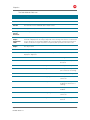
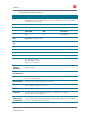
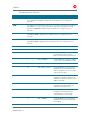
Setting
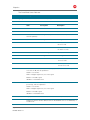
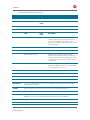
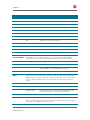
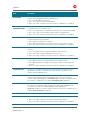
4:3 Override
Description
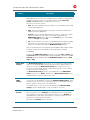
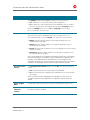
The 4:3 Override setting allows you to select the video output format of the
DCX3501-M when it is tuned to a Standard-Definition program or playing back a
Standard- Definition program from the DVR. Options include 480i, 480p,
Stretch, and Off. By default, the 480i option is selected.
The options are used as follows:
x 480i—Presents Standard-Definition programs in the Standard-Definition 480i
format (720 x 480 pixels).
x 480p—Presents Standard-Definition programs in the Enhanced-Definition
480p format (720 x 480 pixels).
x Stretch—Stretches all Standard-Definition programs to a widescreen (16:9)
aspect ratio and present the video in the format designated by the
HDMI/YPbPr Output setting. Note that the Stretch option is only available
when the TV Type setting is 16:9.
x Off—Creates a widescreen version of a Standard-Definition program by adding
black bars to the left and the right of the picture (pillarbox) and present the
video in the format designated by the HDMI/YPbPr Output setting.
Note 1: Not all televisions will support all of the available video formats. Please
consult your television’s user manual for more information on format
compatibility.
Note 2: If the HDMI/YPbPr Output setting is set to either 480i or Native, the
4:3 Override feature is disabled and no longer selectable in the menu. The 4:3
Override feature is available when the HDMI/YPbPr Output setting is 1080i,
720p, or 480p.
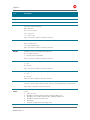
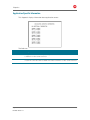
Native Mode
Settings
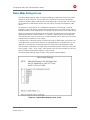
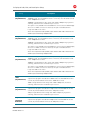
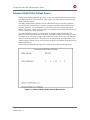
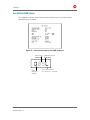
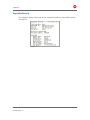
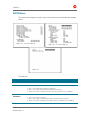
The Native Mode Settings option allows you to customize the Native Mode
feature of the DCX3501-M by selecting the video formats supported by your
television. Selecting the Native Mode Settings option will present a new
menu screen with settings specific to Native Mode operation. These settings
are discussed in more detail below.
The Native Mode Settings option is only available when the HDMI/YPbPr
Output setting is set to Native. Otherwise, the Native Mode Settings option
is disabled and no longer selectable in the menu.
Additional
HDMI
Settings
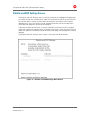
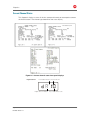
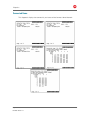
The Additional HDMI Settings option is available whenever an HDMI device is
connected to the DCX3501-M. Selecting the Additional HDMI Settings option
will present a new menu screen with settings specific to the HDMI connection.
These settings are discussed in more detail below.
If no HDMI device is connected to the DCX3501-M, the Additional HDMI
Settings option is disabled and no longer selectable in the menu.
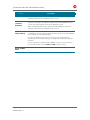
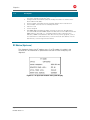
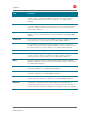
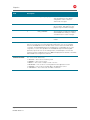
Closed
Captions
The Closed Captions setting turns closed captions off or on.
When this option is set to Disabled, the DCX3501-M does not render (draw)
closed captions on any video output. When this option is set to Enabled, the
DCX3501-M will render (draw) closed captions on all video outputs if closed
captions are included within the program.
By default, the Disabled option is selected.
High-Definition DVR DCX3501-M tInstallation Manual
365-095-16528-x.2
33