1
Configuring System Setup
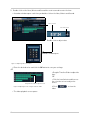
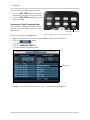
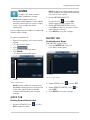
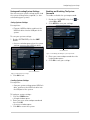
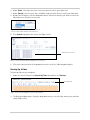
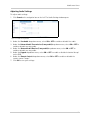
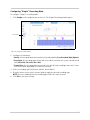
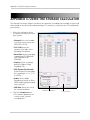
4. Click the GET F/W button.
• The system searches for the firmware files
on your USB device.
Double-click here to begin
firmware upgrade
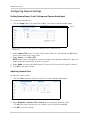
Restoring System Defaults
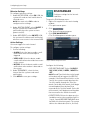
To restore the system back to the factory
default configuration:
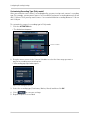
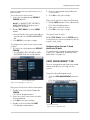
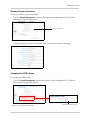
1. Beside FACTORY DEFAULT, click the
PRESS button.
• A Login window opens.
2. Enter your user name and password and
then click OK.
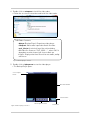
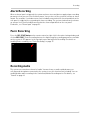
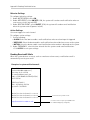
• A warning window opens.
GET F/W button
Figure 14.0 Firmware upgrade window.
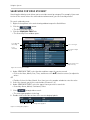
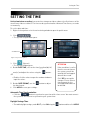
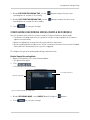
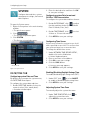
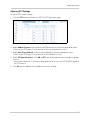
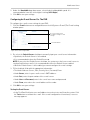
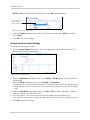
5. Under F/W VERSION, double-click the
name of the firmware file.
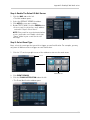
• A firmware confirmation window opens.
Figure 14.3 System factory default prompt.
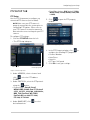
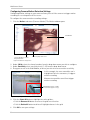
3. Click YES to restore factory defaults.
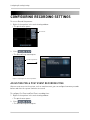
• A Format Disk window opens.
Figure 14.1 Firmware upgrade confirmation window.
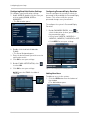
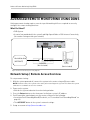
Figure 14.4 Format disk prompt.
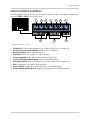
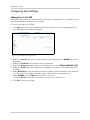
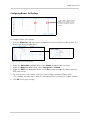
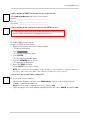
6. Click YES to upgrade the system firmware.
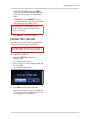
• When the firmware upgrade completes, a
success message window opens.
4. Click YES to format the hard drive or click
NO to continue without formatting the hard
drive.
• The system restarts itself and loads with
the factory settings.
NOTE: Formatting the hard drive erases all
videos from the system.
Figure 14.2 Firmware success window.
7. Click OK to restart your system.
50