1
1.6.1.1
Configuration Defaults
1.6.1.1.1
Duplex Mode
Auto-negotiate: a 10/100 Ethernet UIM will detect, and match, the duplex mode of the
remote device (PC, hub, switch, etc.) to which it's connected.
1.6.1.1.2
Speed
Auto-negotiate: a 10/100 Ethernet UIM will detect, and match, the speed of the remote
device (PC, hub, switch, etc.) to which it's connected.
NOTE For the best connection results, the remote device (PC, hub, switch, etc.) should also be set to auto-
negotiate duplex mode and speed. If the remote device cannot be configured to auto-negotiate, speed
may be hard set at either 10 Mbps or 100 Mbps but duplex mode MUST be hard set to Half Duplex; a
10/100 Ethernet connection cannot be made if the remote device is hard set to Full Duplex.
1.6.1.2
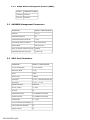
Ethernet RJ45 Pinout
PIN CONNECTION
1.6.2
1
Rx+
2
Rx-
3
Tx+
4
not used
5
not used
6
Tx-
7
not used
8
not used
T1 Uplink
Plug your T1 cable into the RJ45 T1 port on the UIM faceplate. For most applications, a T1 uplink
requires a straight-through T1 cable. Verify the connection: solid or flashing green illumination of the
Link (Lnk) LED on the UIM faceplate indicates a T1 connection has been established.
1.6.2.1
Configuration Defaults
1.6.2.1.1
Speed
A T1 UIM determines speed via communication with the remote T1 equipment to which it
is connected.
1.6.2.1.2
Frame Type
Extended Super Frame (ESF): data is assembled into 24-frame transmission clusters and
integrates both Facilities Data Link (FDL) and Cyclic Redundancy Check (CRC).
1.6.2.1.3
Line Code
Bipolar with 8 Zero Substitution (B8ZS): prevents loss of synchronization with remote
equipment by using bipolar violations to guarantee the presence of pulses in the T1 line.
220-0000050 rev04