1
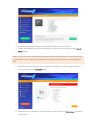
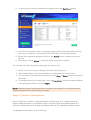
1. Select Defragm enter from the menu on the left
2. Click on the Analyze button to check the registry for fragmentation
3. Read the warning message and click OK to proceed. If you don’t want to proceed,
click Cancel
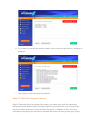
4. The program will analyze your registry
5. When the analysis is complete, click on the Defrag button to defragment the registry
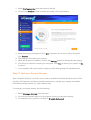
6. You will be prompted to restart your computer. Click Yes to reboot your system or No
to cancel
7. Your computer will restart and the registry will be defragmented on Windows boot
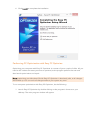
Easy PC Optimizer Startup Manager
Slow computer startup is one of the most common problems faced by Windows users. That’s
why Easy PC Optimizer includes a tool that allows you to manage your startup and disable
unnecessary startup entries in a quick and easy way.
To manage your startup entries, do the following:
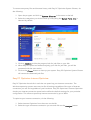
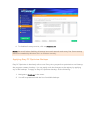
1. Select M anage Startup from the menu
2. You will be presented with a list of programs running on Windows startup
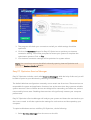
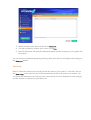
3. To disable an entry, select it and click on Disable Selected