1
150
POSTPROCESSING A RATCHET WHEEL
4.2. Modes of visualization
1.
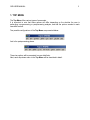
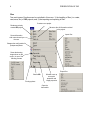
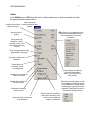
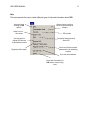
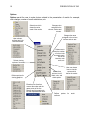
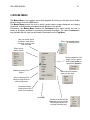
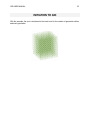
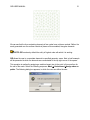
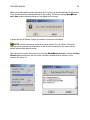
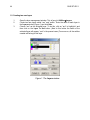
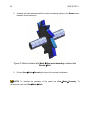
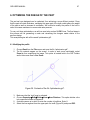
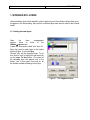
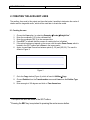
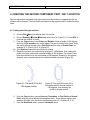
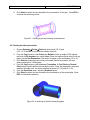
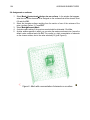
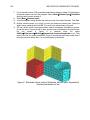
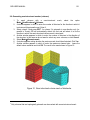
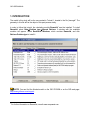
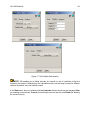
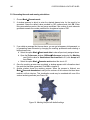
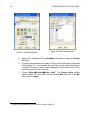
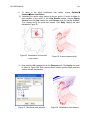
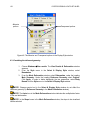
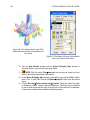
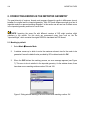
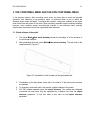
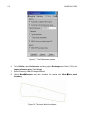
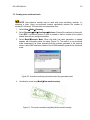
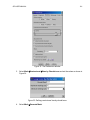
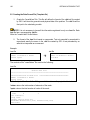
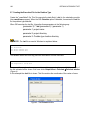
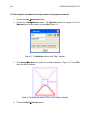
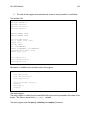
Choose WindowsÆView Style. A window labeled Select & Display Style appears
in which the options for visualizing the geometry can be changed. This window is
composed of various menus, each characterizing some aspect of the visualization
of the model. Options from all these menus can be combined to achieve a suitable
visualization.
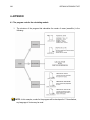
NOTE: In the post-processing component, the elements of the mesh are classified into
Meshes, Sets and Cuts. A new Set is created for each group of surfaces that share the same
material, while there is a Mesh for each group of volumes sharing the same material. Cuts are
sections made into the geometry during post-processing.
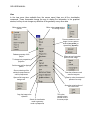
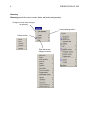
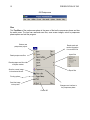
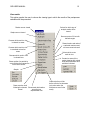
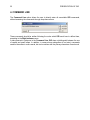
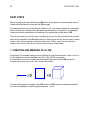
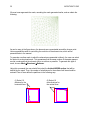
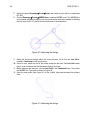
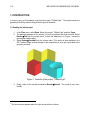
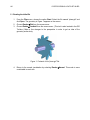
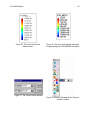
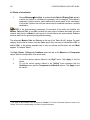
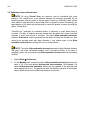
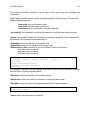
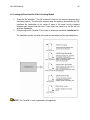
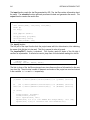
The categories Meshes, Sets and Cuts are at the top of the “Select & stile” window. For each
category a color can be chosen using the Color option. Each one may be clicked On or Off9, or
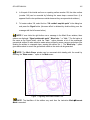
deleted (Del). In the present example there is only one volume and therefore only one Mesh
appears. It is named “Mesh1”.
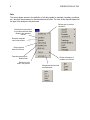
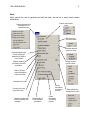
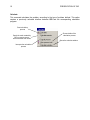
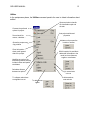
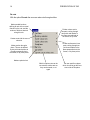
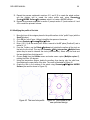
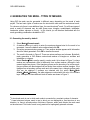
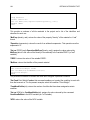
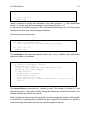
The Style, Render, Culling and Conditions menus as well as the Massive and Transparent
options affect the visualization of the entire mesh.
2.
3.
9
9
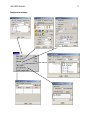
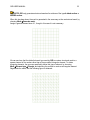
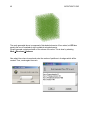
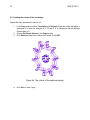
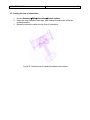
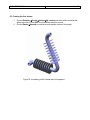
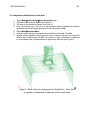
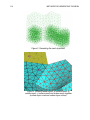
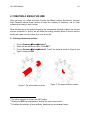
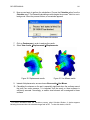
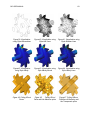
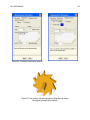
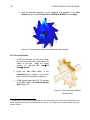
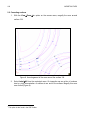
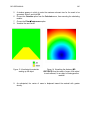
Try out the various options offered in the Style menu. Click Apply to see the
results.
9
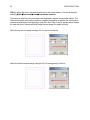
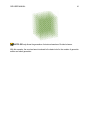
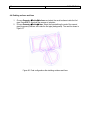
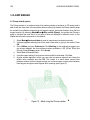
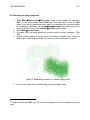
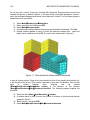
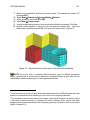
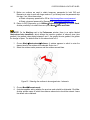
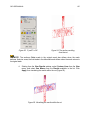
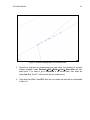
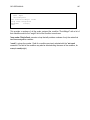
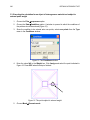
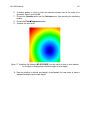
Try out the various options offered in the Culling menu combined with the
Conditions menu and the Transparent and Massive options. Click Apply to see
the results.
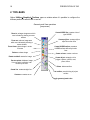
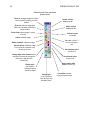
This option is also located in the post-process Toolbox. For further information about the tools in the
Toolbox, click on the corresponding icon with the right mouse button.