1
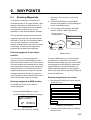
7. ROUTES
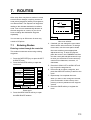
Often a trip from one place to another involves
several course changes, requiring a series of
route points (waypoints) which you navigate to,
one after another. The sequence of waypoints
leading to the ultimate destination is called a
route. Your unit can automatically advance to
the next waypoint on a route, so you do not
have to change the destination waypoint
repeatedly.
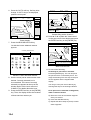
ROUTE NAME
001
COMMENT
7.1
Entering Routes
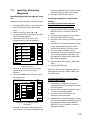
Entering routes through the route list
This method constructs routes using existing
waypoints.
1. Press the [WPT/RTE] key to open the WPT
& ROUTE menu.
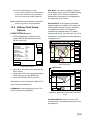
2. Press the ROUTES soft key to open the
route menu.
ABCDEF
ABCDEFGHIJKL
BRIDGE
12:30 20MAY02
FISH01
15:21 23MAY02
HPT001
16:45 23MAY02
GPS 3D
LENGTH
25.6 nm
WAYPOINTS
35
LENGTH
56.7 nm
WAYPOINTS
6
LENGTH
21.1 nm
WAYPOINTS
3
LENGTH
4.7 nm
WAYPOINTS
1
SEARCH FOR _ _ _
ROUTE
GO TO
NEW
ROUTE
EDIT
ROUTE
ERASE
ROUTE
RETURN
RETURN
PLOT
LOCAL
LIST
ALPH
LIST
CONECT
ROUTE
CANCEL
GPS 3D
You can store up to 200 routes. A route may
consist of 35 points.
NEW
ROUTE
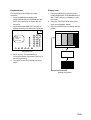
New route window
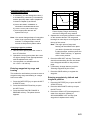
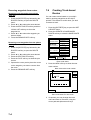
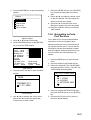
4. If desired you can change the route name
shown and/or add a comment. To change
route name, use the cursor pad to locate
the cursor and then press appropriate
alphanumeric key. To enter a comment,
place the cursor in the COMMENT window.
Use the cursor pad and alphanumeric keys
to enter your comment. A route name may
consist of six characters; comment, 13
characters.
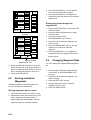
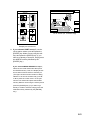
5. Press the LOCAL LIST or ALPH LIST soft
key to open the waypoint list.
6. Press ▲ or ▼ to select a waypoint, and
press the ADD WPT soft key to add it to the
route.
7. Repeat step 6 to complete the route.
When you want to clear a waypoint selected,
press the ERASE LST WP soft key. Each
pressing of this key deletes the last waypoint
entered.
8. Press the SAVE soft key to register the
route.
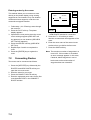
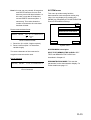
Route menu
3. Press the NEW ROUTE soft key to open
the NEW ROUTE window.
7-1