1
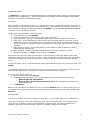
Can I share my question pools?
You cannot share your question pools with other instructors. Question pools are available only to those who create
them.
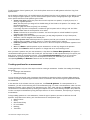
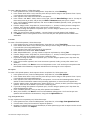
Moving questions between parts of an assessment
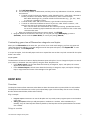
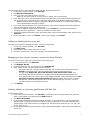
To move individual questions from one part to another within an assessment, follow these steps:
1. On the Assessments page, click the title of the assessment you wish to work on. You'll see a list of
questions for that assessment.
2. For each question you'd like to move to a different part, click Modify.
3. From the "Assign to Part" drop-down list, select the part where you'd like that question to appear. For
example, if you'd like a question to be in the first part, select 1.
4. Click Save.
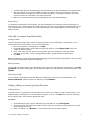
To move every question from one part to another part (i.e., remove a part, but keep its questions), follow these
steps:
1. Click Remove next to the part you are deleting.
2. Select Remove part only and move question(s) to , and use the accompanying drop-down list to
choose a destination part.
3. Click Remove.
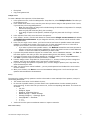
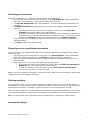
Editing metadata in assessments
Note: You should not use the feedback option in Tests & Quizzes when assessing learning, as it may provide
information students can use to correct their answers before submitting a test.
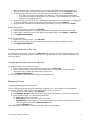
Once you publish an assessment, you cannot change the metadata. Before you publish an assessment, you can edit
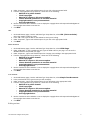
its metadata from the Settings page. To do so, follow these steps:
1. In the menu bar of the relevant course or project site, click Tests & Quizzes.
2. From the Assessments page, under "Published Assessments", click Settings beneath the title of your
assessment.
3. Click the black triangle next to "Metadata".
4. Add any keywords, objectives, and rubrics in the provided text fields. Additionally, you can select
Questions to record metadata for the questions in your assessment.
5. Click Save Settings.
If you follow the instructions above and the metadata field is not accessible, you will need to create a new
template that includes access to the metadata field. To do so, see Adding/creating, editing, or deleting a template.
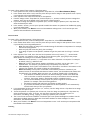
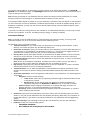
Creating a survey
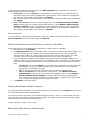
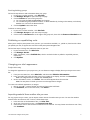
You can create a survey using the same process you would to create an assessment, since the "Survey" question
type allows you to choose from a predefined set of scales commonly used for survey reporting. Those scales are the
following:
• Yes, No
• Disagree, Agree
• Disagree, Undecided, Agree
• Below Average -> Above Average
• Strongly Disagree -> Strongly Agree
• Unacceptable -> Excellent
• 1 -> 5
The Claremont Colleges January 2007
101