1
Troubleshooting
NOTE: This agency’s StreetWise Administrator is:____________________________________________
StreetWise Technical Support line: 800-718-8027
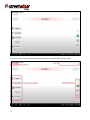
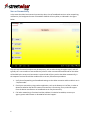
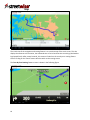
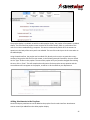
The StreetWise Alert Home Screen is yellow and the application does not seem to be functioning.
The main alert screen turns yellow to indicate that communication with the StreetWise server has been
lost. It is normal for this to occur for a few seconds from time to time as the cellular system adjusts to
changes in the tower assignments or when traveling through areas of low cell coverage. The software
should automatically reconnect and any missed messages or functions will then be pushed to the tablet
by the server. If, however, the screen remains yellow for an extended period of time, this is an indication
of a more serious connectivity issue. Try the following steps:
1. Check to be certain the device has not been inadvertently switched into “airplane” mode and
that the wireless connection option being used (3G/4G or WiFi) is still turned on.
2. Shut down and restart the StreetWise application.
3. Verify whether the connectivity issue is unique to the StreetWise application by using another
application that accesses broadband, such as the Browser or YouTube. If other programs also
have no connectivity, try manually shutting down the tablet and restarting. If connectivity is not
restored, the problem is likely a hardware issue. Contact your agency StreetWise administrator
or the hardware provider’s technical support.
4. If other programs are functioning correctly with connectivity and restarting the StreetWise
program does not clear the issue, notify your agency StreetWise administrator and/or contact
StreetWise Technical Support.
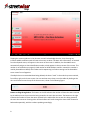
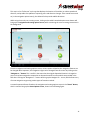
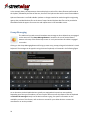
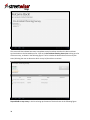
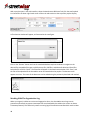
When the StreetWise application is opened, a dialogue box opens and requests a “device I.D.” or Sygic
Navigation licensing information.
This rare condition is an indication that the StreetWise licensing files in the tablet’s internal memory
have been erased or corrupted. The device will need to be reactivated by your agency’s StreetWise
administrator using the following procedure.
1. Manually shut down and restart the tablet. If this does not clear the problem, proceed to step 2.
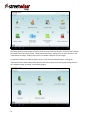
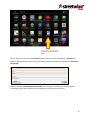
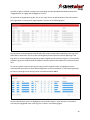
2. Open the device settings menu and navigate to “Manage Applications”. Scroll to the StreetWise
application icon and select.
3. Click of “Force Close”, then click on “Clear Data”.
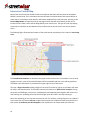
4. Return to the normal application menu and reopen StreetWise CADlink. Re-enter the proper
device I.D. number and license provided to you by StreetWise at the time of initial installation
on this device. For assistance, contact StreetWise Technical Support.
51