1
Contents
Index
93
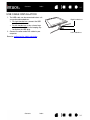
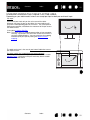
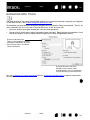
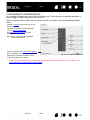
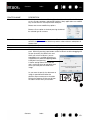
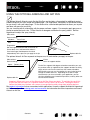
TESTING THE EXPRESSKEYS
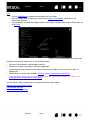
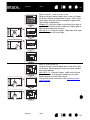
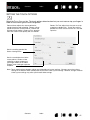
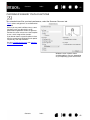
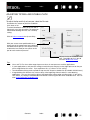
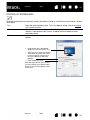
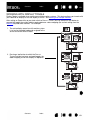
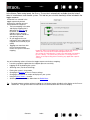
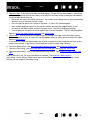
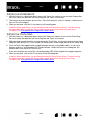
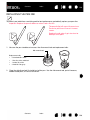
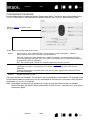
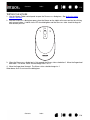
1. With the DIAGNOSTICS dialog box open, observe the TABLET INFO column as you test each ExpressKey.
Be sure to select the tablet unit you are testing from the TABLET INFO column.
2. Test the keys by pressing them one at a time. Each time you press a key, its number is shown next to
the LEFT BUTTONS category.
3. When you are done, click the CLOSE button to exit the dialog box.
Important: Some applications can override and control the ExpressKey functions. Consider closing
any open applications except the Wacom Tablet control panel when testing the ExpressKeys.
For details, see using applications integrated for tablet control.
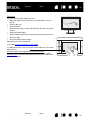
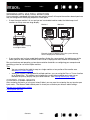
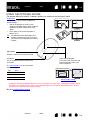
TESTING THE TOUCH RING
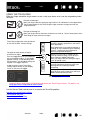
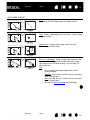
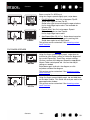
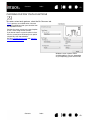
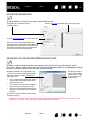
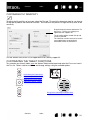
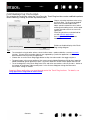
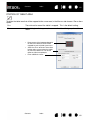
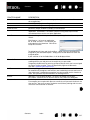
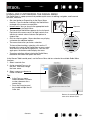
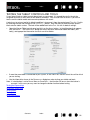
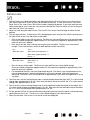
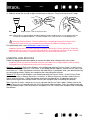
1. With the DIAGNOSTICS dialog box open, observe the TABLET INFO column as you test the Touch Ring.
Be sure to select the tablet unit you are testing from the TABLET INFO column.
2. Slide your finger around the entire circumference of the Touch Ring. As you touch and move your finger
along the Touch Ring, a LEFT TOUCH number will indicate your current finger position on the Touch Ring
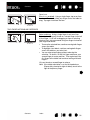
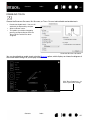
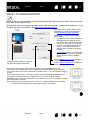
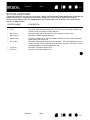
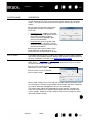
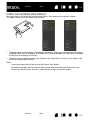
3. Press the Touch Ring toggle button to toggle between the four customizable modes. As you cycle
between settings, a corresponding LED should illuminate. Within the DIAGNOSTICS dialog box, the
button mode is also shown as LEFT BUTTONS.
If any of the functions are set to SKIP, the corresponding LED will be skipped in the toggle sequence.
4. When you are done, click on the CLOSE button to exit the dialog box.
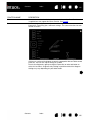
Important: Some applications can override and control the Touch Ring functions. Consider closing
any open applications except the Wacom Tablet control panel when testing the Touch Ring.
For details, see using applications integrated for tablet control.
Contents
Index
93