1
Receipt Management
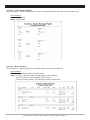
Receipt List Overview
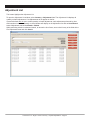
This lesson highlights the Receipt List window.
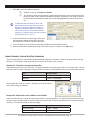
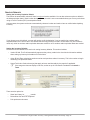
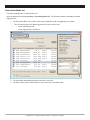
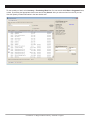
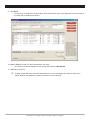
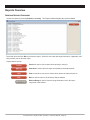
Open the Receipt List window by selecting Inventory > Receipt List. The Receipt List window displays receipts
entered in the past two weeks and is sorted by date.
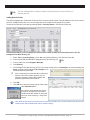
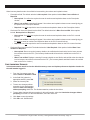
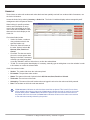
When looking for a specific receipt, enter information in one or more of the criteria fields provided in the Find receipts
area and click Search. Receipts that match the selected criteria display in the Receipt List window.
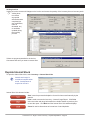
Find receipts fields include:
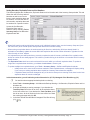
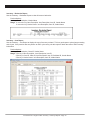
• Vendor list: View receipts for a specific vendor only.
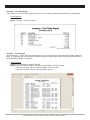
• Status list: View receipts with a specific status (All, Posted and Not Posted). Posted indicates the receipt is
complete and has been processed; information cannot be changed. Not Posted indicates item information for a
receipt has been saved but not processed; information can be edited and posted.
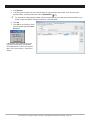
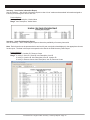
• From list: The two weeks prior to the current system date displays in the field. Manually type a beginning date or
click the arrow and select a date from the calendar in order to find receipts on or after a certain date.
• To list: The current system date displays in the field. If necessary, type an ending date or click the arrow and
select a date from the calendar in order to find receipts on or before a certain date.
Cornerstone* 8.1 Single Location Inventory • Receive • Page 45