1
Air view
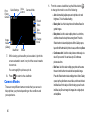
With the Air view feature, you can hover your finger over the
screen and Air view features will be displayed. For example,
you can hover your finger over a scheduled item in your
calendar to see more details.
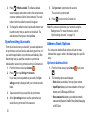
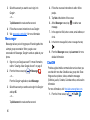
1. From the Home screen, tap
➔ Settings ➔
My device ➔ Air view.
My device
2. Tap the ON/OFF icon
to activate Air view.
at the top of your screen
3. The following options are available. Tap an option to
create a checkmark and activate the feature.
• Information preview: allows you to see information previews,
extended text, and enlarged images when you hover your
finger over the screen.
• Progress preview: allows you to preview a scene or show
elapsed time when you hover your finger over the progress
bar while watching a video.
• Speed dial preview: allows you to see the contacts and their
speed dial numbers when you hover your finger over them in
your contacts list.
• Webpage magnifier: allows you to see magnified links on
webpages when you hover your finger over them.
• Sound and haptic feedback: allows you to play sound and
feel vibration when you hover your finger over Air view items.
Voice control
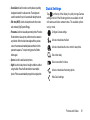
The Voice control settings allow you to set up voice
commands to control your device.
1. From the Home screen, tap
➔ Settings ➔
My device ➔ Voice control.
2. Tap the ON/OFF icon
to activate Voice control.
My device
at the top of your screen
3. The following options are available. Tap an option to
create a checkmark and activate the feature.
• Incoming calls: allows you to answer or reject calls using the
commands Answer and Reject.
• Alarm: allows you to stop or snooze an alarm by using the
commands Stop and Snooze.
• Camera: allows you to take pictures using the voice
commands Capture, Shoot, Smile, or Cheese.
Changing Your Settings
111