1
Working with Flow Elements
How to Add a Flow Object from the Component Palette
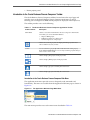
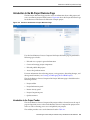
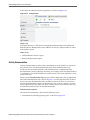
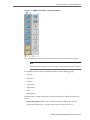
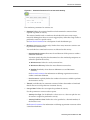
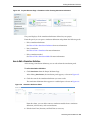
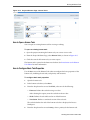
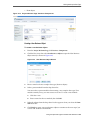
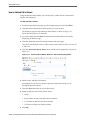
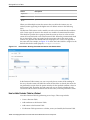
To add flow objects to your process drag them from the component palette onto the
process editor canvas.
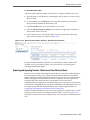
To add a flow element from the component palette:
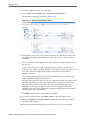
1. Open the process where you want to add flow elements.
2. Ensure you are in edit mode.
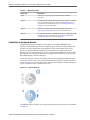
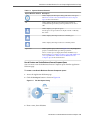
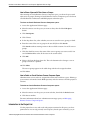
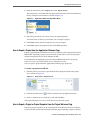
3. In the component palette, double-click the type of flow object you want to add.
4. Select the object entry mode you wish to use.
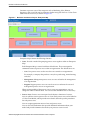
You can choose to enter a single flow object or multiple flow objects of the same
type. See Introduction to the BPMN Component Palette for more information.
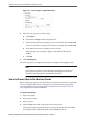
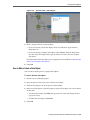
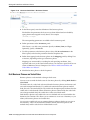
5. Click and drag the flow object you want to add to the area in process editor canvas
where you want to place it.
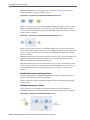
The cursor displays the icon associated with the type of flow object.
6. Position the cursor at the point in your process where you want to add the flow
object, then click the mouse.
If you are in multiple object mode, you can continue clicking within the process
editor canvas to add additional flow objects of the same type.
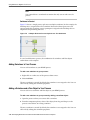
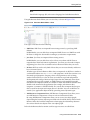
Note:
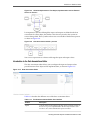
If you position the cursor over a sequence flow, Oracle Business Process
Composer automatically creates incoming and outgoing sequence flows for
the new flow object.
How to Cut, Copy, or Delete a Flow Object
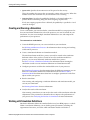
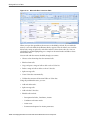
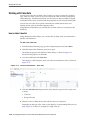
Within the process editor window, you can cut, copy, or delete flow objects.
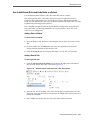
To cut, copy, or delete a flow object:
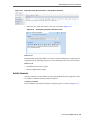
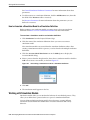
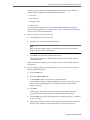
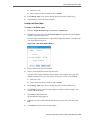
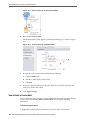
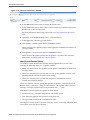
1. Select the flow object or sequence flow that you want to cut, copy, or delete.
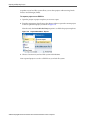
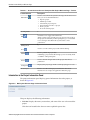
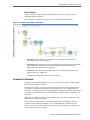
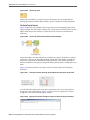
2. Select Cut, Copy, or Delete from the process editor toolbar.
Note:
When you cut or delete a flow object that contains incoming and outgoing
sequence flow, Oracle Business Process Composer automatically connects it to
the outgoing sequence flow. However, you may have to manually reconfigure
the surrounding flow objects.
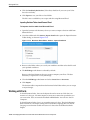
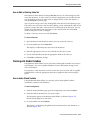
How to Paste a Flow Object in a Process
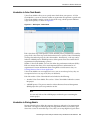
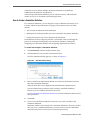
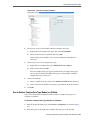
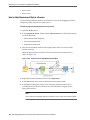
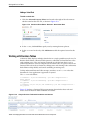
You can paste the flow object that you previously cut or copied.
7-14 Developing Business Processes with Oracle Business Process Composer