1
Knit Visualizer 1.2 Manual
Page 26 of 46
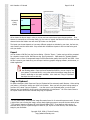
When this option is selected, the row numbers are all displayed on the right side of the chart, and the
Legend generated in the Preview Dialog only includes knitting instructions for Right Side rows. This
signals to the knitter to knit every row from the front side, since you begin knitting each row on the side
where the row number is. When the chart is marked as a Circular Pattern, All of the options under the
Flat Pattern Options section will be disabled; as they will have no effect on the chart's row numbers.
Flat Pattern
If the Circular Pattern checkbox isn't checked, then the chart will be represented as a flat pattern. Row
numbers will be included on both sides of the chart, according to the next two options. The Legend will
be generated with both Right and Wrong side knitting instructions.
Odd # Rows on Right Side of Chart
This option is only applicable if the Circular Pattern checkbox is unselected. If this option is checked,
then the chart will have the first row as #1 on the right (which is most common). When this option is
unchecked, row #1 will be on the left.
Hide Wrong Side Rows
When this option is selected, it means that wrong side row numbers are not included in the chart. No
rows are removed, only the row numbers are adjusted to reflect this option. If this option is selected,
then there are no Wrong Side rows included in the chart, so the Legend generated in the Preview Dialog
will not include Wrong Side instructions.
Show Grid Lines
You can hide the grid lines in the chart.
Show Symbol for Empty Stitches
The No Stitch stitch can also be called an empty stitch. The empty stitch will be depicted as an X on a
grey background if this option is selected. If this option is not selected, then No Stitch cells will be
shown with only the grey background, and no X symbol.
Title
You can give your chart a title, by entering the text in this field. This title is displayed when you Print or
Export your chart.
Source
It's always a good idea to give credit to the original pattern source. You can list your name, the book
and pattern the chart is based on, or any other information desired. This information can be displayed
when you Print or Export your chart.
Notes
This area is for any notes related to knitting the chart. This can include information on where repeats
begin and end, suggested yarn, even the text of a pattern to knit using the chart. The notes can be
displayed when you Print or Export your chart.
Keyboard shortcut: use Enter to save preferences and close the dialog. Use the Tab key to move
between fields. Use Control-[ to open the Chart Properties dialog
View Menu – Application Preferences
New in v1.2! There are a few settings that affect more than just a single chart. You will find those options
here.
Copyright 2005, 2006 © The Knit Foundry
http://www.knitfoundry.com