1
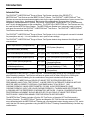
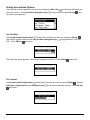
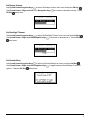
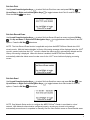
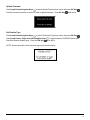
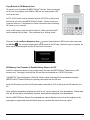
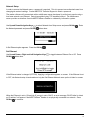
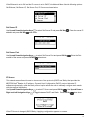
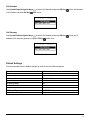
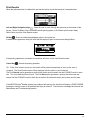
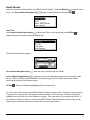
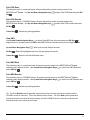
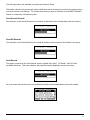
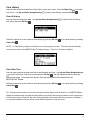
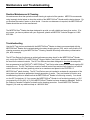
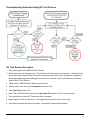
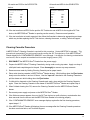
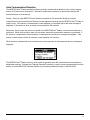
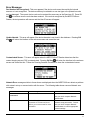
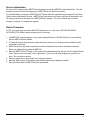
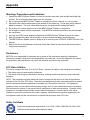
Hardware/Software Error messages are displayed similar to those above when the MEDTOXScan®
Reader detects a problem with hardware or software functions. The following table shows common error
messages:
Problem
Error Message
Solution
Initialization Failure
The drawer is open. Initialization has
failed. Please close the drawer to try
again.
Results history memory is full. Copy
results to SD card and clear the
history file to prevent oldest result
from being lost on next scan.
A fatal error occurred. Restart the
®
MEDTOXScan Reader.
Close the MEDTOXScan Reader
device drawer.
Memory Full
Component error
detected
Restart required
To complete this operation you must
®
reboot the MEDTOXScan Reader.
System failure
Initialization has failed. Unit needs
service.
Downgrading software versions is not
allowed. Please check that the SD
card has the proper version of
software and try again.
An internal motor error has been
detected. Press OK to re-scan the
cassette. If this error persists, please
return the Reader for service.
Attempting software
downgrade
Motor step error
®
Transfer records to alternate storage See Copy Results to SD Memory
Card o Network Setup. Select
records to delete - See Clear History.
Turn off the power switch located at
the rear of the Reader. Wait approx.
10 sec, and then switch power back
on.
Turn off the power switch located at
®
the rear of the MEDTOXScan
Reader. Wait approx. 10 sec, and
then switch power back on.
Contact MEDTOX Technical Support.
Verify that the firmware upgrade on
the SD card is higher than the S/W
version listed on the About
®
MEDTOXScan Reader screen.
Contact MEDTOX Technical Support.
Print Error messages are displayed when the MEDTOXScan® Reader detects a problem with printing. The
following table shows common print error messages:
Problem
Error Message / Solution
No Printer Connected
Communication with the printer was unsuccessful. Please check that the
printer is turned on and connected properly. Press OK to re-try printing.
The printer door is open. Please close the printer door and try again.
Printer Door Open
No Paper Roll or Paper
Ran Out
Graphics Error
Other Printer Errors
The printer is out of paper. Please install a fresh roll of paper and try printing
again.
The printer has reported an error while printing the graphics logo. Please try
printing again.
Test results printout was unsuccessful. An error has been reported from the
printer. Please try again.
32