1
Creating a Wired Connection
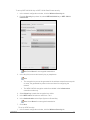
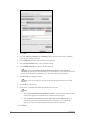
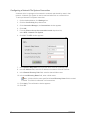
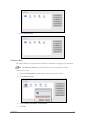
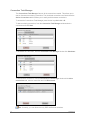
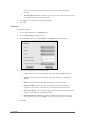
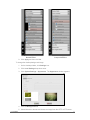
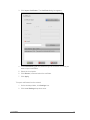
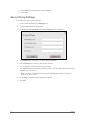
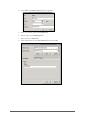
To create a wired connection:
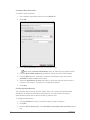
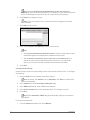
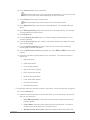
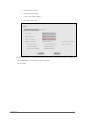
1. In the network connections window, click the Wired tab.
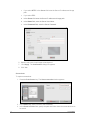
2. Click Add.
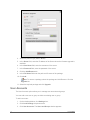
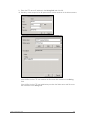
3. In the Connection Name field, enter a connection name.
Note: Select Connect Automatically option to make this your default network.
4. From the Device MAC address drop-down list, select your device MAC address.
5. From the MTU spin box, set an MTU (maximum transmission unit) value. Select
automatic for default network MTU value.
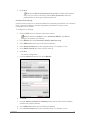
6. Select the Available to all users check box to allow other users of the thin client to
connect to this network. This option is not selected by default.
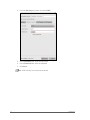
7. Click Save.
Configuring Wired Security
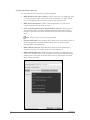
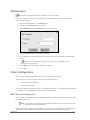
Gio 5 provides 802.1x security protocol options, 802.1x is a security and authentication
standard for wired and wireless network connections. You can choose from several
authentication options that are part of the 802.1x protocol suite.
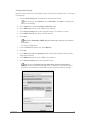
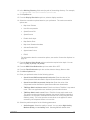
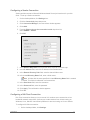
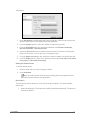
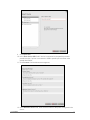
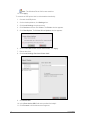
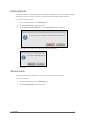
To configure wired security:
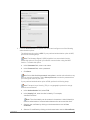
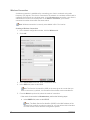
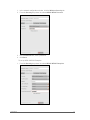
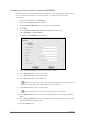
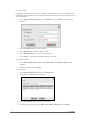
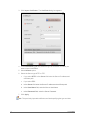
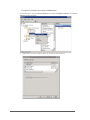
1. From the Profiles list, select a connection that you want to configure.
2. Click Edit.
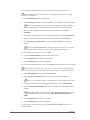
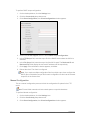
3. Click the 802.1x Security tab, select Use 802.1x security for this connection check
box.
12
Connectivity