1
92 CHAPTER 9
Network Devices
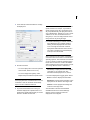
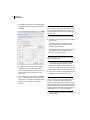
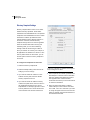
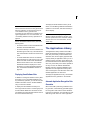
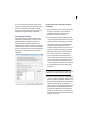
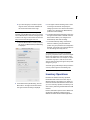
2 To add a search range to the list, click the upper
Add button, and enter an IP range in the Add
Values dialog.
You can enter the range in the form 90.0.10.128 90.0.20.255 or you can use a wildcard. For
example, 192.168.31.0 - 192.168.31.255 is the
same as 192.168.31.*.
3 If you do not want to scan all the IP addresses
in the ranges you specified, click the lower Add
button and enter the exclusion ranges in the
Add Values dialog.
3 When you have finished defining the discovery
settings for your network, click OK to save your
changes. The updates will be used when the
Network Device Discovery job next runs.
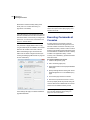
Schedule
To ensure that as many network devices as
possible are switched on and detectable, the
Network Device Discovery job is timed to run at
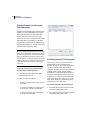
13:00 each day by default. Use the Schedule tab if
you want to change the start time or frequency of
the job.
To modify the job schedule:
Community Strings
Many network devices can be configured to
require a password before they will reply to
requests for information. In SNMP, these
passwords are known as community strings (or
community names). Use the Community Strings
tab to specify the community strings required by
the intelligent devices you want to manage, so that
the Network Device Discovery job can access their
property data.
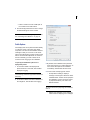
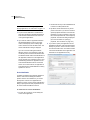
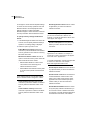
To specify the community strings that provide
access to device information:
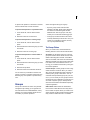
1 Select the Community Strings tab.
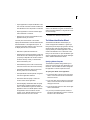
2 To add a community string to the list, click Add,
type the string in the Add Values dialog, and
click OK.
To update an existing string, select its entry in
the list, click Modify, type the new value in the
Edit Value dialog, and click OK.
To delete a community string, select its entry in
the list, and click Remove.
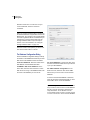
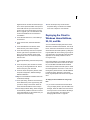
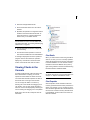
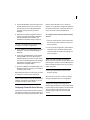
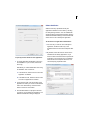
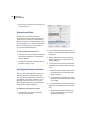
1 Select the Schedule tab.
2 In the Start date list, enter the date when you
want the operation to start.
3 In the Start time field, enter the time at which
you want the operation to start.
4 In the Host list, select the Scheduler which
Enterprise can use to start and monitor the job.
5 Choose a schedule.
6 To prevent the Scheduler from running a repeat
job at specific times or on specific days,
deselect the intervals you want to exclude in the
Start Control slots.
Normally, a Scheduler starts a job within 90
seconds of the specified start time. However, if the
selected Host is unavailable or already running at
full capacity when a job is due to start, it will attempt
to start the outstanding job at the next available
opportunity. To ensure that a job is restricted to
specific times or specific days, deselect the Start
Control slots when the operation must not start.