1
User Setup
3.2.1
Enrolling a fingerprint
fingerprint
You can enrol up to ten different fingerprints with each user ID.
When registering users, you should ideally enrol every finger and thumb. This
avoids problems with users forgetting which finger has been enrolled or being
unable to gain access because of injury to the enrolled finger. This can be timeconsuming but at least two fingerprints should be enrolled, left and right index
fingers, for example, to provide users with a ‘backup’.
1.
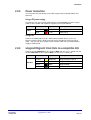
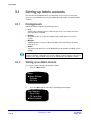
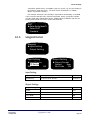
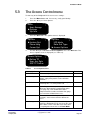
Select the Enrol FP option and press the OK button.
Enrol FP
New Enrol?
ESC
2.
OK
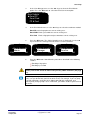
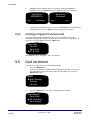
If the fingerprint is for a new user account, press the OK button. To add an
additional fingerprint to an existing user account, press the ESC button. The
procedure is the same, in both cases.
New Enrol
ID 000000001
ESC
OK
Backup Enrol
ID 000000001
ESC
OK
3.
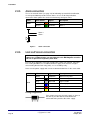
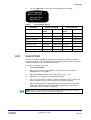
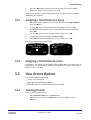
DIGIgarde PLUS displays the ID it will assign as the User ID for this account.
The ID is a 9-digit number. As you enrol users, DIGIgarde PLUS
automatically increments the ID starting from 000000001 for the first new
user. If you want to enter a specific number (avoiding existing User IDs),
type it in using the keypad starting with the highest digit.
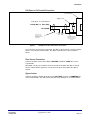
4.
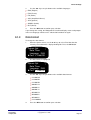
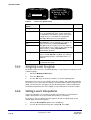
Click on the OK button to continue. The user ID is now appended with a
number to indicate the order of fingerprints enrolled by this user. 0 (zero)
corresponds to the first fingerprint, 1 the second, and so on, up to 9.
5.
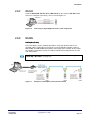
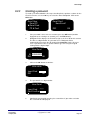
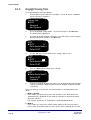
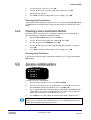
Ask the user to place their finger on the scanning window.
New Enrol
000000001-0
Place finger
ESC/Exit
Last Change
10 April, 2012
New Enrol
000000001-0
Remove finger
ESC/Exit
DIGIgarde PLUS User Guide
Copyright © 2012 TDSi
Page 25