1
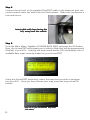
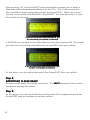
You will next be prompted to confirm your decision. Removing the map from
the AccessPORT will delete it and no copy is automatically stored on your PC.
To continue, click on ‘Yes’.
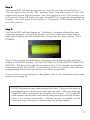
Once ‘Yes’ has been clicked, a progress window will appear briefly. Once
completed, you will return to the AccessPORT Map Manager window. The
selected map will no longer appear on the AccessPORT map list.
Please note the AccessPORT can store 6 Base Maps and 10 Real Time maps.
The slot numbers represent the order in which they will be displayed on your
AccessPORT.
When you remove a Map from the AccessPORT, that Slot is now empty. When
you transfer a new map to the AccessPORT, it will be placed in the first available
slot. For example, if you remove Maps in Slot 2 and in Slot 4, the next map you
transfer to the AccessPORT (of the same map type - Base or Realtime) will be
placed in Slot 2.
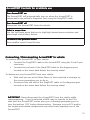
HELPFUL TIP
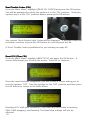
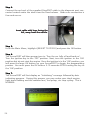
TIP:: The maps displayed in the Base Map section of the Map Manager
are the maps displayed when you use the [CHANGE BASE MAP] menu option
on your AccessPORT.
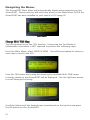
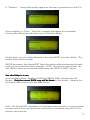
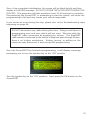
The maps displayed in the Realtime Map section of the Map Manager are the
maps displayed when you use the [SWITCH MAP] menu option on your
AccessPORT.
Turn page for Next Step.
35