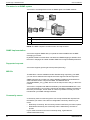
1
PowerLogic™ PM5500 series
Meter webpages
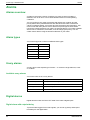
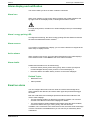
User group
Access
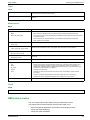
Web user
Users in this group can view all information that is displayed on the webpages.
In addition, a web user can view most device settings available though the webpages (except user
accounts) but cannot change them.
Web master
Users in this group can view all information that is displayed on the webpages.
In addition, a web master can change device settings available on the webpages but cannot see or edit
user accounts.
Product master
Users in this group can view all information that is displayed on the webpages.
In addition, a product master can change device settings available on the webpages, including user
accounts.
The product master can also access the meter using the FTP server.
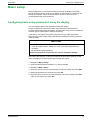
Configuring user accounts for webpages
You can setup user accounts for access to the meter’s using the webpages or FTP,
assign users to a group that determines what each user can access, and set the
webpage display language for each user.
You must be logged in as a Product Master to configure user accounts.
NOTE: If you lose your meter’s webpage user access information, contact
Technical Support.
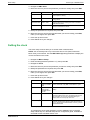
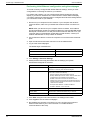
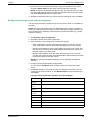
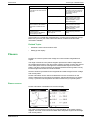
1. Click Settings > User Accounts.
2. Configure the parameters as appropriate for each user.
3. Click Save changes to send and save the new settings to the meter.
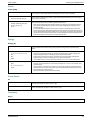
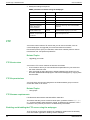
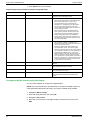
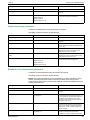
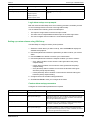
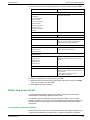
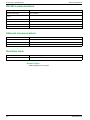
User account settings available using the webpages
Parameter
Description
Name
Lists the current usernames for accessing the meter. You can add a
new user by typing the username in a blank cell.
To remove an existing user, select the name and press DELETE on
your keyboard.
Password1
Lists the current password associated with each user. After adding a
new username, type a password to associate it with the username. As
you enter characters for your password, the status bar changes to
indicate the password strength (weak, medium, strong or very strong).
Re-type the password in the Confirm Password field.
Group
Select the group the username belongs to:
• Web User
•
Web Master
•
Product Master
NOTE: You must have at least one Web Master and one Product
Master. User 1 must be a Web Master and user 2 must be a Product
Master.
Language
Select the language the webpages are displayed in for the selected
username.
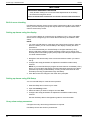
1
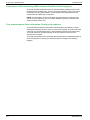
Always record changes or additions to the username and password list and store the list in a
safe place.
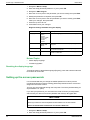
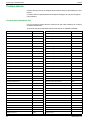
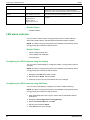
Reading device registers using the webpages
You can use the webpages to read a specified block of Modbus registers from the
meter or from a slave device when the meter is acting as a gateway.
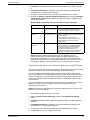
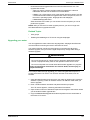
1. Navigate to Diagnostics > Registers > Read Device Registers.
2. Type the address of the device you want to read in the Device ID field.
3. Enter values in the Starting Register and Number of Registers fields.
HRB1684301-03
41