1
English
Foreword: Welcome
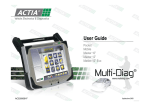
ACTIA, specialist in onboard electronics for industrial vehicles,
is marketing the digital tachograph SmarTach® in Europe.
Compliant with European Regulation No. 3821/85 Annex 1B,
SmarTach® is a reliable and secure tool designed to replace
paper disk tachographs. A real partner on the road, SmarTach®
gives you information about your time spent driving and resting,
and helps you to manage your working day while respecting the
regulation.
You can view all your information on the screen, or print it out on
paper.
There is a network of workshops spread throughout Europe to
maintain the equipment and supply accessories and
consumables.
Hit the road with SmarTach®!
Copyright© 2005 ACTIA
- Foreword -
English
- Foreword -
Copyright© 2005 ACTIA
3.5
3.6
How to Select your Current Activity..................14
First Level Displays ............................................15
1.
In this Manual............................................. 1
3.6.1
3.6.2
How to Select a Main Display............................................. 15
How to Display the Most Useful Information.................... 17
1.1
1.2
1.3
Subject................................................................... 1
Symbols Used ....................................................... 1
Terminology .......................................................... 1
3.7
How to Acknowledge Warnings.........................20
3.7.1
3.7.2
Single Warning .................................................................... 20
Simultaneous Warnings ..................................................... 20
1.3.1
1.3.2
Abbreviations.........................................................................1
Glossary .................................................................................1
3.8
3.9
How to Withdraw your Smart Card....................21
SmarTach® Behaviours ......................................22
2.
General Presentation of SmarTach® ......... 5
2.1
2.2
General Features .................................................. 5
Interfaces............................................................... 5
3.9.1
3.9.2
Ignition Switch OFF ............................................................ 22
Ignition Switch ON .............................................................. 23
4.
2.2.1
2.2.2
2.2.3
2.2.4
2.2.5
Display....................................................................................5
Keys ........................................................................................6
Keyboard Beep ......................................................................7
Warning Beep ........................................................................7
Warning Light ........................................................................8
How to Use SmarTach® Advanced Functions............................... 25
4.1
How to Set SmarTach® .......................................25
3.
How to Use SmarTach® Basic Functions ........................................ 9
3.1
3.2
3.3
3.4
Recommendations................................................ 9
For Different Users and Smart Cards ................. 9
Mode of Operation .............................................. 11
How to Insert your Smart Card.......................... 11
4.1.1
4.1.2
4.1.3
4.1.4
4.1.5
4.1.6
4.1.7
4.1.8
4.1.9
Printouts Time Reference................................................... 25
Local Hour/UTC Time.......................................................... 26
UTC Time ............................................................................. 27
Contrast ............................................................................... 28
Keyboard Beep.................................................................... 28
Warning Beep ...................................................................... 29
Speed Unit ........................................................................... 30
Default Activity .................................................................... 31
Remind Beep ....................................................................... 32
Copyright© 2005 ACTIA
- Contents - i
English
Contents
English
4.2
4.3
How to Reset the Tripmeter ............................... 33
How to Get Paper Printouts .............................. 34
4.3.1
4.3.2
4.3.3
Driver and Co-Driver Activities ..........................................35
Events and Faults................................................................37
Technical Data and Over-speeding....................................38
4.4
4.5
How to Display Printouts ................................... 39
How to Declare Specific Conditions ................. 40
4.5.1
4.5.2
Out of Scope ........................................................................40
Ferry/Train............................................................................41
4.6
How to Enter Locations Where Daily
Work Periods Begin/End.................................... 42
4.6.1
4.6.2
Begin.....................................................................................42
End........................................................................................43
4.7
How to Enter Activities Manually ...................... 45
4.7.1
4.7.2
4.7.3
During the Current Daily Work Period...............................47
At the End of the Previous Daily Work Period..................50
At the Beginning of the Current Daily Work Period .........53
4.8
How to Manage Company Locks....................... 56
4.8.1
4.8.2
5.
SmarTach® for Dangerous
Goods Vehicles ...................................... 61
5.1
5.2
Introduction .........................................................61
Instructions for Use in the Presence
of an Explosive Atmosphere..............................62
6.
Appendices ............................................. 65
6.1
SmarTach® Functions.........................................65
6.1.1
6.1.2
General Purpose Functions ............................................... 65
Functions Accessible in the Company Mode only .......... 67
6.2
General Instructions ...........................................67
6.2.1
6.2.2
Compliance with Regulations ............................................ 67
Conditions for Secure Use ................................................. 69
6.3
Precautions for Use ............................................70
6.3.1
6.3.2
General................................................................................. 70
About SmarTach® Printer................................................... 70
6.4
SmarTach® Maintenance ....................................70
How to Place a Lock when no Lock has been Placed......57
How to Place a Lock when a Lock has already
been Placed..........................................................................58
How to End a Lock .............................................................59
6.4.1
6.4.2
How to Change the Paper Roll .......................................... 70
How to Clean the Printer Head........................................... 72
4.9 How Companies can Download Data................ 59
4.10 How to Display SmarTach® Technical Data ..... 60
6.6.1
6.6.2
6.6.3
4.8.3
ii - Contents -
6.5
6.6
SmarTach® Technical Data.................................72
Stored Data..........................................................73
In SmarTach®....................................................................... 73
On Driver Card..................................................................... 77
On Company Card............................................................... 79
Copyright© 2005 ACTIA
Access Rights to Data........................................ 80
List of Countries and Regions........................... 82
6.8.1
6.8.2
Countries..............................................................................82
Spain Regions......................................................................83
6.9
List of Warnings.................................................. 84
!© INVALID CARD ............................................................84
!©© CARD CONFLICT ....................................................85
!ªª TIME OVERLAP .......................................................86
!¢© DRIVING W/O CARD ...............................................86
!©¢ CARD INS WHILE ¢ ...............................................87
!©° CARD SESSION ERR ..............................................87
>> OVERSPEED................................................................87
!− POWER INTERRUPT...................................................88
!¯ MOTION DATA ERROR...............................................88
!² SECURITY BREACH ...................................................88
·©1 - ·©2 CARD FAULT .............................................89
·° INTERNAL FAULT .......................................................89
·® PRINTER FAULT .........................................................89
·¬ DOWNLOAD FAULT....................................................89
·¯ SENSOR FAULT..........................................................90
º¢ DRIVE > 4h30...............................................................90
6.9.1
6.9.2
6.9.3
6.9.4
6.9.5
6.9.6
6.9.7
6.9.8
6.9.9
6.9.10
6.9.11
6.9.12
6.9.13
6.9.14
6.9.15
6.9.16
Copyright© 2005 ACTIA
6.10 List of Pictograms Used in this Manual ............90
6.10.1 Pictograms Defined by Annex 1B...................................... 90
6.10.2 Combination of Pictograms Defined by Annex 1B .......... 91
6.10.3 Additional Pictograms ........................................................ 92
6.11 Example: Daily Card Printouts – Drivers Working
in Crew .................................................................93
6.11.1 Example Scenario ............................................................... 93
6.11.2 Printouts and Detailed Explanations ................................ 95
- Contents - iii
English
6.7
6.8
English
iv - Contents -
Copyright© 2005 ACTIA
1.3 Terminology
1.1 Subject
1.3.1 Abbreviations
This document explains how drivers and companies shall use
SmarTach®. You will also find the general instructions you need
to bear in mind while using SmarTach® and your smart card.
This document is based on the amended EEC
Regulation No. 3821/85 and especially its Annex 1B and
Regulation No. 3820/85.
English
1. In this Manual
EEC
European Economic Community
UTC
Universal Time Co-ordinated
1.3.2 Glossary
Annex 1B
Annex 1B to the amended EEC Regulation No. 3821/85.
1.2 Symbols Used
The following symbols have been used in the present document:
Symbol
Description
Prerequisites
Authenticity
Assurance that the source and content of data are truly that
indicated.
Assurance that the tachograph, smart card and speed sensor
are truly that indicated.
Confidentiality
Ownership of data that is not to be revealed.
Note
Reference to another part of the present
document or to other documents
Warning for the reader
Table 1
Copyright© 2005 ACTIA
- In this Manual - 1
English
Continuous driving time
The continuous driving time is computed as the current
accumulated driving times of a particular driver, since the end of
his last AVAILABILITY or BREAK/REST or UNKNOWN period of
45 minutes or more (this period may have been split in several
periods of 15 minutes or more). The computations involved take
into account, as needed, past activities stored on the driver card.
When the driver has not inserted his card, the computations
involved are based on the data memory recordings related to the
current period where no card was inserted and related to the
relevant slot.
Cumulative break time
The cumulative break from driving time is computed as the
current accumulated AVAILABILITY or BREAK/REST or
UNKNOWN times of 15 minutes or more of a particular driver,
since the end of his last AVAILABILITY or BREAK/REST or
UNKNOWN period of 45 minutes or more (this period may have
been split in several periods of 15 minutes or more). The
computations involved take into account, as needed, past
activities stored on the driver card. Unknown periods of negative
duration (beginning of unknown period > end of unknown period)
due to time overlaps between two different recording
equipments, are not taken into account for the computation.
When the driver has not inserted his card, the computations
involved are based on the data memory recordings related to the
current period where no card was inserted and related to the
relevant slot.
2 - In this Manual -
The work activity is not considered as an
interruption of the cumulative driving time. In case
of break, the driver shall manually select the Break/
Rest mode, otherwise he may exceed his
cumulative driving time.
Data memory
An electronic data storage device built into SmarTach®.
Downloading
Copying together with digital signature of a part or of a complete
set of stored data from the data memory of the vehicle or from
the memory of a tachograph card.
Event
Abnormal operation detected by SmarTach® which may come
from a fraud attempt.
Fault
Abnormal operation detected by SmarTach® which may come
from an equipment malfunction or failure.
Integrity (for data)
Characterises the fact that data has been modified or destroyed
in an authorised manner.
Member State
European Union Member State.
Copyright© 2005 ACTIA
English
SmarTach®
Name for ACTIA digital tachograph. Vehicle unit forming part of
the recording equipment described by Annex 1B (defined
above). Electronic system that records and stores driver and codriver activities and vehicle parameters.
SmarTach® sensor
Part of the recording equipment, providing a signal that is
representative of vehicle speed and/or distance travelled. It
corresponds to the motion sensor defined in the regulation. Also
called speed sensor. SmarTach® can use its SmarTach® sensor
or another compatible and type approved sensor.
Tripmeter
Counter totalling the distance covered by the vehicle that may be
reset to zero by the driver.
Odometer
Counter totalling the total distance covered by the vehicle since
its first being brought onto the road.
UTC time
Universal Time Co-ordinated is the international reference time.
It was formerly known as Greenwich Mean Time (GMT).
Stand-by mode
As an energy-saving measure, when SmarTach® is in stand-by
mode, some functions are not available, e.g. backlighting of the
front panel.
Copyright© 2005 ACTIA
- In this Manual - 3
English
4 - In this Manual -
Copyright© 2005 ACTIA
2.1 General Features
SmarTach® users identify themselves with their personal card,
which also grants access to the appropriate functions and data.
They will appreciate its ease of operation, based on interactive
menus and only 6 keys.
SmarTach® also detects events and faults, and warns users
accordingly. SmarTach® provides greater protection against
manipulation, with the aim of ensuring social legislation
enforcement and improving road safety.
2.2 Interfaces
2.2.1 Display
SmarTach® is a digital tachograph that replaces the traditional
paper disk tachograph. This new system records, stores,
displays, prints and outputs data related to driver activities. Such
data must now be stored on smart cards and in SmarTach®
memory.
For the driver
Copyright© 2005 ACTIA
For the co-driver
- General Presentation of SmarTach® - 5
English
2. General Presentation of SmarTach®
The display can be divided into two main areas, as follows:
English
Areas
Part/Pictograms
First two
lines
Third line
2.2.2 Keys
Description
Displays information and menus.
Left part
Right part
Dedicated to the driver
Dedicated to the co-driver
Indicates that a card has been
inserted in the left slot (slot for the
driver).
Indicates that a card has been
inserted in the right slot (slot for the
co-driver).
Indicates the driver current activity.
When you press a key, a beep may sound.
To activate/deactivate beeps, refer to Section 4.1.5
Keyboard Beep.
Indicates the co-driver current activity.
Table 2
When working as a crew, each user shall use
the slot that is dedicated to their own activity.
SmarTach® display uses pictograms that are listed
in Section 6.10 List of Pictograms Used in this
Manual.
6 - General Presentation of SmarTach® -
Copyright© 2005 ACTIA
Key
Action
Key
Press to
• cancel the current
action.
(Escape) • return to the upper level
menu.
(Back)
Action
Press to
• go to a lower level
menu.
• answer Yes.
• confirm a choice.
• acknowledge warnings.
Press to
Press to
• go back to the previous
• go forward to the next
item or menu.
item or menu.
• change the value you
• change the value you
are entering.
are entering.
Hold down to
(Forward) Hold down to
• change the current
• change the current
value more quickly.
value more quickly.
Press to
• declare or modify your
activities as driver.
Hold down to
• insert or withdraw your
driver card from the left
slot.
Press to
• declare or modify your
activities as co-driver.
Hold down to
• insert or withdraw your
driver card from the
right slot.
2.2.3 Keyboard Beep
SmarTach® gives you an answer about your current action:
• One beep for a positive answer.
• Two consecutive beeps for a negative answer.
To activate/deactivate beeps, refer to Section 4.1.5
Keyboard Beep.
2.2.4 Warning Beep
When the warning light flashes, a beep may sound.
The warning beep sounds several times when:
• A warning has been triggered.
• No key is pressed for more than 30 seconds during manual
entry of activities.
To activate/deactivate beeps, refer to Section 4.1.6
Warning Beep.
Table 3
Copyright© 2005 ACTIA
- General Presentation of SmarTach® - 7
English
All operations are possible via the following keys:
2.2.5 Warning Light
English
The warning light flashes to warn you that:
• SmarTach® has detected an event or a fault.
The warning light flashes to draw your attention to the fact that:
• you have requested an action not possible at that
moment,
• the manual entry of activities is not finished.
When the warning light flashes, a beep may sound.
To activate/deactivate beeps, refer to
Section 4.1.6 Warning Beep.
To read more about Manual entry of activities, refer
to Section 4.7 How to Enter Activities Manually.
8 - General Presentation of SmarTach® -
Copyright© 2005 ACTIA
You must read completely Section 6.2 General
Instructions, where general instructions for
SmarTach® use can be found.
3.1 Recommendations
Drivers and employers must use SmarTach® in conformance
with all instructions found in modified EEC Regulation No. 3821/
85 and in this manual.
SmarTach® is a secured system:
• the data to be measured and recorded and then to be
checked by control authorities must be available and
reflect accurately the activities of controlled drivers and
vehicles in terms of driving, work, availability and rest
periods and in terms of vehicle speed.
• it is able to export data in such a way as to allow for later
verification of their integrity and authenticity.
To meet these security objectives:
• each driver card is strictly personal, and each driver is
allowed to possess, at one time, one valid driver card
only.
• periodic inspections of SmarTach® must be carried out
under any condition defined in modified EEC Regulation
No. 3821/85 (and at least once within two years of the
last inspection).
Copyright© 2005 ACTIA
3.2 For Different Users and Smart Cards
SmarTach® provides selective access rights to data and
functions according to user type:
• Driver
• Company
• Workshop
• Controller
Refer to Section 6.7 Access Rights to Data
and Section 6.1 SmarTach® Functions.
- How to Use SmarTach® - Basic Functions - 9
English
3. How to Use SmarTach® - Basic
Functions
Each card identifies the type of user:
English
Smart
Card
Description
• Issued by the authorities of a Member State to a
particular driver.
Driver Card
• Identifies the driver.
• Records the driver activity data.
Colour
White
• Issued by the authorities of a Member State to
the owner or holder of vehicles fitted with
recording equipment.
• Used by the fleet manager or the owner of the
transport company.
Company
•
Identifies the company.
Card
• Allows data belonging to this company to be
locked.
• Allows the data to be displayed, downloaded
and printed, provided that it has not been locked
by another company.
Yellow
• Issued by the authorities of a Member State.
• Used by a recording equipment manufacturer, a
fitter, a vehicle manufacturer or workshop,
Workshop
approved by that Member State.
Card
• Identifies the cardholder.
• Allows the recording equipment to be tested,
calibrated and/or downloaded.
Red
Smart
Card
Description
Colour
Control
Card
• Issued by the authorities of a Member State to a
national competent control authority.
• Used by the relevant authorities.
• Identifies the control body and possibly the
control officer.
• Gives access to the data stored in the data
memory or in the driver cards for reading,
printing and /or downloading.
Blue
Table 4 (continued)
Table 4
10 - How to Use SmarTach® - Basic Functions -
Copyright© 2005 ACTIA
SmarTach® switches automatically to the relevant mode of
operation according to the type of card inserted. This mode is
indicated by a specific pictogram.
If the mode of operation pictogram flashes
continuously, the vehicle must go to the workshop
to be checked.
For more details, refer to Section 6.7 Access
Rights to Data and Section 6.1 SmarTach®
Functions.
3.4 How to Insert your Smart Card
Users
Mode of Operation
Pictograms
Driver
Operational Mode
¢
Company
Company Mode
Workshop
Calibration Mode
£
Controller
Control Mode
¡
• The vehicle must be stationary.
• The ignition switch must be turned on
(the engine does not need to be started).
• No printing operation must be in progress.
• No downloading operation must be in progress.
Table 5
Copyright© 2005 ACTIA
- How to Use SmarTach® - Basic Functions - 11
English
3.3 Mode of Operation
English
To insert your card, proceed as follows:
1. Hold down
or
to open the flap before inserting your
smart card.
2. When the slot is ready for card insertion, the corresponding
pictogram 1 or 2 flashes.
3. Insert your card, with
the chip facing up and
the arrow towards
SmarTach®, into the
appropriate slot:
• left slot: driver
• right slot: co-driver
• any slot: company
4. Slide it in gently up to the stop.
Do not force. Let the mechanism draw in the
card.
6. After a moment, your name appears. For a driver card
insertion, you must wait for this screen before starting to
drive.
If you inserted a company card, skip to 9.
7. If you inserted a driver card, SmarTach® goes to the next
display.
At this point, you can enter your activities manually.
To enter activities manually, refer to Section 4.7
How to Enter Activities Manually.
5. The slot closes automatically.
The following display appears to inform you that SmarTach®
reads the card. During operation, symbols move / - \.
Press
to not enter activities manually.
8. If you are not starting your daily work period, press
to
not enter the location.
12 - How to Use SmarTach® - Basic Functions -
Copyright© 2005 ACTIA
• to confirm the country displayed by default (here F for
FRANCE), press
,
• to select a different country, press
or
, and
then press
.
Refer to Section 6.8 List of Countries and
Regions.
• Then press
to confirm the selected starting
location for the period.
9. A display appears while the data are processed.
For Spain, you have to specify the region:
Select E for Spain and press
.
10. Your card has been inserted correctly.
A default display from the first level appears.
Press
or
as many times as
necessary to go to the relevant region.
Press
to validate.
In a few moments, counters are updated according
to the data stored on your card.
Copyright© 2005 ACTIA
- How to Use SmarTach® - Basic Functions - 13
English
If you are starting your daily work period, you must enter the
relevant location:
3.5 How to Select your Current Activity
English
Driver and co-driver activities are continuously displayed on the
third line of the screen.
• The vehicle must be stationary.
• No card withdrawal operation must be in
progress. Otherwise, wait until your card has
been withdrawn.
• There must be no event/fault message
displayed. Otherwise, press
to
acknowledge the warning.
• No downloading operation must be in progress.
Refer to Section 3.7 How to Acknowledge
Warnings.
To select your current activity, proceed as follows:
1. Press:
•
to change your activity as driver to the next one.
•
to change your activity as co-driver to the next one.
In the following example, the selected driver activity is
AVAILABILITY
and co-driver activity is BREAK/REST .
2. The driver activity switches to WORK
.
The co-driver activity remains BREAK/REST
.
Any declaration of activity is taken into account as soon as you
press the corresponding key.
• When the vehicle is moving, SmarTach®
automatically switches driver activity to
DRIVING
and co-driver activity to
AVAILABILITY .
• When the vehicle stops, SmarTach®
automatically switches driver activity to
WORK .
•
is never displayed in the right part dedicated
to the co-driver.
Activity
Pictogram
AVAILABILITY
WORK
BREAK/REST
DRIVING
The third line shows selected driver activities.
14 - How to Use SmarTach® - Basic Functions -
Table 6
Copyright© 2005 ACTIA
There are eight different displays at this level:
• Four main displays that are permanently displayed when you
are not executing any particular action.
• Four information displays, showing the most useful
information.
Example 1
Driver activities
(The vehicle is stopped)
3.6.1 How to Select a Main Display
After having inserted your card and selected your current
activity, you can select a main display. This display will
automatically appear again once an operation is completed.
1. To go from one display to another, press
or
.
2. Four different main displays can be permanently displayed,
each providing various types of information.
3. Waiting a few seconds without any action on the keyboard,
SmarTach® will automatically set the current display as
default permanent Main Display.
Information about
Driver activities
- The vehicle is stopped.
- The vehicle is moving.
Refer to
Example 1
Example 1 bis
Partial mileage
Example 2
Total mileage
Example 3
Vehicle speed
Example 4
No
Description
In example 1
1
Your current activity as driver
Break/Rest
2
Duration of your current activity as driver
2h and 2min
3
Cumulative break time
2h and 2min
® mode of operation
4
SmarTach
Operational mode
5
Your current activity as co-driver
Break/Rest
6
Duration of your current activity as codriver
2h and 3min
7
Local time
09:01
Table 8
Table 7
Copyright© 2005 ACTIA
- How to Use SmarTach® - Basic Functions - 15
English
3.6 First Level Displays
English
Example 2
Partial mileage
Example 1 bis
Driver activities
(The vehicle is moving.)
No
Description
In example 2
First line: same as in Example 1 bis
No
Description
In example 1 bis
1
Your current activity as driver
Driving
2
Your continuous driving time as driver
5min
3
Cumulative break time
0h and 0min
® mode of operation
4
SmarTach
Operational mode
5
Your current activity as co-driver
Availability
6
Duration of your current activity as codriver
5min
7
Local time
14:52
1
Partial mileage (Tripmeter)
10.7 km
2
Local time
14:56
Table 10
Example 3
Total mileage
No
Table 9
Description
In example 3
First line: same as in Example 1 bis
1
Total mileage
1661 km
2
Local time
14:57
Table 11
16 - How to Use SmarTach® - Basic Functions -
Copyright© 2005 ACTIA
Example 4
Vehicle speed
No
Description
In example 4
First line: same as in Example 1 bis
1
Vehicle speed
72 km/h
2
Local time
15:00
After having inserted your card and selected your current
activity, you can access useful information through different
displays.
1. Press
or
to go from one information display
to another.
2. Four different information displays are available, each
providing various types of information on the first two lines.
3. Waiting a few seconds without any action on the screen,
SmarTach® will automatically return to the Main Display
previously chosen.
Refer to Section 3.6.1 How to Select a Main
Display.
Table 12
Information about
Refer to
Continuous driving time and cumulative break time
Example 5
Weekly and semi-weekly driving time
Example 6
UTC time
Example 7
Summary of driver activities
Example 8
Table 13
Copyright© 2005 ACTIA
- How to Use SmarTach® - Basic Functions - 17
English
3.6.2 How to Display the Most Useful Information
English
Example 5
Continuous driving time
Cumulative break time
No
Description
In example 5
1
Your continuous driving time as driver
01h00
2
Your cumulative break time as driver
02h03
3
Mode of operation
Operational mode
4
Your continuous driving time as co-driver 02h00
5
Your cumulative break time as co-driver
13h03
Example 6
Driving time for one week
Driving time for two weeks
No
Description
In example 6
1
Your accumulated driving time as driver
for current week
01h07
2
Your accumulated driving time as driver
for current week and previous week
(complete)
031h07
3
Your accumulated driving time as codriver for current week
02h00
4
Your accumulated driving time as codriver for current week and previous week 037h00
(complete)
Table 14
Table 15
18 - How to Use SmarTach® - Basic Functions -
Copyright© 2005 ACTIA
No
Description
In example 7
1
UTC date
16/04/2003
2
Mode of operation
Operational mode
3
UTC time
11:42
Table 16
Example 8
Summary of driver activities
(available in some SmarTach®
versions)
No
Description
In example 8
1
Time remaining before you should start
your daily rest period as driver
12h56
2
Mode of operation
Operational mode
3
Your accumulated driving time for the
current day as driver
01h00
4
Current daily work period amplitude
03h04
Table 17
Copyright© 2005 ACTIA
- How to Use SmarTach® - Basic Functions - 19
English
Example 7
UTC time
3.7 How to Acknowledge Warnings
English
3.7.1 Single Warning
1. When SmarTach® detects an event or a fault, it triggers a
warning:
• the warning light flashes,
• beeps sound (if activated),
• a warning message is displayed. It notifies the cause of
the warning.
2. Wait for 30 seconds or press any key to stop flashes and
beeps in this warning phase.
The warning light remains on (if the cause of the
warning remains).
3. Secondly, press
to acknowledge the warning and
indicate that you are aware of the cause of the warning.
4. The warning message disappears.
To turn off the warning light, you may have to
execute specific actions, as indicated in Section
6.9 List of Warnings.
20 - How to Use SmarTach® - Basic Functions -
3.7.2 Simultaneous Warnings
1. Every time SmarTach® detects an event or a fault, it triggers
a warning.
2. If other events or faults occur before you have acknowledged
the first one, press
as many times as necessary until
the main display appears again.
3. A first press on
stops flashes and beeps for the last
warning if it has happened less than 30 seconds before.
Another press acknowledges the cause of the triggered
warnings.
Refer to Section 6.9 List of Warnings to know
what to do according to the warning cause
detected.
4. SmarTach® counts warnings coming from a same cause.
This counter is available in the top right corner of the current
display. In this example, SmarTach® has detected 6 driving
without an appropriate card events.
5. Acknowledgement in this case is grouped. A first press on
will correspond to acknowledgements for the number
of warnings from the same cause.
Copyright© 2005 ACTIA
warnings or alternate grouped and single warnings.
SmarTach® sorts them from newest to oldest. Each one is
shown if the previous one is acknowledged.
7. Main Display becomes available again if all detected
warnings have been correctly acknowledged.
3.8 How to Withdraw your Smart Card
• The vehicle must be stationary.
• The ignition switch must be turned on
(the engine does not need to be started).
• No printing operation must be in progress.
• No downloading operation must be in progress.
To withdraw your card, proceed as follows:
1. Hold down
•
to withdraw your card from the driver slot.
•
to withdraw your card from the co-driver slot.
2. The number of the selected slot and your name are
displayed. SmarTach® prompts you to confirm the card
withdrawal request.
3. Press
to confirm
Press
to cancel withdrawal operation. The last
displayed information reappears.
Copyright© 2005 ACTIA
4. If you are not finishing your daily work period, press
to not enter the location.
If you are finishing your daily work period, you must enter the
location where you are finishing your daily work period:
• to confirm the country displayed by default (here F for
FRANCE), press
,
• to select a different country, press
or
, and
then press
.
For Spain, you have to specify the region:
Select E for Spain and press
.
Press
or
as many times as
necessary to go to the relevant region.
Press
to validate.
Refer to Section 6.8 List of Countries and
Regions.
- How to Use SmarTach® - Basic Functions - 21
English
6. SmarTach® can cumulate display of different grouped
• Then press
period.
to confirm the selected location for the
English
Refer to Section 3.4 How to Insert your Smart
Card.
Refer to Section 5 SmarTach® for Dangerous
Goods Vehicles.
5. SmarTach® updates data on the smart card and ejects it.
3.9 SmarTach® Behaviours
This operation can take some time to finish.
The selected default display from the first level appears.
• The slot remains open for 3 minutes to proceed
with a new card insertion, if necessary.
Afterwards, if ignition switch is still on, the slot
closes automatically.
• The slot also closes automatically if the vehicle is
driven.
• For dangerous goods vehicles the user must
ensure that slots are closed before opening the
master switch of the vehicle and manipulating
the dangerous goods.
22 - How to Use SmarTach® - Basic Functions -
3.9.1 Ignition Switch OFF
While ignition switch is turned off, SmarTach® is in stand-by
mode, with its screen mainly off.
SmarTach® displays only the third line concerning the driver and
co-driver pictograms.
Refer to Section 2.2.1 Display.
SmarTach® wakes up every 30 minutes or following an action on
the keyboard.
During wake-up, it is possible to change activities or to check
data on the display.
SmarTach® remains in this state for a few seconds before going
back to stand-by mode.
Copyright© 2005 ACTIA
3.9.2 Ignition Switch ON
English
When ignition switch is turned on, SmarTach® shows
presentation displays for a few seconds before going to the
selected main display.
Refer to Section 3.6 First Level Displays.
One important presentation display summarizes the owners of
cards inserted in slots 1 and 2. This display is useful for driver or
co-driver functions in crew driving as well as to remember not to
forget to insert a card before driving.
When ignition switch is turned off, the main display remains for
a few seconds before SmarTach® goes into stand-by mode.
Copyright© 2005 ACTIA
- How to Use SmarTach® - Basic Functions - 23
English
24 - How to Use SmarTach® - Basic Functions -
Copyright© 2005 ACTIA
The following table explains how to go from one level of menus
to another:
The vehicle must be stationary to access the
second level of menus.
From
To
First level
Second level
Second level
First level
Press
Table 18
SmarTach® automatically goes back to the upper
level if no action is executed for more than
20 seconds.
4.1 How to Set SmarTach®
The following sections describe functions available to both
drivers and companies.
4.1.1 Printouts Time Reference
SmarTach® allows you to print your tickets referring to UTC time
reference or to Local time currently set. Default setting is printing
in UTC time.
This function is helpful for providing you with a ticket that is easy
to understand. Note that these printouts may not be provided to
authorities for control; they are for driver use only.
Printouts made while SmarTach® is in control mode will
automatically be in UTC time reference.
To set printing time, proceed as follows:
1. In the first level of menus, press
to go to the second
level.
2. Press
or
as many times as necessary to go
to SETTINGS.
3. Press
Copyright© 2005 ACTIA
to select SETTINGS.
- How to Use SmarTach® - Advanced Functions - 25
English
4. How to Use SmarTach® - Advanced
Functions
4. Press
English
or
to PRINT TIME.
as many times as necessary to go
to select PRINT TIME.
to validate the change or
without change.
as many times as necessary to go
3. Press
to exit
In this example, press
to choose printing in local time
reference.
7. The adjustment is taken into account.
8. The last selected main display appears.
4.1.2 Local Hour/UTC Time
You may set the difference between UTC time and local time,
unless the workshop has deactivated this function.
To set the difference between UTC time and local time, proceed
as follows:
1. In the first level of menus, press
to go to the second
level.
to select SETTINGS.
or
as many times as necessary to go
to LOCAL TIME.
4. Press
5. Press
to select LOCAL TIME.
6. The difference between local time and UTC time is displayed.
7. Press
or
to set the difference.
Local time must be set according to UTC time by
steps of plus or minus 30 minutes.
Limits are -23h30 and +23h30.
8. Press
26 - How to Use SmarTach® - Advanced Functions -
or
to SETTINGS.
5. Press
6. Press
2. Press
to validate the change (+01h00 in this case) or
to exit without change.
Copyright© 2005 ACTIA
2. Press
or
as many times as necessary to go to
SETTINGS.
In the following example, local time has been moved forward
by one hour.
3. Press
to select SETTINGS.
or
as many times as necessary to go to
4. Press
4.1.3 UTC Time
SmarTach® must be on time. You can adjust SmarTach® UTC
time under the following conditions:
• UTC time can be adjusted by a maximum of one minute.
• Only one adjustment can be made within 7 days. If you
try to adjust UTC time in between, a message notifies
you that it is not possible.
To adjust UTC time, proceed as follows:
UTC time must not have been adjusted within the
7 previous days.
1. In the first level of menus, press
level.
Copyright© 2005 ACTIA
to go to the second
UTC TIME.
5. Press
to select UTC TIME.
6. UTC time and the initial adjustment (+0min) are displayed.
7. To modify UTC time:
• press
• press
8. Press
change.
to set the internal clock forward +1min.
to set the internal clock back -1min.
to validate the change or
to exit without
- How to Use SmarTach® - Advanced Functions - 27
English
9. Local time adjustment is taken into account.
10. The last selected main display appears.
English
9. The adjustment is taken into account.
5. Press
10. The last selected main display appears.
6. Press
In the following example, UTC time has been moved forward
by one minute.
to select CONTRAST.
or
to increase or decrease the contrast
for display.
7. Press
4.1.4 Contrast
To adjust the contrast of the display, proceed as follows:
1. In the first level of menus, press
to go to the second
level.
to validate the change or
change.
8. Contrast change is taken into account.
9. The last selected main display appears.
to exit without
4.1.5 Keyboard Beep
To activate or deactivate the keyboard beep, proceed as follows:
1. In the first level of menus, press
to go to the second
level.
2. Press
or
as many times as necessary to go to
SETTINGS.
2. Press
3. Press
4. Press
to select SETTINGS.
or
as many times as necessary to go to
or
as many times as necessary to go to
SETTINGS.
CONTRAST.
3. Press
28 - How to Use SmarTach® - Advanced Functions -
to select SETTINGS.
Copyright© 2005 ACTIA
or
KEYBOARD BEEP.
5. Press
6. Press
as many times as necessary to go to
or
as many times as necessary to go to
SETTINGS.
to select KEYBOARD BEEP.
to validate the change or
change.
In the following example, press
keyboard beep.
2. Press
3. Press
to exit without
to select SETTINGS.
4. Press
or
as many times as necessary to go to
ALARM BEEP.
to deactivate the
5. Press
7. The change is taken into account.
8. The last selected main display appears.
4.1.6 Warning Beep
To activate or deactivate the warning beep, proceed as follows:
1. In the first level of menus, press
to go to the second
level.
6. Press
to select ALARM BEEP.
to validate the change or
change.
In the following example, press
warning beep.
to exit without
to deactivate the
7. The change is taken into account.
8. The last selected main display appears.
Copyright© 2005 ACTIA
- How to Use SmarTach® - Advanced Functions - 29
English
4. Press
4.1.7 Speed Unit
5. Press
English
®
To modify SmarTach speed unit, proceed as follows:
1. In the first level of menus, press
to go to the second
level.
2. Press
or
to select and change the display of
instantaneous speed or
to exit without change:
• km/h (kilometres per hour)
• mph (miles per hour)
Even if mph is chosen, all other tickets and data will remain in
km/h or km.
In the following example, press
to display
instantaneous speed in mph:
as many times as necessary to go to
SETTINGS.
6. Speed unit change is taken into account.
7. The last selected main display appears.
3. Press
to select SETTINGS.
or
as many times as necessary to go to
km/h / mph setting.
4. Press
30 - How to Use SmarTach® - Advanced Functions -
Copyright© 2005 ACTIA
Driver and co-driver activity
automatically selected
Vehicle status
The following section describes a function only
available to companies.
Ignition is
turned off
Your company card must be inserted.
Companies can set driver and co-driver activities automatically
selected by default by SmarTach® when ignition is turned on or
off. The following choices are possible:
Driver and co-driver activity
automatically selected
Vehicle status
Ignition is
turned on
Pictogram
Keep the current selected activity
_
Work
§
Break/Rest
¦
Availability
¥
Pictogram
Keep the current selected activity
_
Work
§
Break/Rest
¦
Availability
¥
Table 19 (continued)
To set the driver and co-driver default activity, proceed as
follows:
1. In the first level of menus, press
to go to the second
level.
2. Press
or
as many times as necessary to go to
COMPANY.
Table 19
3. Press
Copyright© 2005 ACTIA
to select COMPANY.
- How to Use SmarTach® - Advanced Functions - 31
English
4.1.8 Default Activity
4. Press
English
Select a _ instead of an activity to keep the
selected activity unchanged when ignition is turned
on or off.
to select DFLT ACTIVITY.
5. Press
or
as many times as necessary to
select the default activity:
• when ignition is turned on.
10. Press
to validate or
to modify the driver
default activity.
11. The last selected main display appears.
4.1.9 Remind Beep
• when ignition is turned off.
6. Press
to validate the selected option.
7. Press
or
as many times as necessary to
select the driver default activity: ¦, ¥, _ or §.
8. Press
to validate or
to exit without change.
9. Press
or
as many times as necessary to
select the co-driver default activity: ¦, ¥, _ or §.
32 - How to Use SmarTach® - Advanced Functions -
The following section describes a function only
available to companies.
Your company card must be inserted.
SmarTach® can remind you to select activities when ignition is
switched on or off by generating beeps.
Companies can set this function. Proceed as follows:
1. In the first level of menus, press
to go to the second
level.
Copyright© 2005 ACTIA
or
as many times as necessary to go to
COMPANY.
3. Press
to select COMPANY.
4. Press
or
as many times as necessary to
select REMIND BEEP.
In the following example, press
BEEP when ignition is turned off.
to choose REMIND
9. The change is taken into account.
10. The last selected main screen appears.
4.2 How to Reset the Tripmeter
5. Press
to select REMIND BEEP:
or
as many times as necessary to
select REMIND BEEP condition:
• when ignition is turned on.
6. Press
• when ignition is turned off.
7. Press
8. Press
You may reset the vehicle tripmeter, unless the workshop has
deactivated this function.
To reset the tripmeter, proceed as follows:
1. The vehicle tripmeter can be displayed when:
• you press
or
as many times as necessary
in the first level of menus to select the adequate display.
2. Press
to reset the tripmeter.
to validate the selected condition.
to validate the change or
to exit without
change.
Copyright© 2005 ACTIA
- How to Use SmarTach® - Advanced Functions - 33
English
2. Press
English
The tripmeter is displayed. SmarTach® prompts you to
confirm the reset.
The following table describes the different types of tickets
(printouts) you can print, as defined in Annex 1B.
Pictogram
This display only appears if the workshop has
activated this function.
3. Press
to confirm tripmeter reset or
without change.
4. SmarTach® resets the tripmeter.
• The vehicle must be stationary.
• The ignition switch must be turned on
(the engine does not need to be started).
• No downloading operation must be in progress.
From
24h©®
Driver and co-driver daily
activities
Driver’s or co-driver’s
cards
24h°®
Driver and co-driver daily
activities
SmarTach®
!x©®
Events and faults
Driver’s or co-driver’s
cards
!x°®
Events and faults
SmarTach®
£ª®
Technical data
SmarTach®
>>®
Over-speeding
SmarTach®
to exit
4.3 How to Get Paper Printouts
To print
Table 20
Tickets can be printed using UTC time or local time.
UTC time is required for tickets that can be provided to
authorities for control.
Refer to Section 4.1.1 Printouts Time
Reference.
34 - How to Use SmarTach® - Advanced Functions -
Copyright© 2005 ACTIA
Location
Contents
Description
Beginning
® 16/04/2003 07:55 (UTC)
___________®_____________
...
The ticket has been printed
with UTC time as required in
Annex 1B.
Beginning
® 16/04/2003 08:55 (LOC)
_________ACTIA®_________
** OUT OF REGULATION **
_________ACTIA®_________
End
...
___________®____________
End
Right
Side
...
__________!x®___________
...
...
The ticket has not been
printed with UTC time. It
cannot be provided to
authorities for control.
The ticket has been printed
properly and fully.
Data that should have been
printed are not on the ticket
due to a fault.
Red line: The paper roll is
nearly finished.
During the printing process, if the paper roll has not
been fitted properly, or if the printer door has not
been correctly closed, a message appears:
CHECK PRINTER DOOR OR PAPER.
For dangerous goods vehicles, the user must
ensure that no printout has been made 2 minutes
before manipulating the dangerous goods.
For more details concerning printer use, please
refer to sections:
6.3.2 About SmarTach® Printer,
6.4.1 How to Change the Paper Roll,
6.4.2 How to Clean the Printer Head.
Refer to Section 5 SmarTach® for Dangerous
Goods Vehicles.
4.3.1 Driver and Co-Driver Activities
To print driver and co-driver daily activities, proceed as follows:
1. In the first level of menus, press
to go to the second
level.
Table 21
Copyright© 2005 ACTIA
- How to Use SmarTach® - Advanced Functions - 35
English
Special contents on the ticket provide important information as
indicated in the following table:
2. Press
English
or
PRINT REPORT.
as many times as necessary to go to
3. Press
to select PRINT REPORT.
4. You can print your daily activities from SmarTach® or your
driver card.
In both cases, press
or
as many times as
necessary to select 24h°® or 24h©® respectively.
5. Press
to continue or
Card
Pictogram
Slot 1:
Driver card
©1?
Slot 2:
Co-driver card
©2?
Table 22
7. Press
to validate or
to change your selection.
8. Press
or
to modify the daily work period to be
taken into account on the printout.
Operate the same way to print activities from
SmarTach® 24h°®.
to cancel your selection
The following example is for printing your daily activities from
your driver card.
Printing data from a driver card is only possible if
the card is inserted.
6. If two cards have been inserted, press
or
to
select from which card data are to be printed:
9. Press
to print the ticket or
to change your
selection.
36 - How to Use SmarTach® - Advanced Functions -
Copyright© 2005 ACTIA
Press
to stop printing.
11. Once the printing operation has finished, the following display
appears:
2. Press
or
PRINT REPORT.
3. Press
to select PRINT REPORT.
4. You can print events and faults from SmarTach® or your
driver card. In both cases, press
or
as many
times as necessary to select !·°® or !·©®
respectively.
5. Press
Refer to explanation of this kind of ticket Section
6.11 Example.
as many times as necessary to go to
.
Printing events from a driver card is only possible if
the card is inserted.
4.3.2 Events and Faults
To print events and faults, proceed as follows:
1. In the first level of menus, press
to go to the second
level.
Copyright© 2005 ACTIA
- How to Use SmarTach® - Advanced Functions - 37
English
10. During the printing operation, the following display appears:
6. If two cards have been inserted, press
or
to
English
select from which card data are to be printed:
Card
Pictogram
Slot 1:
Driver card
©1?
Slot 2:
Co-driver card
©2?
9. Once the printing operation has finished, the following display
appears:
4.3.3 Technical Data and Over-speeding
To print technical data and over-speeding, proceed as follows:
1. In the first level of menus, press
to go to the second
level.
Table 23
7. Press
to validate and print the ticket or
change your selection.
to
Operate the same way to print events from
SmarTach® !·°®.
2. Press
or
PRINT REPORT.
as many times as necessary to go to
8. During the printing operation, the following display appears:
3. Press
to select PRINT REPORT.
or
times as necessary to select £ª®.
4. To print technical data, press
Press
to stop printing.
38 - How to Use SmarTach® - Advanced Functions -
as many
Copyright© 2005 ACTIA
many times as necessary to select
>>®.
or
as
to validate and print the ticket or
to
change your selection.
7. During the printing operation, the following display appears:
To display printouts, proceed as follows:
1. In the first level of menus, press
to go to the second
level.
6. Press
Press
to stop printing.
2. Press
or
DISPLAY REPORT.
3. Press
4. Press
8. Once the printing operation has finished, the following display
appears:
4.4 How to Display Printouts
You can see your printouts on the display instead of having them
on tickets.
Copyright© 2005 ACTIA
as many times as necessary to go to
to select DISPLAY REPORT.
or
to select the relevant type of
printout.
5. Follow the appropriate procedure.
6. Press
or
to scroll through the different
displays.
Refer to Sections:
4.3.1 Driver and Co-Driver Activities,
4.3.2 Events and Faults,
4.3.3. Technical Data and Over-speeding.
- How to Use SmarTach® - Advanced Functions - 39
English
5. To print driver over-speedings, press
4.5 How to Declare Specific Conditions
4. Press
or
as many times as necessary to
English
select OUT.
The vehicle must be stationary.
4.5.1 Out of Scope
5. Press
You can open an Out of Scope condition when your activities as
driver are not covered by EEC Regulation No. 3820/85. You
must close it when this regulation applies again.
Events and faults are managed as if this condition
were not open, except for events related to driving.
To declare Out of Scope condition, proceed as follows:
1. In the first level of menus, press
to go to the second
level.
to declare Out of Scope condition.
6. Press
or
as many times as necessary to
change the main display you want to display by default.
Only the three following main displays are available when this
condition is open:
• Tripmeter:
• Total mileage:
• Vehicle speed:
2. Press
or
SPECIFIC CONDIT.
3. Press
as many times as necessary to go to
to select SPECIFIC CONDIT.
40 - How to Use SmarTach® - Advanced Functions -
Copyright© 2005 ACTIA
When this condition is open:
the second level of menus is not available,
insertion or withdrawal of any card closes it.
7. Press
to close the condition.
SmarTach® shows you the date and time at which the Out of
Scope condition was opened.
8. Press
to confirm closing or
Scope condition.
to stay in Out of
4.5.2 Ferry/Train
2. Press
or
SPECIFIC CONDIT.
3. Press
4. Press
select ¹?.
as many times as necessary to go to
to select SPECIFIC CONDIT.
or
as many times as necessary to
During a journey, when your vehicle is transported by ferry or by
train, you must declare a Ferry/Train condition.
5. Press
to declare the Ferry/Train condition.
SmarTach® shows you the date and time at which the Ferry/
Train condition was declared.
6. Press
Copyright© 2005 ACTIA
to confirm the Ferry/Train condition declared or
to cancel.
- How to Use SmarTach® - Advanced Functions - 41
English
To declare Ferry/Train condition, proceed as follows:
to go to the second
level.
1. In the first level of menus, press
English
4.6 How to Enter Locations Where Daily Work
Periods Begin/End
You must specify the location where your daily work period
begins/ends in the two following cases:
• when you insert or withdraw your driver card,
Refer to Sections:
3.4. How to Insert your Smart Card,
3.8. How to Withdraw your Smart Card.
• when you are starting or ending a daily work period while
your card is inserted in SmarTach®. In this case, proceed as
described in this section.
4.6.1 Begin
To enter the location where your daily work period begins,
proceed as follows:
1. In the first level of menus, press
to go to the second
level.
2. Press
or
ENTER LOCATION.
as many times as necessary to go to
3. Press
to select ENTER LOCATION.
4. Press
or
as many times as necessary to
select the relevant choice according to the following table
Pictogram
User
Location for
1:±º?
Driver
Beginning of the daily work period
2:±º?
Co-driver
Beginning of the daily work period
Table 24
5. Press
to validate or
to exit without change.
6. SmarTach® prompts you to specify the location where the
daily work period starts.
42 - How to Use SmarTach® - Advanced Functions -
Copyright© 2005 ACTIA
or
as many times as necessary to
select the relevant country, then press
.
Refer to Section 6.8 List of Countries and
Regions.
4.6.2 End
To enter the location where your daily work period ends,
proceed as follows:
1. In the first level of menus, press
to go to the second
level.
For Spain, you have to specify the region:
Select E for Spain.
2. Press
Press
or
as many times as
necessary to go to the relevant region.
Press
8. Press
to validate the region.
to confirm or
or
ENTER LOCATION.
as many times as necessary to go to
3. Press
to select ENTER LOCATION.
4. Press
or
as many times as necessary to
select the relevant choice according to the following table:
to cancel.
9. The last selected main display appears.
Copyright© 2005 ACTIA
- How to Use SmarTach® - Advanced Functions - 43
English
7. Press
English
Pictogram
User
Location for
1:»±?
Driver
End of the daily work period
2:»±?
Co-driver
End of the daily work period
For Spain, you have to specify the region:
Select E for Spain.
Press
or
as many times as
necessary to select the relevant region.
Table 25
5. Press
to validate.
6. SmarTach prompts you to specify the location where the
daily work period ends.
®
7. Press
or
as many times as necessary to
select the relevant country, then press
.
Refer to Section 6.8 List of Countries and
Regions.
44 - How to Use SmarTach® - Advanced Functions -
Press
8. Press
to validate the region.
to confirm or
to cancel.
9. The last selected main display appears.
Copyright© 2005 ACTIA
4.7 How to Enter Activities Manually
English
For each activity, you will have to declare the following data:
• The vehicle must be stationary.
• The ignition switch must be turned on
(the engine does not need to be started).
• No downloading operation must be in progress.
• No printing operation must be in progress.
All times used in this section are in local time.
You can enter activities manually if you have performed
activities while away from your vehicle, your driver card not
having been inserted in SmarTach®. You were not able to
declare them in real time.
SmarTach® enables you to enter them at the card insertion just
following those activities.
Activity entry display
Number
Data
1
Activity type (Work, Availability or Break/Rest)
2
Start date of this activity
3
Start time of this activity
4
End date of this activity
5
End time of this activity
Table 26
SmarTach® only allows you to manually enter
activities having occured between the last
withdrawal of your driver card and its insertion.
Copyright© 2005 ACTIA
- How to Use SmarTach® - Advanced Functions - 45
English
The data you enter manually will be stored on your
driver card only and not in SmarTach®.
Once you have started manual entry of activities, SmarTach® warns
you if you do not enter any data during a certain time, as shown in the
following table.
No action for
Result
30 seconds
The warning light flashes and several beeps sound until
you press a key.
60 seconds
The manual entry is interrupted and only the data
entered and validated by pressing
are saved.
The data shown on the display at the
moment of the interruption are not
stored.
Table 27
The examples detailed in the following sections (4.7.1 to 4.7.3)
explain how you can enter activities manually, in three different
cases:
• You want to enter activities having occurred during the
current daily work period.
Refer to Section 4.7.1 During the Current Daily
Work Period.
• You want to enter activities having occurred at the end of the
previous daily work period.
Refer to Section 4.7.2 At the End of the Previous
Daily Work Period.
• You want to enter activities having occurred at the beginning
of the current daily work period.
Refer to Section 4.7.3 At the Beginning of the
Current Daily Work Period.
By combining the examples of sections 4.7.2 and 4.7.3, you will
be able to enter both activities having occurred at the end of the
previous daily work period and at the beginning of the current
daily work period.
46 - How to Use SmarTach® - Advanced Functions -
Copyright© 2005 ACTIA
In this example, assume that:
Action
Here are the steps to follow:
or
to open the flap before inserting your
smart card.
2. When the slot is ready for card insertion, the corresponding
pictogramm 1 or 2 flashes.
3. Insert your card, with
the chip facing up and
the arrow towards
SmarTach®, into the
appropriate slot:
• left slot: driver
• right slot: co-driver.
4. Slide it in gently up to the stop.
1. Hold down
Date
You started your daily work period.
April 16th, 2003
You withdrew your driver card from
SmarTach®.
April 16th, 2003
Time
9:00
11:00
Now, you are inserting your driver card in
April 16th, 2003
another SmarTach®, in another vehicle.
11:32
Table 28
You want to enter your activities from 11:00 to 11:31:
Activity
Duration
Availability
From 11:00 to 11:10
Work
From 11:10 to 11:31
Do not force. Let the mechanism draw in the
card.
Table 29
Copyright© 2005 ACTIA
- How to Use SmarTach® - Advanced Functions - 47
English
4.7.1 During the Current Daily Work Period
5. The slot closes automatically.
9. The activity entry display appears.
English
The following display appears to inform you that SmarTach®
reads the card. During operation, symbols move / - \.
The start date/time displayed is the same as the
date/time your driver card was withdrawn.
The end date/time displayed is one minute before
the date/time your driver card was inserted.
6. After a moment, your name appears.
7. SmarTach® displays the date and time of the last card
withdrawal and asks you if it is still the same daily work
period.
8. Confirm that it is the case, press
or
YES.
Press
to validate or
to exit.
48 - How to Use SmarTach® - Advanced Functions -
To enter an availability period from 11:00 to 11:10, press
or
as many times as necessary to select
AVAILABILITY
.
Press
to validate.
10. To confirm the start date, press
.
11. To confirm the start time, press
.
12. To confirm the end date, press
.
to select
Copyright© 2005 ACTIA
13. To select the correct end time, press
as many times
18. To confirm the end date, press
.
19. To confirm the end time, press
.
14. To confirm the end time press
.
20. The end time corresponds to the minute before you inserted
your card. SmarTach® prompts you to confirm all data
entered.
15. The activity entry display appears again, showing the
remaining period for which you can enter activites.
To enter a work period from 11:11 to 11:31, press
as many times as necessary to select WORK
Press
to validate.
16. To confirm the start date, press
.
or
.
Press
to confirm all data entered.
Press
to cancel.
In this case, you have to enter your activities again.
21. The entered activities are confirmed. They are stored in your
driver card.
17. To confirm the start time, press
Copyright© 2005 ACTIA
.
- How to Use SmarTach® - Advanced Functions - 49
English
as necessary.
4.7.2 At the End of the Previous Daily Work Period
4. Slide it in gently up to the stop.
English
In this example, assume that:
Action
Do not force. Let the mechanism draw in the
card.
Date
You are starting your daily work period.
Time
April 16th, 2003
8:59
Now, you are inserting your driver card in
April 16th, 2003
SmarTach®.
8:59
Yesterday, you withdrew your card.
April 15th, 2003
19:16
Yesterday, after having withdrawn your
card, you worked.
April 15th, 2003
from 19:16
to 19:45
5. The slot closes automatically.
The following display appears to inform you that SmarTach®
reads the card. During operation, symbols move / - \.
6. After a moment, your name appears.
Table 30
Here are the steps to follow:
1. Hold down
or
to open the flap before inserting your
smart card.
2. When the slot is ready for card insertion, the corresponding
pictogramm 1 or 2 flashes.
3. Insert your card, with
the chip facing up and
the arrow towards
SmarTach®, into the
appropriate slot:
• left slot: driver
• right slot: co-driver.
50 - How to Use SmarTach® - Advanced Functions -
7. SmarTach® displays the date and time of the last card
withdrawal and asks you if it is still the same daily work
period.
Press
to validate or
to exit.
Copyright© 2005 ACTIA
12. SmarTach® asks you to define the end date.
stored in your card and asks you if it corresponds to the end
of the previous daily work period.
Press
or
to select NO.
Then, press
to confirm that you have performed other
activities after that time.
9. The activity entry display appears showing the period for
which you can enter activites.
You want to enter a work period from 19:16 to 19:45.
To do so, press
or
as many times as necessary
to select WORK
.
Press
.
10. To confirm the start date, press
.
11. To confirm the start time, press
.
Copyright© 2005 ACTIA
In this case, to select the end date, press
press
.
®
13. SmarTach asks you to define the end time.
and then
In this case, to select the end time, press
times as necessary, and then press
.
as many
Hold down
rapidly.
or
to select time more
- How to Use SmarTach® - Advanced Functions - 51
English
8. SmarTach® displays the end date and time of the last activity
14. SmarTach® displays the end date and time of the last activity
English
stored in your card and asks you if it corresponds to the end
of your previous daily work period.
16. SmarTach® prompts you to enter the date on which you are
starting your current daily work period.
Press
To confirm that it corresponds to the end of your previous daily
work period, press
.
15. SmarTach® displays the date and time when your previous
daily work period ended, and asks you to enter the
corresponding location.
You will have to specify this location only if it was
not entered when your driver card was last
withdrawn.
Choose the current location using
or
or use
to exit this question.
Refer to Section 6.8 List of Countries and
Regions.
52 - How to Use SmarTach® - Advanced Functions -
and
to select the correct date, and press
.
17. SmarTach® prompts you to enter the time at which you are
starting your current daily work period.
Press
as many times as necessary to select the
correct time, and press
.
18. SmarTach® displays the date and time when your current
daily work period started, and asks you to enter the
corresponding location.
Choose the current location using
or
or use
to exit this question.
and
Refer to Section 6.8 List of Countries and
Regions.
Copyright© 2005 ACTIA
SmarTach® prompts you to confirm all data entered.
Press
to confirm all data entered.
Press
to cancel.
In this case, you have to enter your activities again.
20. The entered activities are confirmed. They are stored in your
driver card.
4.7.3 At the Beginning of the Current Daily Work Period
In this example, assume that:
Action
Date
Time
Now, you are inserting your driver card in
April 16th, 2003
SmarTach®.
8:58
You actually started your daily work
period the same day.
from 7:00
to 8:58
April 16th, 2003
Yesterday, you withdrew your card from a
April 15th, 2003
SmarTach®
Here are the steps to follow.
or
to open the flap before inserting your
smart card.
2. When the slot is ready for card insertion, the corresponding
pictogramm 1 or 2 flashes.
3. Insert your card, with
the chip facing up and
the arrow towards
SmarTach®, into the
appropriate slot:
• left slot: driver
• right slot: co-driver
4. Slide it in gently up to the stop.
1. Hold down
Do not force. Let the mechanism draw in the
card.
5. The slot closes automatically.
19:13
Table 31
You want to enter a work period from 7:00 to 8:57.
Copyright© 2005 ACTIA
- How to Use SmarTach® - Advanced Functions - 53
English
19. Once the corresponding location is entered and confirmed,
6. After a moment, your name appears.
9. SmarTach® displays the date and time when your previous
English
daily work period ended, and asks you to enter the
corresponding location.
7. SmarTach® displays the date and time of the last card
withdrawal and asks you if it is still the same daily work
period.
You will only have to specify this location if it was
not entered when your driver card was last
withdrawn.
Press
to indicate that the work period has changed or
to exit.
8. SmarTach® displays the end date and time of the last activity
stored in your card and asks you if it corresponds to the end
of the previous daily work period.
Choose the current location using
or use
to exit this question.
and
Refer to Section 6.8 List of Countries and
Regions.
10. SmarTach® prompts you to enter the date on which you are
Press
to select YES.
starting your current daily work period.
Press
54 - How to Use SmarTach® - Advanced Functions -
to select the correct date and press
.
Copyright© 2005 ACTIA
11. SmarTach® prompts you to enter the time at which you are
14. To confirm the start date, press
.
15. To confirm the start time, press
.
16. To confirm the end date, press
.
Press
as many times as necessary to select the
correct time and then press
.
®
12. SmarTach displays the date and time when your current
daily work period started and asks you to enter the
corresponding location.
17. To select the end time, press
Choose the current location using
or use
to exit this question.
.
and
Refer to Section 6.8 List of Countries and
Regions.
The end time corresponds to the minute before you inserted
your card.
13. The activity entry display appears showing the period for
which you can enter activities. Press
to validate.
You want to enter a work period from 7:00 to 8:57. To do so
press
or
as many times as necessary to select
WORK
. Press
to validate.
Copyright© 2005 ACTIA
- How to Use SmarTach® - Advanced Functions - 55
English
starting your current daily work period.
18. SmarTach® prompts you to confirm all data entered.
English
Press
Any company lock consists of two markers, as explained in the
following table:
Marker
Description
Lock start marker
From this moment, all data recorded in SmarTach®
are locked by the company (as identified by its
company card number).
Data locked by a company are not available to any
other company: they cannot be downloaded,
printed out or displayed.
Lock end marker
From this moment, all data recorded in SmarTach®
are no longer locked by a company.
to confirm all data entered
Press
to cancel.
In this case, you have to enter your activities again.
19. The entered activities are confirmed. They are stored in your
driver card.
4.8 How to Manage Company Locks
Company locks allow the confidentiality of data belonging to a
company to be protected.
Companies are highly recommended to lock
their data systematically before SmarTach® is
used by any driver from the company.
Table 32
A company can lock its data when:
• no lock has been applied,
Refer to Section 4.8.1 How to Place a Lock when
no Lock has been Placed.
• a lock has already been applied.
Refer to Section 4.8.2 How to Place a Lock when
a Lock has already been Placed.
56 - How to Use SmarTach® - Advanced Functions -
Copyright© 2005 ACTIA
4. SmarTach® prompts you to place the company lock.
If a date appears, it means that a lock has already
been started.
• The vehicle must be stationary.
• A company card must be inserted.
To place a company lock, proceed as follows:
1. In the first level of menus, press
to go to the second
level.
Refer to Section 4.8.2 How to Place a
Lock when a Lock has already
been Placed.
5. Press
2. Press
or
COMPANY LOCK.
3. Press
as many times as necessary to go to
to confirm or
to exit without a change.
6. SmarTach® places a marker for the start of the lock, and
displays for a moment the date and time at which the lock
start marker was placed.
to select COMPANY LOCK.
7. The last selected main display appears.
Copyright© 2005 ACTIA
- How to Use SmarTach® - Advanced Functions - 57
English
4.8.1 How to Place a Lock when no Lock has been Placed
English
4.8.2 How to Place a Lock when a Lock has already been
Placed
• The vehicle must be stationary.
• A company card must be inserted.
To place a company lock, proceed as follows:
1. In the first level of menus, press
to go to the second
level.
2. Press
or
COMPANY LOCK.
as many times as necessary to go to
3. Press
to select COMPANY LOCK.
4. SmarTach notifies you that a lock has already been placed.
®
5. Press
to place the company lock or
to exit
without a change.
6. The following table describes the two possible cases:
• the active lock has been placed by your company,
• the active lock has been placed by another company.
By your company
By another company
No new lock will be generated.
The lock start marker remains active.
The date and time at which the lock
start marker was placed is displayed
for a few seconds.
SmarTach® places a marker for the
end of the lock for this company.
SmarTach® places a marker for the
start of the lock for your company.
The date and time at which the new
lock start marker was placed is
displayed for a few seconds.
Table 33
7. The last selected main display appears.
The displayed date corresponds to the date at which the
marker for the start of the existing lock was placed.
58 - How to Use SmarTach® - Advanced Functions -
Copyright© 2005 ACTIA
5. Press
• The vehicle must be stationary.
• A card belonging to the same company than the
one having placed the current lock may be
inserted.
To end the lock of your company data, proceed as follows:
1. In the first level of menus, press
to go to the second
level.
2. Press
or
COMPANY LOCK.
as many times as necessary to go to
3. Press
to select COMPANY LOCK.
4. SmarTach® notifies you that a lock has already been placed.
The displayed date corresponds to the date at which the
marker for the start of the lock was placed.
Copyright© 2005 ACTIA
μ² ?.
or
as many times as necessary to go to
6. Press
to end the lock or
to exit without a
change.
7. SmarTach® places a marker for the end of the current lock.
The date and time at which the lock end marker was placed is
displayed for a few seconds.
8. The last selected main display appears.
4.9 How Companies can Download Data
• The vehicle must be stationary.
• No printing operation must be in progress.
• A company card must be inserted.
1. Connect to the SmarTach® front panel a tester or any other
device allowing data to be downloaded and stored on
computer storage media.
- How to Use SmarTach® - Advanced Functions - 59
English
4.8.3 How to End a Lock
English
2. Select the relevant data on the tester and download them.
3. Press
3. Close the downloading session.
4. The following data are available (examples):
Refer to Annex 1B, Appendix 7 for more details on
downloading data (from SmarTach® or a driver
card).
Downloaded data are signed to certify data
integrity and authenticity.
to select INFORMATION.
• Product general identification
• Version details for Hardware and Software
• Date on which SmarTach® must be calibrated.
Downloading does not alter or delete any
stored data.
• Constant of the recording equipment (K)
4.10 How to Display SmarTach® Technical Data
To display SmarTach® technical data, proceed as follows:
1. In the first level of menus, press
to go to the second
level.
• Effective circumference of the wheel tyres (L)
• Characteristic coefficient of the vehicle (W)
2. Press
or
INFORMATION.
as many times as necessary to go to
60 - How to Use SmarTach® - Advanced Functions -
Copyright© 2005 ACTIA
5.1 Introduction
ACTIA developed specific versions of SmarTach® to be installed
in dangerous goods vehicles. These SmarTach® undergo a
standard EC inspection to ensure that they function properly
during the transport and handling of dangerous goods in
explosive atmospheres.
This EC inspection certifies them as per directive
ATEX 94/9/EC. A simple means of checking compliance with
this requirement is to ensure that the
logo is present:
• On the front of the product,
• On the identification label or on the body of the product.
In addition, the whole vehicle is required to undergo an identical
inspection for which it must:
• Use an EC conforming tachograph for dangerous goods
vehicles,
• Use a speed sensor, also EC conforming, that is compatible
with the tachograph,
• Comply with the vehicle wiring rules (IEC standard 60079 –
14) for proper installation and use of these products.
Copyright© 2005 ACTIA
Here are two examples of identification markings for these EC
approved products as per directive ATEX 94/9/EC:
• On the tachograph
INERIS 05 ATEX 0000
II 3(2) G EEx nA [ib] IIC T6 CE0080
• On the speed sensor connected to the tachograph
INERIS 05 ATEX 0000
II 2 G EEx ib IIC T4 CE0080
More detailed technical information for installers is
delivered with each device in the form of a
declaration of EC conformity and instruction
manual.
This specific installation must undergo regular
checks at an approved tachograph centre.
The tachograph and sensor cannot be repaired by
these centres.
- SmarTach® for Dangerous Goods Vehicles - 61
English
5. SmarTach® for Dangerous Goods
Vehicles
English
5.2 Instructions for Use in the Presence of an
Explosive Atmosphere
Before SmarTach® and sensor may be exposed to an explosive
atmosphere, you must also comply with the following rules of
use relating to SmarTach® and to the vehicle power:
1. Ensure that all operations involving the printer and the smart
card readers are complete. Specifically, ensure that the
reader slots 1 and 2 are closed, and that at least 2 minutes
have passed since the last printout.
2. Turn the ignition switch off; SmarTach® goes into standby
mode while verifying whether card and printer operations are
indeed complete. A specific screen is displayed according to
the case.
• If a reader slot is open, the following screen appears.
Turn the ignition switch on and carry out the necessary action
to close the reader slots.
• When everything is normal, the following screen appears.
All conditions have been satisfied and you may proceed to the
following steps.
3. Turn off the battery master switch to shut-off power to nearly
all the vehicle systems. SmarTach® maintains all its
regulatory monitoring functions, but it is not able to perform
its power functions, nor those relating to the driving of the
vehicle.
The three actions cited above must be carried out
in the given order.
In particular, the battery master switch must
never be open before the ignition switch has
been turned off.
• If a printout was just completed, the following screen
appears.
Wait until the required time lapse has passed.
62 - SmarTach® for Dangerous Goods Vehicles -
Copyright© 2005 ACTIA
Copyright© 2005 ACTIA
When SmarTach® and its sensor are no longer exposed to an
explosive atmosphere:
1. Return the battery master switch to its normal position,
2. Turn on the ignition switch to resume use if necessary.
The two actions cited above must be carried out in
the given order.
In particular, the ignition switch must not be
turned on while the battery master switch is
open.
- SmarTach® for Dangerous Goods Vehicles - 63
English
When SmarTach® and sensor are or may be exposed to an
explosive atmosphere, compliance with the following
instructions is also required:
• Close vehicle doors and windows.
• Ensure that the ambient temperature around SmarTach®
does not exceed 50°C (maximum temperature for use in
hazardous areas) for at least 20 minutes, and that the
ambient temperature around the sensor does not exceed
120°C, for at least 5 minutes.
• Use SmarTach® only to change activities, consult the main
menu screens or acknowledge warnings. As the screen back
lighting is off, screen legibility is not optimal.
• Never open the front connector cover, which acts as a
protection for the calibration/downloading connector.
• If the front connector cover is damaged, have it repaired by
an approved ACTIA network workshop.
• During this operating phase, never connect SmarTach® to
download data or for a calibration to the front connector.
English
64 - SmarTach® for Dangerous Goods Vehicles -
Copyright© 2005 ACTIA
6.1 SmarTach® Functions
The following lists give an overview of the main functions
performed by SmarTach®.
All functions shown in italics relate to system
security.
6.1.1 General Purpose Functions
• Function access control: controls access to all SmarTach®
functions and to recorded data, according to the type of smart
cards inserted. Each user only has access to the functions
and data which concern him. In normal use by drivers,
SmarTach® is in operational mode.
• Driver activity and driving status monitoring (one driver,
one co-driver): determines the activity under way for each
driver (Driving, Work, Availability, Break/Rest) and the driving
status (Single, Crew), according to movements of the vehicle
and activation of SmarTach®'s keys.
• Driver manual entries: allows drivers to manually enter their
activities for the period between the last withdrawal of their
card and its current insertion, to declare the locations for the
beginning and end of their daily work periods, and to enter
special conditions for application of EEC Regulation
No. 3820/85 (out of scope, ferry/train).
Copyright© 2005 ACTIA
• Vehicle movement management:
• measures the speed of the vehicle and the distance
travelled, from a signal provided by the speed sensor.
• executes pairing with the speed sensor connected,
allowing that sensor to be identified and authenticated.
Pairing, which is needed for each calibration of
SmarTach®, initialises a secure data link between
SmarTach® and the speed sensor.
• monitors integrity of links and continuity of exchanges
with the speed sensor, ensures its identification and
regular authentication thanks to the secure data link
established on pairing.
• Time management: constantly measures UTC date and
time, manages local time and checks time adjustment for
SmarTach®.
• Card insertion and withdrawal monitoring:
• monitors insertions and withdrawals of cards,
authenticates cards and identifies users,
• protects exchanges of data between SmarTach® and the
smart cards, guaranteeing integrity of data exchanged.
• Recording and storing of data in SmarTach®'s memory:
guarantees read, update, storage and erasure of data
representing on average one year's activity of the vehicle.
• Recording and storing of data on the smart cards:
guarantees read, update, storage and erasure of data on the
smart cards inserted. For a driver card, such data represents
on average 28 days' activity for that driver.
- Appendices - 65
English
6. Appendices
English
• Detection of events and/or faults: gives information about
events and faults detected.
• Built-in tests: monitors proper operation of SmarTach® by
performing self or built-in tests.
• Power supply management: monitors the external electrical
power supply, generates power supply for the internal parts
and the speed sensor, optimises consumption, ensures
reliable operation when the external power supply goes
outside the normal range for use.
In normal use, SmarTach® must not be
disconnected from the battery of the vehicle.
• Displaying: shows data to users, allows for interactive
dialogue via menus.
• Printing: allows tickets to be printed from data recorded in
SmarTach®'s memory and on the inserted smart cards. You
can also see the content of printouts on the display.
• Warnings: generates warnings related to respect for ECC
Regulation No. 3820/85, to any event or fault, and to correct
management of work times and use of the device. Warning
causes are displayed on screen. The user must acknowledge
warnings. Warnings activate the warning light on the front
panel, and, in certain conditions, a beep.
66 - Appendices -
• As the SmarTach® housing may not be opened by
unauthorised persons, a seal and tamper-protection labels
are used to detect whether it has been opened or not.
Labels and seals must not be destroyed or
corrupted; they are checked during each
periodic inspection.
• Data communication: manages the exchange of data with
other vehicle calculators, using connectors on the rear panel.
• Calibration: allows a certified workshop to adapt the
constant of the recording equipment (k) to the characteristic
coefficient of the vehicle (w), to trigger pairing with its speed
sensor, and to adjust the current time.
• Diagnostic and parameter settings: allows a workshop to
conduct diagnostic operations, to start up tests and to write
and read parameters thanks to a tester connected by the
front panel or the rear panel.
Copyright© 2005 ACTIA
• Company lock management: allows companies to prohibit
other companies from downloading data concerning them.
• Data downloading to external media: allows a connected
item of equipment to collect data recorded in SmarTach®'s
memory or on an inserted smart card. A signature associated
with the data collected means data integrity and authenticity
can be checked later.
6.2 General Instructions
6.2.1 Compliance with Regulations
The driver’s responsibilities are defined by EEC Regulation
No. 2135/98 and this paragraph summarises the provisions to
be applied. In no event may it be considered to replace the said
regulation which remains applicable in its entirety.
1. Each driver (and his employer) is required to make certain of
the correct operation of SmarTach® and his smart card by
carefully performing the operations required by applicable
regulations.
2. He shall ensure that the printouts corresponding to his
activity can be produced correctly in the event of an
inspection (and thus, must have enough paper available).
3. Any driver subject to the provisions of EEC Regulation
No. 3820/85 shall request his card from the competent
authority of the Member State where he has his normal
residence. For administrative purposes, the driver card may
not be valid for more than 5 years maximum. It must not be
obtained on the basis of false declarations and/or forged
documents.
4. Each driver may hold one valid driver card only. He is
authorised to use only his own personalised driver card. The
driver shall not use a driver card which is defective or which
has expired.
5. If the driver card is damaged, malfunctions or is lost or
stollen, the driver shall apply within 7 calendar days for its
replacement to the competent authorities of the Member
State in which he has his normal residence. The authority will
provide him with a replacement card within 5 working days
after reception of a detailed request.
6. When a driver wishes to renew his driver card, he shall apply
to the competent authority of the Member State in which he
has his normal residence not later than 15 working days
before the expiry date of the card.
7. The driver shall not use a dirty or damaged card. For this
reason, the cards shall be adequately protected.
Refer to Section 6.3 Precautions for Use.
Copyright© 2005 ACTIA
- Appendices - 67
English
6.1.2 Functions Accessible in the Company Mode only
8. Drivers shall use their driver card every day on which they
English
are driving, starting from the moment they take over the
vehicle. The driver card shall not be withdrawn before the
end of the daily work period, unless its withdrawal is
otherwise authorised.
9. Drivers must select the activity to be recorded by SmarTach®
using keys
and
, and this must correspond to their
true activity.
10. The driver must manually enter into SmarTach® the symbol
for the country in which he starts and the country in which he
ends his daily work period (in both cases, the region must be
added where Spain is concerned).
11. Whenever the driver drives a vehicle equipped with
SmarTach®, he shall be able to produce his driver card in
response to any request from an inspecting officer.
Whenever he has driven a vehicle equipped with a paper disk
tachograph, he shall also be able to produce the disks
corresponding to the period of the current week and, in any
event, the disk for the last day of the previous week.
12. In the case of a mixed fleet of vehicules equipped with
digital and disc tachographs, the driver of a vehicle equipped
with a disc tachograph must be able to produce his driver
card, discs and print-outs for the current week as well as the
disc and/or print-out for the last day of the previous week.
68 - Appendices -
13. It shall be forbidden to falsify, suppress or destroy data
stored in SmarTach® or on the driver card, or printouts to be
produced to an inspecting officer.
14. It shall also be forbidden to manipulate SmarTach®, the
speed sensor and their connections, as well as the driver
cards in order to falsify, suppress or destroy data and/or
printed information. The vehicle shall not be equipped with
any device allowing such manipulations to be performed.
15. In the event of breakdown or faulty operation of SmarTach®
or the speed sensor, drivers shall inform their employer who
must have it repaired by a approved workshop as soon as
circumstances permit. During this period of breakdown or
faulty operation, if their activities are no longer recorded
correctly, the drivers shall mark on a temporay sheet of paper
to be attached to their driver card, data enabling them to be
identified (driver card number and/or name and/or driving
licence number), including their signature and all information
for the various periods of time which are no longer recorded
or printed out correctly by SmarTach®.
16. If the driver card is damaged or malfunctions, the driver shall
return it to the competent authority of the Member State in
which he has his normal residence. Theft of the driver card
shall be the subject of a formal declaration to the competent
authorities of the State where the theft occurred. Loss of the
driver card shall be reported in a formal declaration to the
competent authorities of the Member State that issued it and
to the competent authorities of the Member State of normal
residence where they are different.
Copyright© 2005 ACTIA
7. Periodic inspections of SmarTachs® installed on vehicles
of his card, the driver shall, at the end of his journey, print out
the information relating to the periods of time recorded by
SmarTach® and mark on this document the details that
enable him to be identified (driver card number and/or name
and/or driving licence number), including his signature.
18. The driver may continue to drive without his driver card for a
maximum period of 15 calendar days or for a longer period if
this is necessary for the vehicle to return to its premises.
must be made after each repair, after each change in
characteristic coefficient of the vehicle, or in the effective
circumference of the wheel tyres, when deviation of the UTC
clock exceeds 20 minutes, or when the vehicle registration
number has changed, and 2 years at the latest after the last
inspection.
8. Drivers must use SmarTach® as provided for by the
regulations and instructions explained in this manual, and
behave responsibly.
6.2.2 Conditions for Secure Use
SmarTach® can only be used reliably, that is in compliance with
its security objectives, if the following conditions apply:
1. SmarTach® must not be unpowered.
2. The SmarTach® housing must not be opened by its users.
For this reason, SmarTach® has 5 tamper-protection labels
including 2 red ones on the sides of the front panel. It is
strictly forbidden to remove these labels.
3. Drivers must make certain that SmarTach® internal UTC time
corresponds to the real time.
4. Drivers must only use models of paper roll type approved for
SmarTach®.
5. Drivers must not introduce cards other than their own into
SmarTach®.
6. Each driver must only have one valid card at any given time.
Copyright© 2005 ACTIA
- Appendices - 69
English
17. In the event of loss, theft, damage to or defective operation
6.3 Precautions for Use
English
6.3.1 General
1. All actions on SmarTach® must be made when the vehicle is
stationary (except for acknowledging warnings).
2. Do not let liquid or foreign objects get inside SmarTach®.
3. Clean the front panel using a soft cloth moistened with a
cleaning product designed specially for cleaning plastics, or a
soft damp cloth.
4. Apply the cleaning product to the cloth, not directly to the
front panel.
5. Only insert tachograph cards. Any other object may damage
the card slot.
6. If SmarTach® cannot read the card, clean the card using a
soft cloth.
6.3.2 About SmarTach® Printer
alcohol. Do not use sandpaper as this will destroy the heat
elements.
Refer to Section 6.4 SmarTach® Maintenance.
• Remove regularly paper residue from the inside of the printer
using a soft cloth.
6.4 SmarTach® Maintenance
6.4.1 How to Change the Paper Roll
Paper rolls must have been certified for use in
SmarTach® by ACTIA.
Approval mark on ACTIA paper is proof of
compliance.
• The printer head substrate surface is coated with glass, so
mechanical stresses, shocks, dust and scratches should be
avoided to prevent damage.
• Avoid condensation. If condensation occurs, do not use the
printer until it has disappeared.
• If a sticking sound is heard during printing, check and adjust
the paper feed mechanism with the printer’s door.
• If paper residue becomes stuck to the printer head, print
quality is degraded. If this occurs, clean the printer head with
70 - Appendices -
Copyright© 2005 ACTIA
3. Insert the roll in its recess, following the instructions provided
on the back of the printer door.
English
To change the paper roll, proceed as follows:
1. Pull the level towards the front and open the printer door.
2. Pull the plastic tab to remove the roll or empty drum.
Then unwind the new paper roll out through the top, towards
you, with the blank side upwards.
The printer door is a spare part.
Use the reference provided on the door to order
doors.
4. Press on the door to close it, holding the paper upwards.
Copyright© 2005 ACTIA
- Appendices - 71
6.4.2 How to Clean the Printer Head
English
1. If you note any printing quality problem, clean the printer
head with a cotton swab slightly moistened with alcohol.
6.5 SmarTach® Technical Data
SmarTach® is fully operational in the temperature
range -20/+70°C.
SmarTach® is also compliant with all environmental constraints
defined by Annex 1B.
2. Then, remove paper residue from the inside of the printer
using a soft cloth.
72 - Appendices -
Copyright© 2005 ACTIA
6.6.1
In SmarTach®
Data recorded
Driver and workshop
card insertion and
withdrawal data
For each insertion / withdrawal cycle:
• Card holder’s surname and first name(s) as stored
in the card
• Card number, issuing Member State and expiry
date as stored in the card
• Insertion date and time
• Vehicle odometer value at card insertion
• Slot in which the card is inserted
• Withdrawal date and time
• Vehicle odometer value at card withdrawal
• Information about the previous vehicle used by
the driver, as stored in the card (vehicle
registration number, registering Member State
and card withdrawal date and time)
• A flag indicating whether, at card insertion, the
card holder has manually entered activities or not.
Driver activities
Whenever the driver has changed activity, and/or
has changed driving status, and/or whenever a
driver or workshop card has inserted or withdrawn:
• Driving status (Single, Crew)
• Slot (Driver, co-driver)
• Card status (inserted, not inserted)
• Activity (Driving, availability, work, break/rest)
• Time of the change
Activity data manually entered by a
driver are not recorded in SmarTach®’s
memory.
In addition to the identification data for SmarTach® and the
connected speed sensor, SmarTach® records the data listed in
the following table.
The storage capacity is on average one year
unless otherwise stated. The most recent data
replaces the oldest.
Recording conditions / Storage rules
For further details on data recorded or on storage
rules, refer to Annex 1B.
Table 34
Copyright© 2005 ACTIA
- Appendices - 73
English
6.6 Stored Data
Data recorded
Recording conditions / Storage rules
English
Manual entry:
• Where appropriate: card number, issuing Member
Locations where daily
State
work periods start and/ • Date and time of the entry
• Type of entry (beginning, end)
or end
• Country and region entered
• Vehicle odometer value
Odometer
Every calendar day at midnight (UTC):
• Vehicle odometer value
• Corresponding date
Detailed speed
Every second of at least the last 24 hours when the
vehicle was moving:
• Instantaneous speed of the vehicle
• Corresponding date and time
Events:
• Card conflict
On each event detection:
• Date and time of beginning of event
• Date and time of end of event
• Card type, number and issuing Member State of
the two cards creating the conflict
Storage rule: The 10 most recent events
Data recorded
Events:
• Driving without an
appropriate card
Recording conditions / Storage rules
• Date and time of beginning of event
• Date and time of end of event
• Card type, number and issuing Member State of
any card inserted at beginning and/or end of the
event
• Number of similar events for that day
Storage rule: The longest event of each of the 10
last days of occurrence, and the 5 longest events
over the last 365 days
• Date and time of event
Events:
• Card type, number and issuing Member State
• Card insertion while • Number of similar events for that day
Storage rule: The last event for each of the 10 last
driving
days of occurrence
• Date and time of card insertion
• Card type, number and issuing Member State
Events:
• Last session data as read from the card (date and
• Last card session
time of card insertion, vehicle registration number
not correctly closed
and registering Member State)
Storage rule: The 10 most recent events
Table 34 (continued)
Table 34 (continued)
74 - Appendices -
Copyright© 2005 ACTIA
Recording conditions / Storage rules
•
•
•
•
Events:
• Over-speeding
Date and time of start of event
Date and time of end of event
Maximum speed measured during the event
Mean average of speed measured during the
event
• Number of similar events for the same day
Storage rule: The most serious event for each of the
10 last days of occurrence, and the 5 most serious
events over the last 365 days, the first event having
occurred after the last calibration
Events:
• Power supply
interruption
• Date and time of beginning of event
• Date and time of end of event
• Card type, number and issuing Member State of
any card inserted at beginning and/or end of the
event
• Number of similar events for that day
Storage rule: The longest event for each of the 10
last days of occurrence, and the 5 longest events
over the last 365 days
Table 34 (continued)
Data recorded
Recording conditions / Storage rules
Events:
• Motion data error
• Date and time of beginning of event
• Date and time of end of event
• Card type, number and issuing Member State of
any card inserted at beginning and/or end of the
event
• Number of similar events for that day
Storage rule: The longest event for each of the 10
last days of occurrence, and the 5 longest events
over the last 365 days
Events:
• Security breach
attempt
• Date and time of beginning of event
• Date and time of end of event (if relevant)
• Card type, number and issuing Member State of
any card inserted at beginning and/or end of the
event
• Type of event
Storage rule: The 10 most recent events per type of
event
Faults:
• Card fault
On each fault detection:
• Date and time of beginning of fault
• Date and time of end of fault
• Card type, number and issuing Member State
Storage rule: The 10 most recent driver card faults
Table 34 (continued)
Copyright© 2005 ACTIA
- Appendices - 75
English
Data recorded
Data recorded
Recording conditions / Storage rules
English
Faults:
• Recording
equipment faults
• Date and time of beginning of fault
• Date and time of end of fault
• Card type, number and issuing Member State of
any card inserted at beginning and/or end of the
fault
• Type of fault
Storage rule: The 10 most recent faults for each
type of fault, the first fault after the last calibration
Calibration
On activation or at each calibration:
• Purpose of calibration: activation, first installation,
installation, periodic inspection
• Workshop name and address
• Workshop card number, card issuing Member
State and card expiry date
• Vehicle identification
• Parameters updated or confirmed: w
(characteristic coefficient of the vehicle), k
(constant of the recording equipment), l (effective
circumference of the wheel tyres), tyre size, speed
limiting device setting, odometer (old and new
values), date and time (old and new values)
Storage rule: Known calibration parameters at the
moment of activation of SmarTach®, its very first
calibration following its activation, its first calibration
on the current vehicle and the 5 most recent
calibrations.
Data recorded
Time adjustment
Control activities
Recording conditions / Storage rules
On each time adjustment performed outside
complete calibration:
• Date and time (old value)
• Date and time (new value)
• Workshop name and address
• Workshop card number, card issuing Member
State and card expiry date
Storage rule: The most recent time adjustment and
the 5 largest time adjustments
At each control carried out:
• Date and time of control
• Control card number and card issuing Member
State
• Type of the control (displaying and/or printing and/
or SmarTach® downloading and/or card
downloading)
In case of downloading, the dates of the
oldest and the most recent days
downloaded shall also be recorded.
Storage rule: The 20 most recent controls
Table 34 (continued)
Table 34 (continued)
76 - Appendices -
Copyright© 2005 ACTIA
Recording conditions / Storage rules
Company locks
For each lock:
• Lock start (lock-in) date and time
• Lock end (lock-out) date and time
• Company card number and card issuing Member
State
• Company name and address
Storage rule: The 20 most recent locks
Download activities
For the last data memory downloading to external
media while in company or calibration mode:
• Date and time of downloading
• Company or workshop card number and card
issuing Member State
• Company or workshop name
Specific conditions
At each entry:
• Date and time of the entry
• Type of specific condition (out of scope, ferry/
train)
Over-speeding
controls performed
• Date and time of last over-speeding control
• Date and time of first over-speeding following the
last over-speeding control
• Number of over-speeding events since the last
over-speeding control
6.6.2 On Driver Card
SmarTach® records the data listed in the following table on
inserted driver cards.
The storage capacity is on average 28 days unless
otherwise stated. The most recent data replaces
the oldest.
For further details on data recorded or on storage
rules, refer to Annex 1B.
Data recorded
Vehicles used
Recording conditions / Storage rules
For each calendar day where the card has been
used and for each period of use on a given vehicle
on a given day:
• Date and time of first use of the vehicle
• Vehicle odometer value at that time
• Date and time of last use of the vehicle
• Vehicle odometer value at that time
• Vehicle registration number and registering
Member State of the vehicle
Table 35
Table 34 (continued)
Copyright© 2005 ACTIA
- Appendices - 77
English
Data recorded
Data recorded
English
Driver activities
Recording conditions / Storage rules
Data recorded
Recording conditions / Storage rules
For each calendar day where the card has been
used or for which the driver has entered activities
manually:
• Date
• A daily presence counter, increased by one for
each of these calendar days
• The total distance travelled by the driver during
this day
• Driver status at 00:00 (Single, Crew)
• Whenever the driver has changed activity, and/or
has changed driving status, and/or has inserted or
withdrawn his card:
• Driving status (Single, Crew)
• Slot (Driver, co-driver)
• Card status (inserted, not inserted)
• Activity (Driving, availability, work, break/rest)
• Time of the change
Events:
• Time overlap (on
insertion of card,
date and time for
end of last activity
read on the card is
later than the
current time on
SmarTach®)
• Card insertion while
driving
• Last card session
not correctly closed
• SmarTach® and/or
speed sensor power
supply interruption
• Motion data error
• Security breach
attempts (except
card authentication
errors)
For each type of event detected by SmarTach® while
the card was inserted:
• Type of event
• Date and time of beginning of the event
• Date and time of end of the event
• Vehicle registration number and the registering
Member State of vehicle in which the event
happened
Storage rules: The 6 most recent events of each
type of event
Faults:
• Card faults
• Recording
equipment faults
At each fault detected by SmarTach® into which the
card is inserted:
• Type of fault
• Date and time of beginning of the fault
• Date and time of end of the fault
• Vehicle registration number and registering
Member State in which the fault happened
Storage rules: The 12 most recent faults of each
type of fault
At each entry:
• Date and time of the entry
• Type of entry (beginning, end)
• Country and region entered
Locations where daily • Vehicle odometer value
work periods start and/ Manual entry:
• Where appropriate: card number, issuing Member
or end
State
• Date and time of the entry
• Type of entry (beginning, end)
• Country and region entered
• Vehicle odometer value
Table 35 (continued)
78 - Appendices -
Table 35 (continued)
Copyright© 2005 ACTIA
Control activities
Card session
Specific conditions
Recording conditions / Storage rules
Last control performed while the card is inserted in
SmarTach®
• Date and time of the control
• Control card number and card issuing Member
State
• Type of the control (displaying and/or printing and/
or SmarTach® downloading and/or card
downloading)
• Period downloaded, in case of downloading
• Vehicle registration number and registering
Member State of the vehicle in which the control
happened
For the current session opened with SmarTach®:
• Date and time the session was opened
• Vehicle registration number and registering
Member State
At each entry for the card holder while the card was
inserted:
• Date and time of the entry
• Type of specific condition (out of scope, ferry/
train)
Table 35 (continued)
6.6.3 On Company Card
SmarTach® records the data listed in the following table on
inserted company cards.
The most recent data replaces the oldest.
For further details, refer to Annex 1B.
Data recorded
Company activities
Recording conditions, details
For each activity:
• Date and time of the activity
• Type of the activity (beginning/end of locking and/
or SmarTach® downloading and/or card
downloading)
• Period downloaded (if any)
• Vehicle registration number and Member State
registering authority of vehicle
• Card number and issuing Member State (in case
of card downloading)
Table 36
Copyright© 2005 ACTIA
- Appendices - 79
English
Data recorded
The following table gives the operating mode for SmarTach® in
relation to the type of valid smart cards inserted in the left and
right slots:
6.7 Access Rights to Data
Left slot (driver)
Operating mode
Empty
Right slot (co-driver)
English
SmarTach® users are identified thanks to their smart card.
SmarTach® gives them selective access rights to functions and
data according to their type and/or identity.
SmarTach® can be in one of the four following operating modes:
• Operational mode,
• Control mode,
• Calibration mode,
• Company mode.
Empty
Driver
card
Controller Workshop Company
card
card
card
Operational Operational
Control
Calibration Company
Driver card Operational Operational
Control
Calibration Company
Control*
Operational Operational
Control
card
Control
Control
Workshop
Calibration Calibration Operational Calibration* Operational
card
Company
card
Company
Company Operational Operational Company*
Table 37
* In these cases, SmarTach® shall use only the card inserted in
the left slot (driver).
80 - Appendices -
Copyright© 2005 ACTIA
Function
Only accessible in
Calibration
Calibration mode
Time adjustment
Calibration mode (full access). Other modes
(restricted access)
Manual entry
Operational or calibration mode
Company lock
management
Company mode
Control activity
management
Control mode
Data download
Calibration, company or control modes
Operational mode (for remote data download only)
Table 38
Copyright© 2005 ACTIA
All data can be displayed, printed or sent over communication
lines. The only exceptions are the following:
When
Description
Operational mode
• Any personal identification (surname and first
name(s) not corresponding to a tachograph card
inserted) is blanked.
• Any card number not corresponding to a
tachograph card inserted is partially blanked
(every odd character - from left to right - is
blanked).
Company mode
Driver related data (insertion and withdrawal of driver
cards, driver activities, locations for beginning and
end of daily work period) can be output only for
periods not locked by another company.
No card is inserted in
SmarTach®
Driver related datacan be output only for the current
and eight previous calendar days.
Table 39
- Appendices - 81
English
Restrictions on access to the functions are given by the following
table:
6.8 List of Countries and Regions
Code
English
6.8.1 Countries
®
The different countries appear in SmarTach in the following
order:
Code
Country
A
Austria
B
Belgium
D
Germany
DK
Denmark
E
Spain
F
France
FIN
Finland
GR
Greece
I
Italy
IRL
Ireland
L
Luxembourg
NL
The Netherlands
P
Portugal
S
Sweden
UK
United Kingdom, Alderney, Guernsey,
Jersey, Isle of Man, Gibraltar
Table 40
82 - Appendices -
Country
AZ
Azerbaijan
BG
Bulgaria
BIH
Bosnia-Herzegovina
BY
Belarus
CZ
Czech Republic
EST
Estonia
FL
Liechtenstein
HR
Croatia
KZ
Kazakhstan
LV
Latvia
MD
Republic of Moldova
N
Norway
PL
Poland
RO
Romania
RUS
Russian Federation
SK
Slovakia
SLO
Slovenia
TM
Turkmenistan
AL
Albania
AND
Andorra
Table 40 (continued)
Copyright© 2005 ACTIA
Country
ARM
Armenia
CH
Switzerland
CY
Cyprus
EUR
Rest of Europe
FR
Faeroe Islands
GE
Georgia
H
Hungary
IS
Iceland
LT
Lithuania
M
Malta
MC
Monaco
MK
Macedonia
RSM
San Marino
TR
Turkey
UA
Ukraine
V
Vatican City
YU
Yugoslavia
WLD
Rest of the world
Table 40 (continued)
6.8.2 Spain Regions
The different regions of Spain appear in SmarTach® in the
following order:
Code
Region
AN
Andalusia
AR
Aragon
AST
Asturias
C
Cantabrica
CAT
Catalonia
CL
New Castile
CM
Old Castile
CV
Valencia
EXT
Extramadura
G
Galicia
IB
Balearic Islands
IC
Canaries
LR
Rioja
M
Madrid
MU
Murcia
NA
Navarre
PV
Basque Country
Table 41
Copyright© 2005 ACTIA
- Appendices - 83
English
Code
6.9 List of Warnings
English
6.9.1 !© INVALID CARD
Event / fault:
Insertion of a non-valid card.
Causes and actions (having acknowledged warning)
If the card is automatically withdrawn on acknowledgement of
this warning, there are several possible cases:
Case 1: SmarTach® automatically
rejects the card after having
acknowledged the warning
Case 2: SmarTach® does not reject
the card after having acknowledged
the warning.
1. Check that it really is a
tachograph card.
• If not, insert your card.
• If it really is a tachograph
card, check the validity begin
date. The card may not be
used before this date.
2. Check the direction for insertion
of the card (chip to the top and
arrow directed towards the
device), and reinsert the card in
the right direction.
3. If direction of insertion was
correct, check that the card is not
dirty and repeat attempts at
insertion several times if
necessary.
The card which has just been
inserted has expired, that is, its end
of administrative validity date (or
end of its certificate validity date) is
passed.
No further data can be
recorded on this card.
The only operations
possible with an expired
card are: display, print and
download of its data.
Check the end of validity date shown
on the back of the card.
If this date has been
exceeded, the card must
be renewed.
Table 42
84 - Appendices -
Copyright© 2005 ACTIA
Case 2: SmarTach® does not reject
the card after having acknowledged
the warning.
4. If none of the above cases are
relevant to the problem, try the
card with the other card slot on
SmarTach® or in another
SmarTach®.
• If the problem comes from
SmarTach®, it must be
replaced.
• If the problem comes from the
card, it must be replaced.
Table 42 (continued)
Refer to Section 6.2.1. Compliance with
Regulations.
6.9.2 !©© CARD CONFLICT
Event / fault:
Card conflict.
Causes and actions (having acknowledged warning)
This event is handled differently for a driver card and a company
card:
Copyright© 2005 ACTIA
Driver card
Company card
Case 1: If the company card which is
inserted is withdrawn automatically
after having acknowledged the
warning:
• You have inserted your card
in the right slot, and there is a
company card in the left slot.
• Withdraw the latter card.
• Insert your card again.
A workshop card was already in
SmarTach® before you inserted your
Case 2: If the inserted card is not
card.
withdrawn automatically after having
Withdraw the workshop card from
acknowledged the warning:
• A company card, workshop
SmarTach®.
card or control card was
already in SmarTach® before
you inserted your card.
• Withdraw the workshop card
or control card from
SmarTach® (if the other card
is a company card it is
withdrawn automatically).
Table 43
In any event, return the other card to its owner, or
send it to the address marked on the back of the
card.
- Appendices - 85
English
Case 1: SmarTach® automatically
rejects the card after having
acknowledged the warning
6.9.3 !ªª TIME OVERLAP
English
Event / fault:
Time conflict.
Causes and actions (having acknowledged warning)
Date and time of last withdrawal of driver card are later than the
current date and time of SmarTach® in which the card is
inserted.
• This case arises when the clock of the last tachograph in
which the card was used is ahead of the internal clock in the
current SmarTach®.
• After having acknowledged the warning, SmarTach® does
not allow complete manual entry of activities between
withdrawal of the card and its current insertion.
6.9.4 !¢© DRIVING W/O CARD
Event / fault:
Driving without an appropriate card.
Causes and actions (having acknowledged warning)
There are several possible causes:
You have a driver card.
You have a company card.
Case 1: Vehicle moves off while your
driver card is not inserted in the left
You may only drive if you
slot of SmarTach®:
have a driver card or
• Stop vehicle and withdraw any
workshop card.
cards already in SmarTach®.
• Insert driver card in the left slot of Stop vehicle.
SmarTach®.
Case 2: Vehicle moves off with
undesirable combination of cards
inserted in SmarTach®.
You may only drive if your driver card
is inserted in the left slot and if either
another driver card or no card is
inserted in the right slot.
• Stop vehicle and withdraw any
cards which cause a problem.
• Insert driver card in the left slot of
SmarTach®.
• Return the other cards to their
owners, or send them to the
address marked on the back of the
cards.
Table 44
86 - Appendices -
Copyright© 2005 ACTIA
You have a company card.
Case 3:
A control card, workshop card or
company card is inserted in the right
slot of SmarTach® while the vehicle is
moving.
• Stop vehicle.
• Withdraw card which is causing a
problem.
• If necessary, return card to its
owner, or send it to the address
marked on the back of the card.
Table 44 (continued)
6.9.5 !©¢ CARD INS WHILE ¢
Event / fault:
Card insertion while driving.
Causes and actions (having acknowledged warning)
A card has been inserted in SmarTach® while the vehicle was
already moving.
Copyright© 2005 ACTIA
6.9.6 !©° CARD SESSION ERR
Event / fault:
Last card session not correctly closed.
Causes and actions (having acknowledged warning)
At card insertion SmarTach® detects that the previous card
session has not been correctly closed (the card has been
withdrawn before all relevant data have been stored on the
card). This event is triggered by driver and workshop cards only.
After having acknowledged the warning, SmarTach® does not
allow complete manual entry of driver activities between
withdrawal of the card and its current insertion.
• Make sure that the operations performed with this card on the
previous tachograph were performed in compliance with the
instructions of this manual.
6.9.7 >> OVERSPEED
Event / fault:
Over-speeding.
Causes and actions (having acknowledged warning)
The vehicle exceeded its maximum authorised speed.
• Reduce speed.
• Have speed limiter checked as soon as possible.
- Appendices - 87
English
You have a driver card.
6.9.8 !− POWER INTERRUPT
English
Event / fault:
Power supply interruption.
Causes and actions (having acknowledged warning)
SmarTach® or speed sensor power supply has been cut off.
6.9.9 !¯ MOTION DATA ERROR
Event / fault:
Motion data error.
Causes and actions (having acknowledged warning)
There are a number of possible causes:
• There is an interruption of the normal data flow between the
speed sensor and SmarTach®.
• There is a data integrity or data authentication error during
data exchange between the speed sensor and SmarTach®.
A workshop must check SmarTach® and how it is fitted.
• There is a problem with the integrity of the data read from the
driver card.
In both cases, once the warning is acknowledged, the card is
withdrawn from SmarTach®. The card must be replaced.
Refer to Section 6.2.1. Compliance with
Regulations.
• There is an authentication problem between SmarTach® and
the speed sensor.
• There is a problem with the integrity of the data recorded in
SmarTach®.
In both cases, a workshop must check SmarTach® and how it is
fitted.
Refer to Section 6.2.1. Compliance with
Regulations.
Refer to Section 6.2.1. Compliance with
Regulations.
6.9.10 !² SECURITY BREACH
Event / fault:
Security breach attempt (Attempt to violate security system).
Causes and actions (having acknowledged warning)
There are a number of possible causes:
• Authentication of card inserted has failed.
88 - Appendices -
Copyright© 2005 ACTIA
Event / fault:
Card fault.
Causes and actions (having acknowledged warning)
A smart card failure occurs during operation.
Once the warning is acknowledged, the card is automatically
withdrawn from SmarTach®.
• Try to use the card again in SmarTach® and/or in another
SmarTach®.
• If the problem continues, the card must be replaced.
Refer to Section 6.2.1. Compliance with
Regulations.
6.9.12 ·° INTERNAL FAULT
Event / fault:
Recording equipment fault.
Causes and actions (having acknowledged warning)
Internal fault in SmarTach®.
• SmarTach® must be checked by a workshop.
Refer to Section 6.2.1. Compliance with
Regulations.
6.9.13 ·® PRINTER FAULT
Event / fault:
Recording equipment fault.
Causes and actions (having acknowledged warning)
SmarTach® printer fault.
• Confirm the fault by reprinting several times.
• If the problem continues, SmarTach® must be checked by a
workshop.
Refer to Section 6.2.1. Compliance with
Regulations.
6.9.14 ·¬ DOWNLOAD FAULT
Event / fault:
Recording equipment fault.
Causes and actions (having acknowledged warning)
Problems encountered by SmarTach® during a data download.
• Confirm the fault by trying the operation again.
• Check if the downloading tool works correctly with other
SmarTachs®.
• If the problem results from SmarTach® itself, it must be
checked by a workshop.
Refer to Section 6.2.1. Compliance with
Regulations.
Copyright© 2005 ACTIA
- Appendices - 89
English
6.9.11 ·©1 - ·©2 CARD FAULT
6.9.15 ·¯ SENSOR FAULT
English
Event / fault:
Recording equipment fault.
Causes and actions (having acknowledged warning)
There is a fault with the speed sensor.
• SmarTach® and the speed sensor must both be checked by a
workshop.
Refer to Section 6.2.1. Compliance with
Regulations.
6.9.16 º¢ DRIVE > 4h30
Event / fault:
• 15 minutes before 4h30 continuous driving time
• 4h30 continuous driving time
Causes and actions (having acknowledged warning)
There are several possible causes:
• Continuous driving has reached 4h15.
• Stop vehicle before reaching 4h30 of continuous driving.
• Wait for 45 minutes of cumulated rest.
• Continuous driving has reached 4h30.
• Stop vehicle.
• Wait for 45 minutes of cumulated rest.
90 - Appendices -
Refer to Section 6.2.1. Compliance with
Regulations.
6.10 List of Pictograms Used in this Manual
6.10.1 Pictograms Defined by Annex 1B
Card/Operating Mode
Company/Company mode
¡
Controller/Control mode
£
Workshop/Calibration mode
¢
Driver/Operational mode
Activities
Driving
Availability
Break/Rest
§ Work
¢
¥
¦
Copyright© 2005 ACTIA
Specific Conditions
OUT Out of Scope
¹
Ferry/Train crossing
Miscellaneous
Start of daily work period
End of daily work period
Location
Security
Time
24h Daily
½
Weekly
´
Two weeks
μ
From or to
º
»
±
²
ª
Cards
¢© Driver card
© Company card
©---No card
Copyright© 2005 ACTIA
6.10.2 Combination of Pictograms Defined by Annex 1B
Driving
English
Equipment
1
Driver slot
2
Co-driver slot
©
Card
ª
Clock
«
Display
®
Printer/Printout
°
Vehicle/Vehicle unit
¢¢ Crew driving
¢ ½ Driving time for one week
¢´ Driving time for two weeks
Events
!©
!©©
!ªª
!¢©
!©¢
!©°
>>
!−
!¯
!²
!ª
>¡
Insertion of a non-valid card
Card conflict
Time overlap
Driving without an appropriate card
Card insertion while driving
Last card session not correctly closed
Over-speeding
Power supply interruption
Motion data error
Security breach
Time adjustment (by workshop)
Over-speeding control
Faults
·©1
·©2
·«
·¬
·®
·¯
·°
Card fault (driver slot)
Card fault (co-driver slot)
Display fault
Downloading fault
Printer fault
Sensor fault
SmarTach® internal fault
- Appendices - 91
English
Manual Entries
º?» Still same daily work period?
»? End of previous work period?
»±? Confirm or enter location of end of work period
ªº? Enter start time
±º? Enter location of start of work period
Miscellaneous
Location start of daily work period
Location end of daily work period
OUTμ Out of Scope begin
μOUTOut of Scope end
±º
»±
6.10.3 Additional Pictograms
º¢
ºμ
»¦
Driving time over daily work period
Daily work period amplitude
Time left to the driver before starting his daily rest
period
μ©1 Update of data on card 1 before withdrawal
²2/5Attempt 2 out of 5 to check pin code (5 attempts
maximum)
² μ Company lock start
μ² Company lock end
92 - Appendices -
Copyright© 2005 ACTIA
6.11.1 Example Scenario
The example below shows typical printouts from a period driven
in crew.
Driver A
Insertion of
smard cards for
first period
Activity
Insertion of
smard cards for
second period
Activity
Driver B
• vehicle 1234 WWA 31
• on 17-04-2003
• at 00:08 UTC
• in slot 1
• vehicle 1234 WWA 31
• on 17-04-2003
• at 00:08 UTC
• in slot 2
• Started work and then
began to drive from 07:44
• Several rest times were
declared during the period
until 16:20 when it was
time to change drivers.
• Declared available while
Driver A is driving
• Several rest times were
declared during the
period until 16:20 when it
was time to change
drivers.
• same vehicle and day
• at 16:20 UTC
• in slot 2
• same vehicle and day
• at 16:20 UTC
• in slot 1
Summary
Driver A
Driver B
• Declared available while
Driver B is driving
• Several rest times were
declared during this
period
• Started to drive from
16:23
• Several rest times were
declared during this
period
For the entire day, 23h50
were declared in crew,
Driver A drove 368km
in 6h44
For the entire day, 23h50
were declared in crew,
Driver B drove 259km
in 4h42
Table 45 (continued)
For further information about other printouts, refer
to Annex 1B.
Table 45
Copyright© 2005 ACTIA
- Appendices - 93
English
6.11 Example: Daily Card Printouts – Drivers
Working in Crew
English
94 - Appendices -
Copyright© 2005 ACTIA
Item
Explanation
Item
Explanation
11’
Same as 11 with card in slot 2 as co-driver
1
ACTIA SmarTach® Printout heading logo
12
VRN and odometer of the vehicle where card was inserted
2
Current Print Date & Time (UTC in this case)
13
¢¢ to indicate driving in crew, * to indicate more than one hour
3
Type of printout: daily from card
14
Unknown activities while card out of tachograph
4
Driver Card Identification: Surname, First name, State, Card
number, Card validity
15
Activities done with card in slot 2 as co-driver
Vehicle Identification: Vehicle Identification Number, Country,
Vehicle Registration Number
15’
Same as 15 with card in slot 1 as driver
5
16
VRN of the vehicle where card was inserted
6
Tachograph Identification: Brand, Part Number
17
Cumulative summaries for activities and distance
7
Workshop Card Identification: Workshop name, State, Card
number, SmarTach® last Calibration date
18
Events and/or Faults stored in the card, Details if any: Fault
Type, Date, Time, Duration, VRN
8
Control Card Identification (if any): State, Card number, Last
Control Date &Time, Type of control
19
Events and/or Faults stored in the SmarTach®, Details if any:
Fault Type, Date, Time, Duration, Card #
9
Print Day Date, Number relative to the number of days of use of
this driver card
20
Control place and Controller signature to be filled in by hand (if
necessary)
10
Previous unknown activities of the day (starting at 00:00 UTC)
while card out of tachograph (if any)
21
Driver signature to be filled in by hand (if necessary)
22
End of printout
11
Activities done with card in slot 1 as driver
Rest period has been taken
Table 46 (continued)
Table 46
Copyright© 2005 ACTIA
- Appendices - 95
English
6.11.2 Printouts and Detailed Explanations
English
96 - Appendices -
Copyright© 2005 ACTIA