1
SHORTCUT MACROS
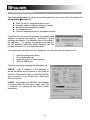
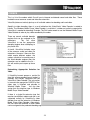
A shortcut macro is the process of assigning multiple
actions to the same key or key combination. The
power of the macro comes from the order they are
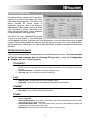
listed. Open the Configuration dialog and select the
Keyboard Shortcuts tab.
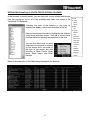
Here is an example of a macro which provides a ‘Mix
Now’ capability.
The actions to be used are auto_crossfade, play,
and select – in this example, all three actions will be
activated consecutively by pressing the Space bar
once.
auto_crossfade – moves the crossfader
play – activates the play of the track
select – changes which deck is now the active deck
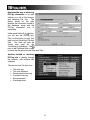
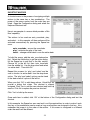
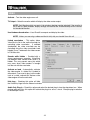
To build the macro, add the auto_crossfade action
first. Select the Add button to get the action dialog.
Hit the Space bar to add that to the Key section.
Choose ‘all’ in the left list, then ‘auto_crossfade’
from the middle list. Use the drop-down and select
‘on active deck’. Then click OK.
Repeat this process for ‘play’ and ‘select’ and be
sure to choose ‘on active deck’ from the drop-down
option. The ‘play’ and ‘select’ options can be found
in the ‘deck controls’ option of the left list.
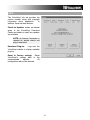
When you click ‘OK’ to add these actions, VirtualVinyl will
provide a dialog that states ‘This shortcut is already
assigned. Click Yes to add the new shortcut and build up
macros. Click No to replace the previous shortcut.’
Click ‘Yes’ to build up the macro.
Once each item is added, click ‘OK’ at the bottom of the Configuration dialog and test the
shortcut.
In this example, the Space bar was used and is not the required key in order to make it work.
Any key or key combination can be used as long as all actions are assigned to that key. Also,
remember the power is in the order of the actions. If this macro is configured in a different
order the results will be different.
36