1
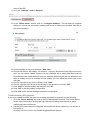
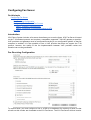
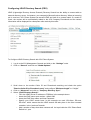
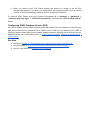
● ● device. For notifications, go to “Settings” > “Notifications” > “3CXPhone 14” and enable “Allow Notifications” . More information can be found here about the iOS Client Installation . The user manual can be found here . Android ● ● ● ● Android 4.X and higher Important: The Google Push service must be configured PRIOR to sending out the configuration emails. For more information see “Configure Push / Google Push” below. More information about the Android Client Installation . The user manual can be found here . MAC OS X ● Mac OS 10.10 and higher. Additional Info: ● The app itself is signed with an Apple developer account and does not require modification of the security level setting for installing an untrusted application. However the installation needs to be done by an administrative user. ● Once installed and provisioned, 3CXPhone gets updated automatically with the service packs of 3CX Phone System. ● More information about the Mac Client Installation . ● The user manual can be found here . Please see the Support Page for a list of Supported Handsets and Devices. Deploying 3CXPhone Step 1: Configure PUSH 3CXPhone uses PUSH technology to wake up the smartphone when a call is received. This does not require the user to keep the phone active and the 3CXPhone client turned on to be able to receive calls – the phone can go to sleep to save battery life. PUSH is also required for reliable operation of the smartphone clients. When extensions are created they are enabled for push notifications by default. You will just need to configure Google Push Servers and open the appropriate ports on your firewall for Google Push and Apple Push to function correctly. Note: Be sure to configure Google Push before sending out the welcome emails for Android users! Google Push To configure Push Servers for your Android devices, from the 3CX Management Console, select “Settings” > “PUSH” , follow these instructions to configure your Google Push servers. Apple Push Apple Push is automatically enabled. The PBX server needs to be able to communicate with Apple APN’s on certain ports. To send and receive push notifications you will need to open the ports described in the Apple push section of the Firewall Configuration guide. Step 2: Install 3CXPhone 3CXPhone is installed via the Apple App Store for iOS devices, Google Play for Android devices, as a DMG file for Mac OS or an MSI file for Windows. The installation links are sent in the user's