1
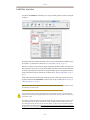
Direct Deposit
3
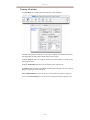
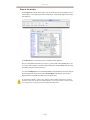
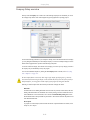
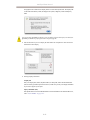
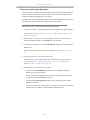
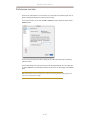
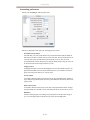
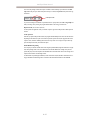
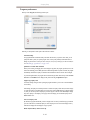
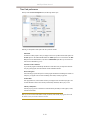
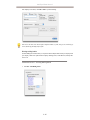
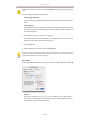
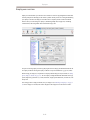
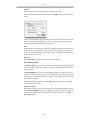
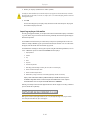
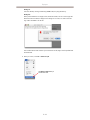
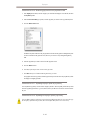
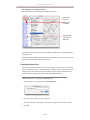
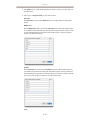
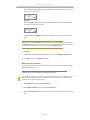
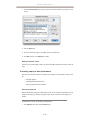
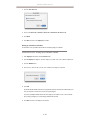
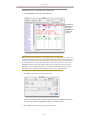
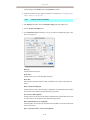
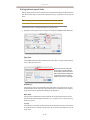
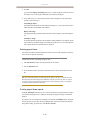
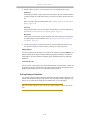
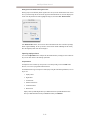
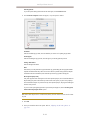
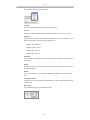
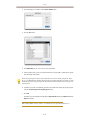
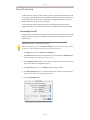
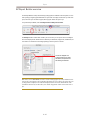
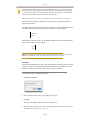
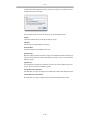
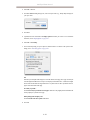
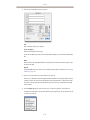
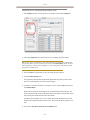
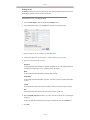
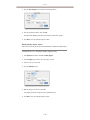
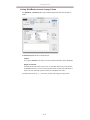
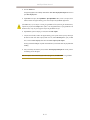
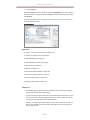
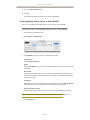
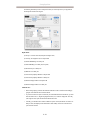
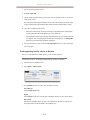
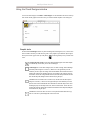
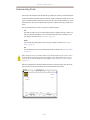
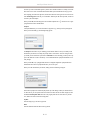
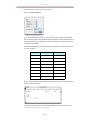
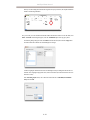
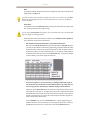
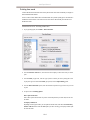
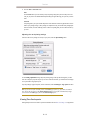
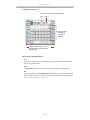
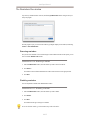
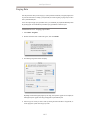
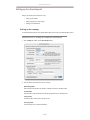
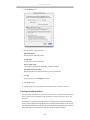
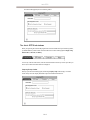
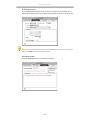
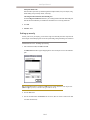
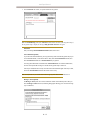
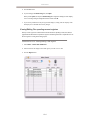
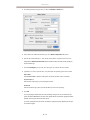
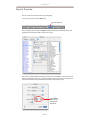
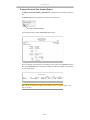
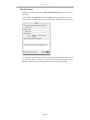
Enter any Supplemental data.
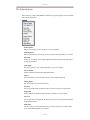
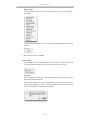
Description
The text you enter here will appear on your employee’s bank statements. You are limited to 10 characters,
so you may want to enter something such as DIRECT PAY.
Discretionary data (Optional)
This optional text field, which is limited to 20 characters, allows Originators and/or Originating Depository
Financial Institutions to include codes (one or more), of significance only to them, to enable specialized
handling of all subsequent entries in the transmission file. There is no standardized interpretation for the
value of the field.
4
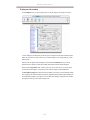
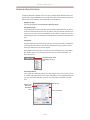
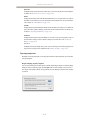
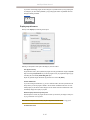
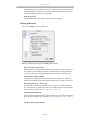
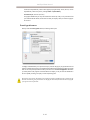
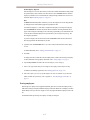
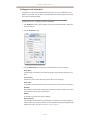
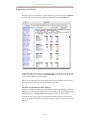
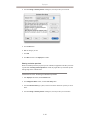
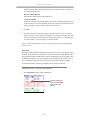
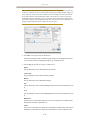
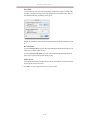
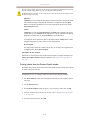
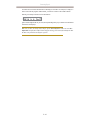
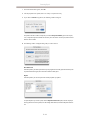
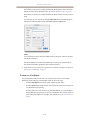
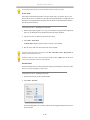
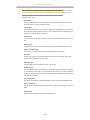
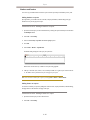
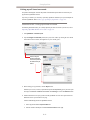
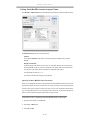
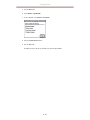
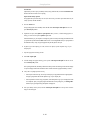
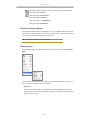
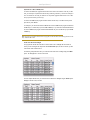
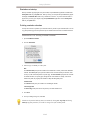
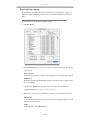
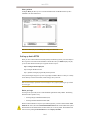
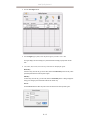
Enter the Automatic Clearing House (ACH) Routing Information.
Immediate Destination/Name
The information you enter here is used to identify the party to which the transmission file is being delivered. In the Destination Routing # field, enter the Routing Number of the party receiving the ACH file. If
you wish, you can enter the name of this party in the Name field (limited to 23 characters).
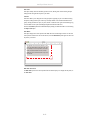
Immediate Origin/Name
The information you enter here is used to identify the sender of the transmission file. In the Origin Routing # field, your bank’s Routing Number. If you wish, you can enter your company name in the Name field
(limited to 23 characters).
5
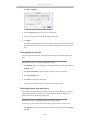
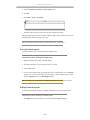
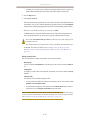
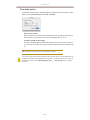
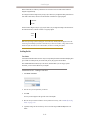
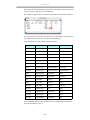
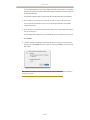
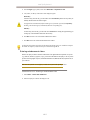
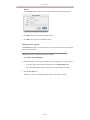
Click OK.
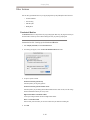
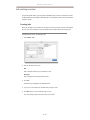
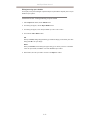
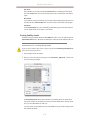
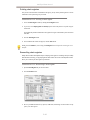
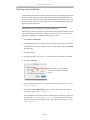
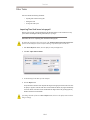
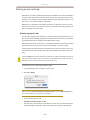
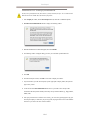
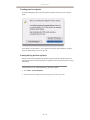
S e ttin g u p employees
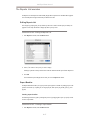
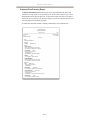
Before you can pay your employees through direct deposit, you must first set them up so the program knows
which employees get paid via direct deposit and those employees who are paid with a regular paycheck.
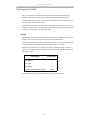
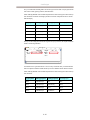
You will need to gather the banking information of those employees who want direct deposit. A convenient way
to get this information is to have your employees provide you with a voided check or deposit slip from their
bank.
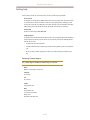
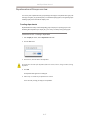
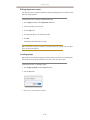
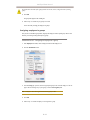
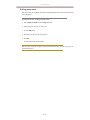
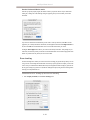
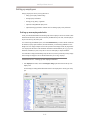
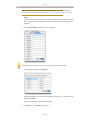
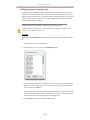
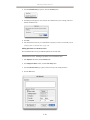
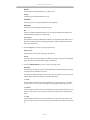
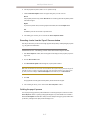
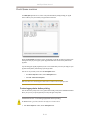
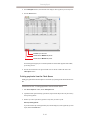
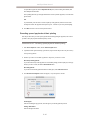
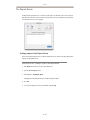
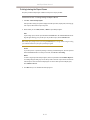
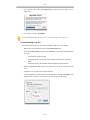
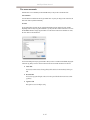
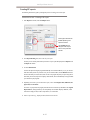
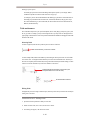
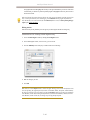
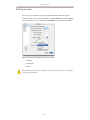
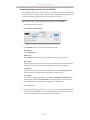
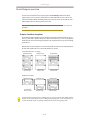
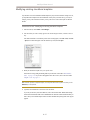
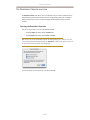
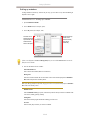
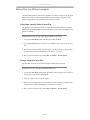
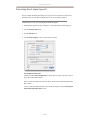
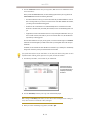
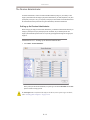
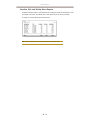
Instruction Set 13–2: Setting up an employee for direct deposit
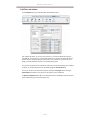
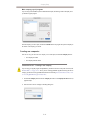
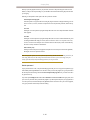
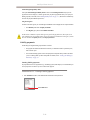
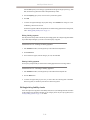
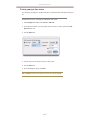
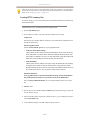
1
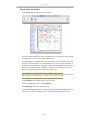
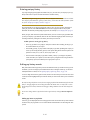
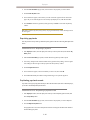
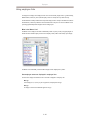
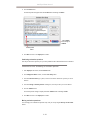
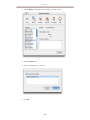
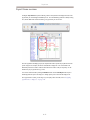
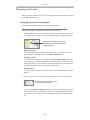
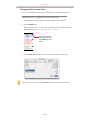
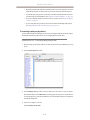
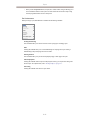
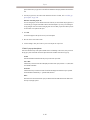
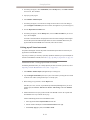
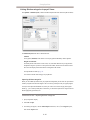
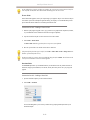
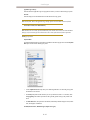
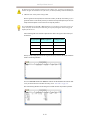
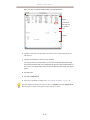
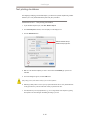
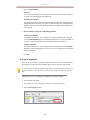
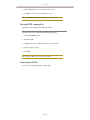
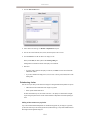
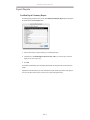
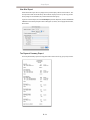
Open the Employees tab window.
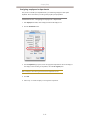
2
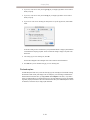
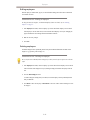
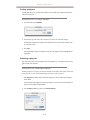
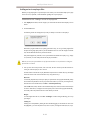
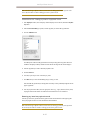
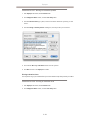
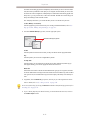
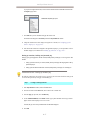
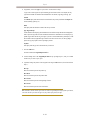
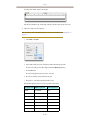
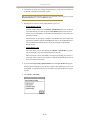
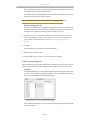
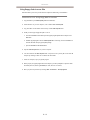
In the Employee List, select an employee who wants to be paid via direct deposit.
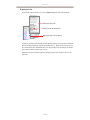
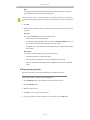
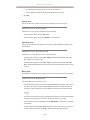
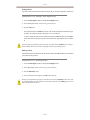
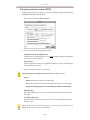
3
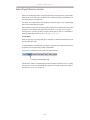
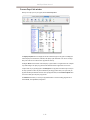
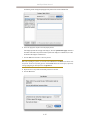
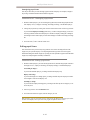
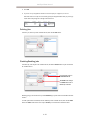
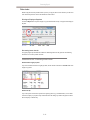
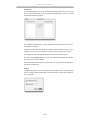
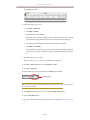
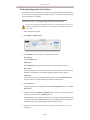
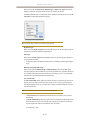
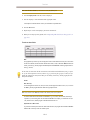
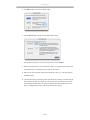
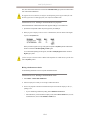
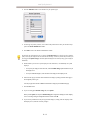
Select the Direct Deposit checkbox.
13 – 4