1
USER MANUAL
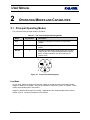
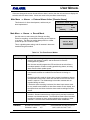
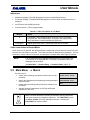
Main Menu → Alarms → Alarm History
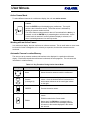
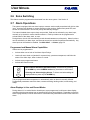
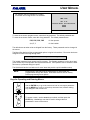
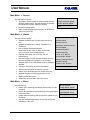
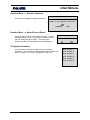
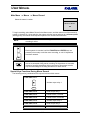
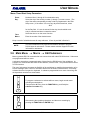
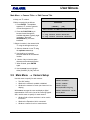
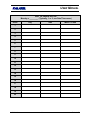
Alarm History Box
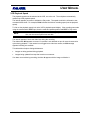
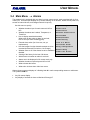
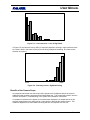
This box lets opens a window listing up to 100 of the
most recent alarm events. (The alarm history is kept in
a cyclic buffer.)
001 – 02/04 18:40:32 16
Each entry includes:
003 – 02/28 10:10:45 08
002 – 02/15 12:00:10 11
•
The event number.
•
:
The event’s date.
•
:
The event’s time (to the second).
•
The camera number.
010 – 03/15 05:12:16 04
[OK]
Use the up/down arrows keys to scroll through the list.
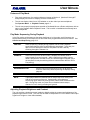
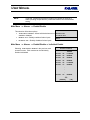
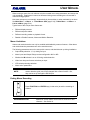
Main Menu → Alarms → Link to a Macro
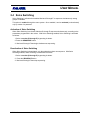
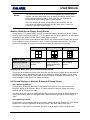
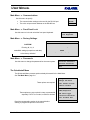
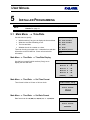
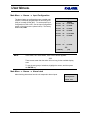
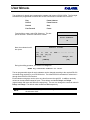
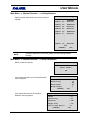
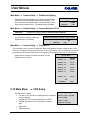
An alarm input (or several inputs) can be linked to any
macro function. This can start a pre-programmed
sequence of keystrokes each time an alarm occurs.
Macro Link List Setup
Alarm
: 01
Macro
:
[CANCEL]
NOTE:
[OK]
The system always completes other normal alarm actions before executing
the macro function.
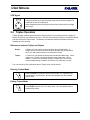
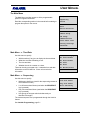
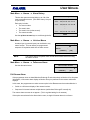
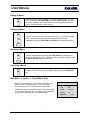
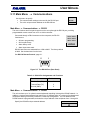
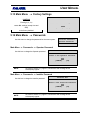
Main Menu → Alarms → Fullscreen Alarm
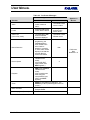
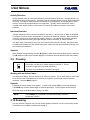
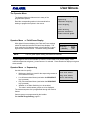
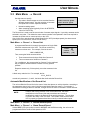
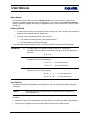
Fullscreen Alarm
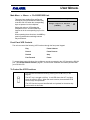
See the discussion below.
Fullscreen (Mon A): NO
[CANCEL]
[OK]
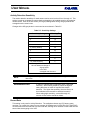
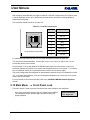
Full-Screen Alarm
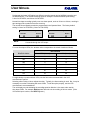
If the programmer does not install Monitors B through E and relies solely on Monitor A for all system
information, a full-screen alarm display on Monitor A may be preferred to the custom multiscreen
displays.
In this case, the programmer can select a menu option in the Alarms menu that makes Monitor A:
•
Switch to a full-screen display of the camera in alarm.
•
Sequence full-screen between multiple alarms (as Monitors B through E normally do).
The custom alarm screens do not appear. (This is a global setting for all cameras).
If the option was selected in the Alarm Action menu, a single full-screen alarm is not frozen.
0150-0112
5-14
Revision B