1
Reading speed
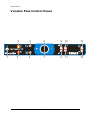
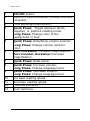
To increase the reading speed, press button 10. The Vocatex Plus will indicate that the reading speed is
becoming faster.
To decrease the reading speed, press button 11. The Vocatex Plus will indicate that the reading speed is
becoming slower.
When you pass the middle of the range of speeds, the Vocatex Plus will say, “Normal.”
Change language or voice
The device will change languages or voices by long pressing button 8 or button 9. The languages are
listed in order from Z to A. When you press button 8, you will move towards letter Z. When you press
button 9, you will move towards letter A.
The voice or language of the text being read aloud will change. The spoken messages
(louder, faster, zoom in,…) of the device will remain in the original voice or language. This cannot be
changed.
Column selector
Press button 5 to hide or turn on the column selector. The column selector is the line in the middle of the
screen. With this line you can select a text block to read. The text block that is positioned underneath the
column selector line will be read aloud.
By long pressing button 5, the color of the column selector will change.
Displaying computer image
Pressing button 2 switches the Vocatex Plus to a connected computer. The image of the Vocatex Plus
disappears and the image of the computer will appear. To use this button, you MUST use an HDMI cable.
If you only have a VGA cable to connect your computer to the Vocatex Plus, then you will need to use the
buttons on the monitor or the remote control to change the input from the Vocatex Plus to the computer, and
vice versa.
Contrast and brightness
Pressing button 3 changes the level of contrast and brightness. The device has 5 levels of contrast and
brightness.
Previous/Next sentence
The device has the ability to navigate between sentences. To move to the previous sentence, press button 12.
To move to the next sentence, press button 13.
Usage tips
Reading aloud – Text blocks
Reading aloud is best done in a reading mode where you easily select the text that needs to be read.
Reading aloud – Recognition
Text recognition is very accurate, but it is impossible to be 100% accurate all of the time. On rare occasions,
the device may make a mistake. By changing the magnification you can adapt the quality of recognition. You
may find that reading is more accurate with a higher magnification.
16